
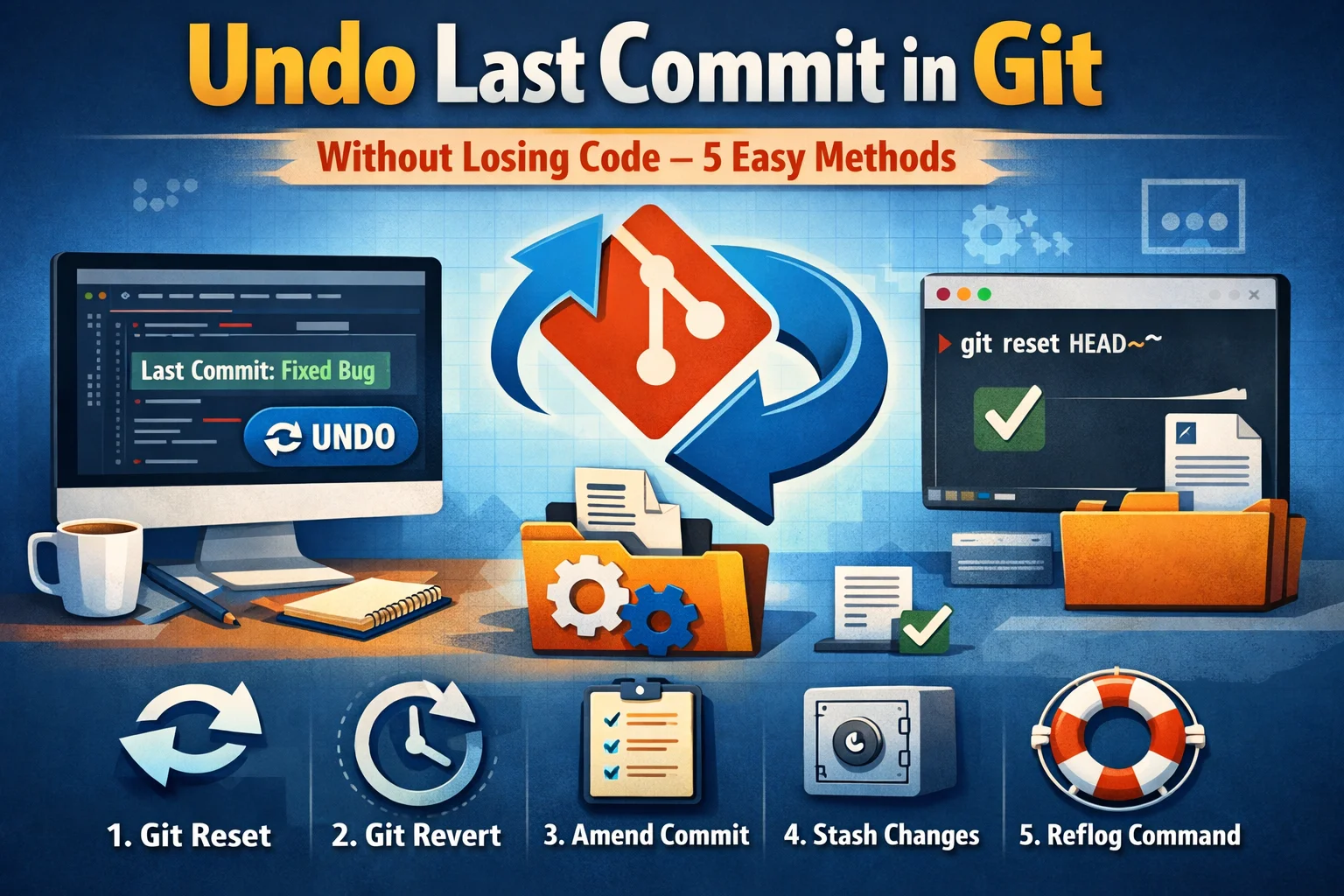
You just made a commit. Then you immediately realized something is wrong.
Maybe you committed to the wrong branch. Maybe you forgot to include a file. Maybe the commit message has a typo that’ll live in the project history forever. Maybe you accidentally staged a file with sensitive credentials. Maybe you just reviewed the changes and realized the code isn’t ready yet.
Whatever the reason, you need to undo that commit — and you need to do it without losing the work you just did.
This is one of the most common Git questions out there, and it generates more anxiety than it deserves. People hesitate because they’re worried about data loss, about corrupting their repository, about making things worse than they already are. That hesitation is understandable — Git’s undo commands sound dangerous. Terms like “reset,” “revert,” and “force push” carry an air of irreversibility.
Here’s the truth: undoing a commit in Git is safe, well-understood, and in most cases completely reversible. Git is designed with recovery in mind. As long as you use the right method for your situation, your code isn’t going anywhere.
This guide covers five proven methods to undo your last commit without losing code. Each method is explained with clear commands, real examples, and the exact scenario where it’s the right choice. By the end, you’ll know not just how to undo a commit, but which method to use in any situation you’ll realistically encounter.
Let’s get into it.
Undo Last Commit in Git Without Losing Code – 5 Easy Methods

Understanding What “Undo a Commit” Actually Means
Before diving into the methods, it’s worth spending a moment on what you’re actually asking Git to do — because “undo” can mean several different things, and the right command depends on which meaning applies to your situation.
When you make a commit, Git records three things: a snapshot of your staged files, a pointer to the previous commit (the parent), and metadata like your name, email, and commit message. The commit becomes part of your repository’s history, and your branch pointer moves forward to point at it.
Undoing that commit can mean any of the following:
Keep the changes but remove them from the commit — The code stays in your working directory or staging area, but the commit is gone from history. This is what most people mean when they say “undo a commit.” The work isn’t lost; it’s just uncommitted again.
Undo the commit and create a new commit that reverses it — The original commit stays in history, but a new commit is added that undoes its changes. This is the safe approach for shared branches.
Move the branch pointer back but keep the files — Similar to the first option but with more control over whether changes end up staged or unstaged.
Completely discard the commit and its changes — The commit is gone and the code changes are gone too. This is the one scenario where data loss is possible, and it’s not what this guide is about.
This guide focuses entirely on the first three meanings — methods that undo a commit while keeping your code. Method 5 touches on the destructive option only to show you what to avoid and when it might legitimately apply.
The Golden Rule: Have You Pushed Yet?

The single most important question to answer before choosing a method is this: have you already pushed the commit to a shared remote repository?
This matters enormously because of how Git works. A local commit that hasn’t been pushed exists only on your machine. You can rewrite, move, or delete it freely — nobody else has seen it, and there’s nothing to reconcile with. You have complete freedom.
A pushed commit has been shared. Other team members may have pulled it. Their local histories now include that commit as a base for their own work. If you rewrite or delete the commit from the remote, you create a divergence between their history and yours — and the next time they try to push, they’ll hit conflicts that can be messy to resolve.
The safe rule of thumb:
For commits that haven’t been pushed — use git reset. It’s fast, clean, and leaves no trace in history.
For commits that have been pushed to a shared branch — use git revert. It undoes the changes with a new commit, leaving history intact and avoiding conflicts for other team members.
Keep this distinction in mind as you read through the five methods. Each method notes clearly whether it’s safe for pushed commits.
Method 1 — git reset –soft (The Gentlest Undo)
This is the method you want in the vast majority of cases. It undoes the commit while keeping all your changes staged and ready. Nothing is lost. The files are exactly as they were right before you committed — they’re just back in the staging area waiting for you to either fix something or recommit.
When to Use It
Use git reset –soft when:
You committed too early and want to add more files or changes before committing again.
You want to change the commit message.
You accidentally committed to the wrong branch and need to move the changes to a different one.
You want to combine this commit with the previous one.
You’ve pushed nothing yet and want a clean undo.
The Command
git reset --soft HEAD~1That’s the entire command. Let’s break it down:
git reset — tells Git to move the current branch pointer.
–soft — tells Git to keep all changes in the staging area (index).
HEAD~1 — means “one commit before the current HEAD.” HEAD is always your most recent commit, and ~1 means go back one step.
What Happens After You Run It
Your commit disappears from history. The changes from that commit are still fully staged — git status will show them as “Changes to be committed.” You can modify files, add more files, or just recommit with a corrected message.
To recommit with a new message:
git commit -m "Better commit message"To add more files before recommitting:
git add forgotten-file.js
git commit -m "Complete feature with all files"
To move the changes to a different branch:
git stash
git checkout correct-branch
git stash pop
git commit -m "This commit belongs here"
Full Example
$ git log --oneline
a1b2c3d (HEAD -> main) Added user authentication
e4f5g6h Added login form
7i8j9k0 Initial commit

$ git reset --soft HEAD~1

$ git log --oneline
e4f5g6h (HEAD -> main) Added login form
7i8j9k0 Initial commit

$ git status
On branch main
Changes to be committed:
(use "git restore --staged …" to unstage)
modified: auth.js
new file: auth-middleware.js
[The commit is gone but the changes are fully staged and ready to recommit]
Is It Safe for Pushed Commits?
No. If the commit you’re resetting has already been pushed, git reset –soft will put your local branch behind the remote. If you then push, Git will reject it because your history diverged. You’d need to force push (git push –force), which rewrites the remote history — dangerous on shared branches. Use Method 5 (git revert) for pushed commits on shared branches.
If you’re working on your own personal branch and you’ve pushed it, force push is acceptable as long as no one else has pulled from that branch:
git push –force origin your-branch-name
Method 2 — git reset –mixed (Unstage but Keep the Files)
This is the default behavior of git reset when you don’t specify a flag. Like –soft, it removes the commit and keeps your code. The difference is where the changes end up: with –soft they stay staged, with –mixed they go back to your working directory as unstaged changes.
When to Use It
Use git reset –mixed when:
You want to undo the commit and also unstage the changes so you can carefully review and re-add only what belongs.
You committed a mix of related and unrelated changes and want to split them into separate commits.
You want to discard some of the staged files entirely while keeping others.
You want a clean working directory review before deciding how to restructure the commits.
The Command
git reset HEAD~1or explicitly:
git reset --mixed HEAD~1Both are identical. Since –mixed is the default, most developers just write git reset HEAD~1.
What Happens After You Run It
The commit is removed from history. Your changes are still in the working directory as modified or new files, but they’re no longer staged. git status shows them as “Changes not staged for commit” or “Untracked files.”
You now have full control to decide what to stage and commit:
Stage only the files you want:
git add specific-file.js
git commit -m "Focused commit with only relevant changes"
Or stage everything again:
git add .
git commit -m "Recommitted with a better message"
Or discard specific files you don’t want at all (be careful here — this is the step where you can lose work if you discard the wrong file):
git checkout -- file-to-discard.jsFull Example
$ git log --oneline
a1b2c3d (HEAD -> main) Mixed commit with too many changes
e4f5g6h Previous clean commit

$ git reset HEAD~1

$ git status
On branch main
Changes not staged for commit:
(use "git add …" to update what will be committed)
(use "git restore …" to discard changes in working directory)
modified: feature-a.js
modified: feature-b.js
modified: unrelated-fix.js
[All three files are back in working directory — now you can commit them separately]
$ git add feature-a.js feature-b.js
$ git commit -m "Implement feature A and B"

$ git add unrelated-fix.js
$ git commit -m "Fix unrelated bug in utility function"
The Difference Between –soft and –mixed at a Glance
–soft: Commit gone. Changes staged. Run git commit immediately.
–mixed: Commit gone. Changes unstaged. Run git add then git commit.
Both keep your code. The choice is about whether you want a staging area that’s pre-populated (soft) or empty (mixed).
Is It Safe for Pushed Commits?
Same as –soft — not safe for shared branches. For unpushed commits or personal branches, it’s fine.
Method 3 — git revert (The Safe Choice for Pushed Commits)
This method is fundamentally different from git reset. Instead of removing the commit from history, git revert creates a brand new commit that undoes the changes introduced by the target commit. Your original commit stays in history. A new “revert” commit is added after it.
This is the only recommended approach when the commit has already been pushed to a shared branch that other team members are using.
When to Use It
Use git revert when:
The commit has already been pushed to a shared remote branch (main, develop, or any branch others are working from).
You’re working in a team and need to undo a change without rewriting shared history.
You want to undo a commit that’s not the most recent one (multiple commits back in history).
You need a clear audit trail showing that a change was made and then explicitly undone.
You’re working in a regulated or compliance-tracked environment where history must be preserved.
The Command
git revert HEADHEAD refers to your most recent commit. This command undoes the last commit by creating a new commit.
If you want to revert a specific commit that isn’t the most recent:
git revert COMMIT-HASHYou can get the commit hash from git log:
git log --onelineWhat Happens After You Run It
Git opens your default text editor with a pre-filled commit message like “Revert ‘Your original commit message’.” Save and close the editor to complete the revert commit. Alternatively, use the –no-edit flag to skip the editor and use the default message:
git revert HEAD --no-editYour working directory now reflects the state before the original commit. The original commit is still in history, and a new revert commit sits on top of it. git log will show both.
Full Example
$ git log --oneline
a1b2c3d (HEAD -> main) Added broken feature
e4f5g6h Working state
7i8j9k0 Initial commit

$ git revert HEAD --no-edit
[main b2c3d4e] Revert "Added broken feature"
1 file changed, 5 deletions(-)

$ git log --oneline
b2c3d4e (HEAD -> main) Revert "Added broken feature"
a1b2c3d Added broken feature
e4f5g6h Working state
7i8j9k0 Initial commit
[Original commit preserved in history. New revert commit on top. Code is back to working state.]
$ git push origin main
[Push works cleanly — no force push needed, history wasn't rewritten]
Handling Conflicts During a Revert
If the commit you’re reverting touched files that have been modified by subsequent commits, Git might not be able to automatically create the revert. It’ll show a conflict:
error: could not revert a1b2c3d… Added broken feature
hint: After resolving the conflicts, mark them with
hint: "git add ", then run "git revert --continue".
Open the conflicted files, resolve the conflicts (look for the conflict markers <<<<<<, ======, >>>>>>), stage the resolved files, and continue:
git add conflicted-file.js
git revert --continue
Or abort if you change your mind:
git revert --abortIs It Safe for Pushed Commits?
Yes. This is the only method in this guide that is explicitly safe for pushed commits on shared branches. It never rewrites history — it only adds to it. Team members who pull will simply receive the revert commit as a normal new commit. No force pushes, no conflicts, no disruption.
Method 4 — git commit –amend (Fix the Last Commit Directly)
This method doesn’t undo the commit so much as replace it. git commit –amend rewrites the most recent commit, letting you change the commit message, add forgotten files, remove files, or make any other adjustments. The result is a new commit that replaces the old one.
Think of it as “redo the last commit correctly” rather than “undo the last commit and start over.”
When to Use It
Use git commit –amend when:
You made a typo in the commit message and want to fix it.
You forgot to include a file in the commit.
You staged the wrong version of a file and want to fix it before the commit is finalized.
You committed with the wrong author email or name and want to correct it.
The commit is your most recent one and hasn’t been pushed yet.
Command — Fix the Commit Message Only
If you just need to fix the message:
git commit --amend -m "Corrected commit message"This replaces the most recent commit with an identical one except for the new message. Your staged files, working directory, and all other details remain the same.
Command — Add a Forgotten File
Stage the file you forgot, then amend:
git add forgotten-file.js
git commit --amend --no-edit
The –no-edit flag keeps the existing commit message unchanged. The amended commit now includes the forgotten file.
Command — Remove a File You Accidentally Staged
Unstage the file you don’t want, then amend:
git restore --staged accidental-file.js
git commit --amend --no-edit
The amended commit won’t include the file you removed from staging.
Command — Fix the Author Information
git commit –amend –author=”Correct Name correct@email.com” –no-edit
Full Example — Adding a Forgotten File
$ git log --oneline
a1b2c3d (HEAD -> main) Implement user login

$ git status
nothing to commit, working tree clean
[Realized README.md should have been included in that commit]
$ git add README.md

$ git commit --amend --no-edit
[main a2b3c4d] Implement user login
Date: Sat Mar 28 2026
2 files changed, 47 insertions(+)
create mode 100644 README.md

$ git log --oneline
a2b3c4d (HEAD -> main) Implement user login
[New commit hash (a2b3c4d instead of a1b2c3d) — the old commit was replaced]
Full Example — Fixing a Commit Message
$ git log --oneline
a1b2c3d (HEAD -> main) Implment user login

$ git commit --amend -m "Implement user login"
[main a2b3c4d] Implement user login

$ git log --oneline
a2b3c4d (HEAD -> main) Implement user login

[Typo fixed. Old commit replaced with new one.]
Important: The Commit Hash Changes
Every time you use –amend, Git creates a new commit with a new hash. The old commit is replaced. This is why –amend is not safe for pushed commits on shared branches — you’re rewriting history, and other team members who have the original commit will have a diverged history.
For unpushed commits or personal feature branches you haven’t shared, this is completely fine. For shared branches, use revert instead.
Is It Safe for Pushed Commits?
Not for shared branches. If you’ve pushed the commit and need to amend it, you’d need to force push after amending — which is only acceptable on branches only you are using. For shared branches where others may have pulled the commit, use git revert instead.
Method 5 — git reset –hard (Use With Extreme Caution)
This is the only method in this guide that can cause genuine data loss. It’s included here for completeness and because there are legitimate scenarios where it’s exactly the right tool — but it deserves its own explicit warning before anything else.
git reset –hard removes the commit from history AND discards all the changes from that commit in your working directory and staging area. Once run, those changes are gone. There’s no undo. The code that was in the commit no longer exists in your working tree.
This guide is about undoing commits without losing code — so this method is the exception, not the rule. It belongs in this list only because some readers will have made a commit they genuinely want to discard entirely (credentials that should never have been committed, generated files that shouldn’t be tracked, etc.).
When It Might Be Appropriate
You committed something that absolutely should not exist — like API keys, passwords, or private keys — and you want to completely erase any trace of it locally before addressing the remote.
You made an experimental commit you’re certain you don’t want under any circumstances.
You’re the only person working on the branch and you want to roll back to a known clean state.
Even in these cases, if you’ve already pushed the commit, a git reset –hard followed by a force push is not sufficient to truly remove sensitive data from GitHub. GitHub caches commit content and the data may still be accessible through the API or browser history. For leaked credentials, the correct response is to immediately rotate the credentials (invalidate the API key, change the password) regardless of what you do in Git.
The Command
git reset --hard HEAD~1This moves your branch pointer back one commit and discards all changes from the removed commit. Your working directory and staging area are reset to match the state of the commit you landed on.
What Happens After You Run It
The commit is gone from history. The files modified in that commit are reset to their state in the previous commit. Any new files that were added in the removed commit are deleted from your working directory. There is no git status output showing staged or unstaged changes related to the removed commit — they’re simply gone.
The Safety Net — git reflog
Here’s something important to know: even after git reset –hard, your commits aren’t immediately and permanently deleted. Git keeps a reflog — a log of where HEAD has been — for 30 to 90 days (depending on configuration). If you ran git reset –hard by mistake, you may be able to recover:
git reflog
This shows a list of recent HEAD positions with their hashes:
a1b2c3d HEAD@{0}: reset: moving to HEAD~1
e4f5g6h HEAD@{1}: commit: The commit you reset away
…
To recover the lost commit:
git reset –hard e4f5g6h
Replace e4f5g6h with the hash of the commit you want to recover, as shown in the reflog. This resets your branch back to that commit, restoring the lost work.
The reflog is local only — it’s not pushed to GitHub. So this recovery only works if you’re still on the same machine. Once the reflog entry expires or if you’ve deleted the local repository, the data is gone.
Full Example
$ git log --oneline
a1b2c3d (HEAD -> main) Accidentally committed API keys
e4f5g6h Clean working state

$ git reset --hard HEAD~1
HEAD is now at e4f5g6h Clean working state

$ git log --oneline
e4f5g6h (HEAD -> main) Clean working state
[Commit and all its changes are gone from working directory]
[Immediate next step: rotate/invalidate any credentials that were committed]
Is It Safe for Pushed Commits?
No. After a hard reset, your local branch is behind the remote. To align them, you’d need a force push:
git push --force origin branch-nameThis rewrites the remote history and will cause serious problems for anyone who has pulled the commit you just erased. It also doesn’t fully remove the content from GitHub’s servers immediately. Never do this on main, develop, or any shared branch without explicit team coordination.
Quick Comparison — Which Method Should You Use?
Here’s a summary to make the decision fast:
Situation: Committed too early, want to recommit — Use: git reset –soft HEAD~1
Situation: Want to uncommit and review changes before restaging — Use: git reset –mixed HEAD~1 (or just git reset HEAD~1)
Situation: Commit was pushed to a shared branch — Use: git revert HEAD
Situation: Need to fix the message or add a file to the last commit — Use: git commit –amend
Situation: Want to completely discard the commit and its changes — Use: git reset –hard HEAD~1 (with caution)
The safe default for most situations: git reset –soft HEAD~1 if the commit hasn’t been pushed, and git revert HEAD if it has.
Real Terminal Example — Complete Diagnostic and Fix Session
Here’s a complete session showing the thought process and commands for three of the most common real-world scenarios.
Scenario 1 — Wrong commit message, not yet pushed
$ git log --oneline
a1b2c3d (HEAD -> feature/login) Fxi login redirect bug

$ git commit --amend -m "Fix login redirect bug"
[feature/login b2c3d4e] Fix login redirect bug

$ git log --oneline
b2c3d4e (HEAD -> feature/login) Fix login redirect bug
[Done in one command]
Scenario 2 — Committed to wrong branch, not yet pushed
$ git branch
main

feature/login
[Should have committed to feature/signup instead]
$ git log --oneline
a1b2c3d (HEAD -> feature/login) Add signup form validation
$ git reset --soft HEAD~1
[Commit undone, changes still staged]
$ git stash
Saved working directory and index state WIP on feature/login: e4f5g6h Previous commit
$ git checkout feature/signup
Switched to branch 'feature/signup'
$ git stash pop
On branch feature/signup
Changes to be committed:
new file: signup-validation.js
$ git commit -m "Add signup form validation"
[feature/signup c3d4e5f] Add signup form validation
[Correctly committed to the right branch]Scenario 3 — Pushed to shared branch and need to undo
$ git log --oneline
a1b2c3d (HEAD -> main, origin/main) Remove rate limiting (temporary)
e4f5g6h Add API endpoints
[Need to undo this — already pushed, team members may have pulled it]
$ git revert HEAD --no-edit
[main b2c3d4e] Revert "Remove rate limiting (temporary)"
1 file changed, 12 insertions(+)

$ git push origin main
Enumerating objects: 5, done.
Counting objects: 100% (5/5), done.
Writing objects: 100% (3/3), 384 bytes | 384.00 KiB/s, done.
To https://github.com/devteam/api-project.git
a1b2c3d..b2c3d4e main -> main
[Clean push — history preserved, changes undone, teammates unaffected]
Prevention Tips — How to Avoid Needing to Undo Commits
The best undo is the one you never need. These habits reduce the situations where you’ll reach for an undo command.
Tip 1 — Review Staged Changes Before Every Commit
Make git diff –staged a habit before running git commit. This shows you exactly what’s about to be committed — the diff of every staged file. Catching the wrong file, a forgotten TODO comment, or debug code before committing is far cleaner than undoing after the fact.
git diff –staged
Tip 2 — Use git add -p for Precise Staging
Instead of git add . (which stages everything), use git add -p to stage changes interactively, hunk by hunk. You review each chunk of changes and decide whether to stage it. This prevents accidentally committing unrelated changes, debug statements, or work-in-progress code.
git add -p
Tip 3 — Write the Commit Message Before the Code
Some developers find it useful to think about what the commit message will be before finishing the code for that commit. If you can’t summarize the change in one clear sentence, the commit might be doing too many things and should be split into smaller, focused commits.
Tip 4 — Commit Small and Often
Smaller, more frequent commits are easier to undo, revert, or rebase. A commit that changes 300 lines across 12 files is painful to undo precisely. A commit that changes one component is easy to revert without side effects. The granularity of your commits directly affects how painful it is to fix mistakes.
Tip 5 — Use Feature Branches for Everything
Work on feature branches rather than directly on main or develop. Branch-level work gives you the freedom to reset, rebase, and rewrite history on your personal branch without affecting anyone else. By the time your work is merged into the shared branch, it’s been reviewed and intentional. Mistakes on feature branches are cheap to fix — mistakes on main require revert commits and team coordination.
Tip 6 — Check git status Before git commit
Always run git status before committing. It shows you which files are staged, which are modified but unstaged, and which are untracked. It takes one second and prevents the “I forgot to add a file” or “I committed a file I didn’t mean to” scenarios that make up a large portion of undo requests.
Tip 7 — Set Up a .gitignore Early
Most accidental commits of build artifacts, node_modules, .env files, and IDE configuration happen because the .gitignore wasn’t set up correctly. Create your .gitignore before your first commit and make sure sensitive files, generated files, and local configuration files are excluded. The GitHub repository github/gitignore has ready-to-use templates for every common language and framework.
FAQ
Q: Will undoing a commit delete my code?
Not if you use the right method. git reset –soft and git reset –mixed both keep your code intact — the difference is whether the changes are staged or unstaged after the undo. git revert keeps your code and adds a new commit that reverses the changes. git commit –amend replaces the commit but keeps everything you staged. The only method that deletes code is git reset –hard, and this guide calls that out explicitly with a strong caution.
Q: What’s the difference between git reset and git revert?
git reset moves the branch pointer backward and changes what your commit history looks like. It rewrites history. git revert creates a new commit that undoes the changes of a previous commit. It adds to history without changing what’s already there. The practical difference: use reset for unpushed commits (you’re the only one affected), use revert for pushed commits (you’re protecting other team members from history rewrites).
Q: Can I undo multiple commits at once?
Yes. Change the number after the tilde to go back further:
git reset --soft HEAD~3This undoes the last three commits while keeping all their changes staged. The same works for –mixed and –hard. For git revert, you’d need to revert each commit individually, or revert a range:
git revert HEAD~3..HEADThis creates three individual revert commits, one for each commit in the range.
Q: I ran git reset and now git push is rejected. What do I do?
After a git reset, your local branch has fewer commits than the remote. Git rejects the push because it would mean losing commits on the remote. If you’re on a personal branch and you’re sure you want to overwrite the remote, force push:
git push --force origin your-branch-nameNever force push to main or any shared branch without coordinating with your team. If you’re on a shared branch, use git revert instead of git reset to avoid this situation.
Q: Is it possible to undo a git revert?
Yes. A revert is just a commit like any other. You can revert the revert:
git revert HEADThis creates a new commit that undoes the revert commit, effectively restoring the original changes. You can also use git reset to remove the revert commit if it hasn’t been pushed yet.
Q: What if I need to undo a commit that’s several commits back, not the most recent one?
For shared branches, use git revert with the specific commit hash:
git log --oneline
[Find the hash of the commit you want to undo]
git revert COMMIT-HASH
For local branches, you can use interactive rebase to remove a specific commit from history:
git rebase -i HEAD~5This opens an editor showing the last 5 commits. Change “pick” to “drop” next to the commit you want to remove. Save and close.
Q: What does HEAD~1 actually mean?
HEAD always refers to your current commit — the tip of your current branch. The tilde (~) means “go back this many commits.” HEAD~1 means “one commit before HEAD,” HEAD~2 means “two commits before HEAD,” and so on. You’ll also see HEAD^ which is equivalent to HEAD~1 — it’s an older syntax for the same thing.
Q: I accidentally ran git reset –hard. Can I recover my work?
Possibly yes, if you act quickly. Git keeps a reflog — a record of where HEAD has been — for 30 to 90 days. Run:
git reflog
Find the hash of the commit you lost (it’ll appear in the list), then:
git reset –hard COMMIT-HASH
This restores your branch to that commit. The reflog is local and doesn’t persist indefinitely, so do this as soon as you realize the mistake.
Q: Does git reset –soft work across branches?
The command itself always operates on the current branch — it moves that branch’s pointer back. To undo a commit on a different branch, you’d need to check it out first:
git checkout other-branch
git reset --soft HEAD~1
If you’re trying to move a commit from one branch to another (rather than just undo it), the clean approach is: reset –soft on the original branch, stash the changes, checkout the target branch, pop the stash, and recommit.
Q: When is it appropriate to use –force push after resetting?
Force push is appropriate when you’re the only person using the branch and you’ve reset commits that have already been pushed. Personal feature branches fall into this category. It’s not appropriate for main, develop, release branches, or any branch that other team members are actively working from. If in doubt, use git revert instead — it achieves the same goal without the history rewrite.
Related Errors and Situations
These are the issues you’re most likely to encounter before, during, or after undoing a commit.
! [rejected] main -> main (non-fast-forward)
Appears when you try to push after a reset. Your local history diverged from the remote. If you’re on a personal branch:
git push --force origin branch-nameIf you’re on a shared branch, don’t force push — use git revert instead and then push normally.
error: Your local changes would be overwritten by merge
Appears when you try to revert or reset while you have uncommitted changes in your working directory. Stash your current changes first:
git stash
[run your reset or revert]
git stash pop
fatal: ambiguous argument ‘HEAD~1’: unknown revision
Appears when you try to reset on a repository that has only one commit. If there’s no parent commit, HEAD~1 doesn’t exist. In this case, to unstage everything without the commit:
git rm --cached -r .
git reset
This removes all files from the staging area on a brand new repository.
CONFLICT (content): Merge conflict in file.js during revert
A file you’re reverting has been modified by subsequent commits. Resolve the conflict manually, then:
git add conflicted-file.js
git revert --continue
detached HEAD state
Appears if you checked out a specific commit hash rather than a branch. If you accidentally landed here while trying to undo:
git checkout mainThis returns you to the main branch. Your commits are still safe.
Changes not staged after reset –soft
If git reset –soft ran but changes aren’t appearing as staged, check whether you’re in the right directory and the right repository:
git status
git log --oneline
Sometimes the confusion is simply that the reset ran successfully but the terminal is in a different directory than expected.
Conclusion
Undoing a commit in Git is a core skill — not an emergency procedure. Every developer does it regularly. The key to doing it confidently is matching the right method to the right situation.
Here’s the decision framework to take away from this guide:
First, ask: has this commit been pushed to a shared branch? If yes, git revert HEAD is your safest and most team-friendly option. It undoes the changes without touching history, pushes cleanly, and doesn’t disrupt anyone else.
If the commit hasn’t been pushed, or you’re on a personal branch:
Use git commit –amend if you just need to fix the message or add a forgotten file. It’s the fastest path to a corrected commit.
Use git reset –soft HEAD~1 if you want to fully undo the commit and keep everything staged, ready to recommit.
Use git reset –mixed HEAD~1 (or just git reset HEAD~1) if you want to undo the commit and review the changes before deciding what to stage.
Avoid git reset –hard unless you genuinely want to discard the code — and even then, remember the reflog is there if you change your mind.
The thing that trips people up most with Git undo operations isn’t the commands themselves — it’s not knowing whether the commit has been pushed and who else might have it. Get that one fact right before choosing a method, and the rest of the decision is straightforward.
Git was designed by people who understood that developers make mistakes. The tooling reflects that. Between reset, revert, amend, stash, and reflog, you have a comprehensive safety net that makes undo operations safe, precise, and — in most cases — completely reversible.
Related Resources
Git Official Documentation — git-reset
Git Official Documentation — git-revert
Git Blogs – A collection of informative git blogs written by me. Please do check this out
About the Author
Kedar Salunkhe
DevOps Engineer | Seven years of fixing things that break at 2am
Kubernetes • OpenShift • AWS • Coffee
I’ve spent almost 7 years keeping production systems running, often when everyone else is asleep. These days I’m working with Kubernetes and OpenShift deployments, automating everything that can be automated, and occasionally remembering to document the things I fix. When I’m not troubleshooting clusters, I’m probably trying out new DevOps tools or explaining to someone why we can’t just “restart everything” as a debugging strategy. You can usually find me where the coffee is strong and the error logs are confusing.
Found this useful? Share it with your team — especially the pushed vs unpushed distinction. That single piece of context is what separates a clean one-command fix from a history rewrite that disrupts everyone.