
Last Updated: January 10 2026
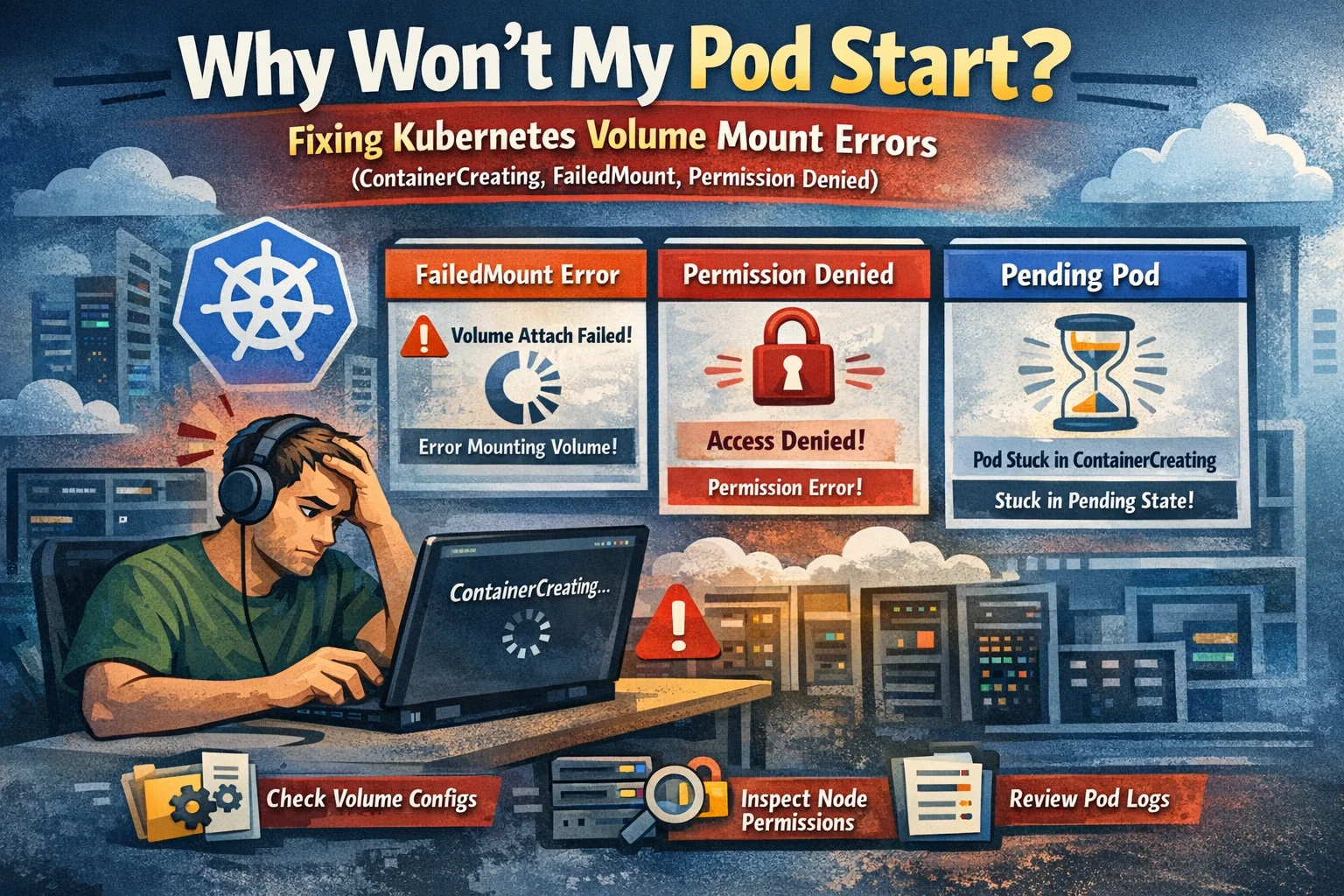
It’s Tuesday morning. You just deployed your app to the production. The deployment shows success, but your pod has been stuck in “ContainerCreating” for more tha 10 minutes. You check the events and see:
Warning FailedMount MountVolume.SetUp failed for volume "data":permission denied
Sound familiar? I’ve been there a lot of times than I care to admit, and I’m guessing that’s why you’re here.
Kubernetes volume mount errors are one of the most common reasons a pod always gets stuck in ContainerCreating state. Errors like the MountVolume.SetUp failed, permission denied, and unable to attach or mount volumes can be a major blocker for deployments even when PVCs are bound and YAML is correct.
Common Kubernetes Volume Mount Errors

- Pod stuck in ContainerCreating
- MountVolume.SetUp failed
- Permission denied while mounting volume
- Unable to attach or mount volumes
- Read-only file system error
- SubPath directory not found
- Multi-Attach volume error
Let me walk you through the 12 of the most common volume mount errors I’ve encountered and how to fix them quickly.
1. Pod Stuck in ContainerCreating State
This is one of the common Kubernetes volume mount errors scenarios where “nothing is happening”. Your pod shows:
$ kubectl get podsNAME READY STATUS RESTARTS AGEmyapp-7d9f8b625-xyz 0/1 ContainerCreating 025m
What’s Actually Happening
The pod is waiting for the volumes to be mounted before it can start the container. Something in the volume mounting process is been stuck.
Quick debugging
# Check whatiswrongkubectl describe pod myapp-7d9f3b6c5-xyz# Look at the Events section
Common messages from the event section:
- “Unable to attach or mount volumes”
- “MountVolume.SetUp failed”
- “timeout expired waiting for volumes to attach”
Common Causes
1. PVC doesn’t exist or isn’t bound
# Check if PVC exists and is boundto podkubectl get pvc# If it shows Pending, that's your problem# Fix the PVC first (Checkmy PV PVC troubleshooting guide)
2. Volume plugin are not available on node
# Check if CSI driver pods are runningkubectl get pods -n kube-system | grep csi# If missing, install the required CSI driver
3. Node doesn’t have access to the torage
# For cloud volumes, check if node has proper IAM role# For NFS, check if node can reach NFS serverkubectl get nodes -o wide
The Fix That Works most of the time
# Delete the stuck pod (deployment will recreate it)kubectl delete pod myapp-7d9fb6c5-xyz# If PVC is the issue, check its statuskubectl describe pvc my-pvc# Make surethevolume is actually availablekubectl get pv
2. MountVolume.SetUp Failed
This error appears when the Kubernetes cannot prepare the volume for mounting.
What You’ll See
Warning FailedMount MountVolume.SetUp failed for volume "config-volume":configmap "app-config" not found
or
Warning FailedMount MountVolume.SetUp failed for volume "secret-volume":secret "app-secret" not found
The Issue
The volume is referencing something (ConfigMap, Secret, PVC) that does not exist or is in the wrong namespace.
How I Fix This
For ConfigMaps:
# Check if ConfigMap existsor notkubectl get configmap app-config# If not found, create itkubectl create configmap app-config --from-file=config.yaml# Make sure it's in the same namespace as your podkubectl get configmap app-config -n your-namespace
For Secrets:
# Check if Secret existskubectl get secret app-secret# Create if missingkubectl create secret generic app-secret --from-literal=key=value
For PVCs:
# Verify PVC exists and is boundkubectl get pvc my-data# If Pending, fix the PVC issue first
3. Unable to Attach or Mount Volumes
This is usually a cloud provider issue or CSI driver issue.
Error Message
Warning FailedAttachVolume AttachVolume.Attach failed for volume"pvc-x2z": rpc error: code = Unknown
Common Scenarios
Scenario 1: Volume in different availability zone
This killed me during a deployment once. My node was in us-east-2a, but the EBS volume was in us-east-2b.
# Check volume zonekubectl get pv pvc-xyz -o yaml | grep zone# Check node zonekubectl get node node-name -o yaml | grep zone
Fix:
- Use WaitForFirstConsumer in StorageClassvolumeBindingMode: WaitForFirstConsumer- Or constrain pod to same zone as volumenodeSelector:topology.kubernetes.io/zone: us-east-2a
Scenario 2: Volume already attached to the nother node
This happens with ReadWriteOnce volumes when a pod moves to different node.
# Check volume attachmentskubectl get volumeattachment | grep pvc-x1z# Force detach ifit’s stuckkubectl delete volumeattachment <attachment-name>
Scenario 3: Node reached max volume limit
AWS nodes have limits on EBS volumes (typically 39 per node).
# Check how many volumes are attached to nodekubectl get volumeattachment | grep node-name | wc -l# If at limit, scale to different node or remove unused volumes
4. Timeout Expired Waiting for Volumes
Pod events show:
Warning FailedMount Unable to attach or mount volumes:timeout expired waiting for volumes to attach or mount
Why This Happens
The attach operation is taking too long – usually because the storage backend is slow or having issues.
My Debugging Process
Step 1: Check CSI driver logs
# For AWS EBSkubectl logs -n kube-system -l app=ebs-csi-controller --tail=30# Look for errors about API rate limits, permissions, or timeouts
Step 2: Check the cloud provider API limits
# For AWS, check CloudWatch for throttling# Volume attach operations might be rate limited
Step 3: Check if the storage backend is healthy
# For NFSkubectl exec -it debug-pod -- ping nfs-servers-ip# For cloud storage, check providersdashboard
Quick Fix
# Delete pod to retrykubectl delete pod stuck-pod-name# Check if node can access storagekubectl describe node node-name | grep -A 20 "Allocated resources"# Scale deployment to force pod to different nodekubectl scale deployment myapp --replicas=0kubectl scale deployment myapp --replicas=1
5. Mount Failed: Permission Denied
This one frustrated me for hours when I first encountered it on the production cluster.
Error Message
Warning FailedMount MountVolume.SetUp failed:mount failed: exit status 32Mounting command: mountMounting arguments: -t nfs server:/path /var/lib/kubelet/pods/.../volumes/Output: mount.nfs: access denied by server
The Problem
Your pod does not have the right permissions to access the volume. Usually a UID/GID mismatch or filesystem permissions issue.
Real Solutions
1: Fix the securityContext
apiVersion: v1kind: Podmetadata:name: myappspec:securityContext:fsGroup: 1000 # Set this to your app's GIDrunAsUser: 1000 # Set this to your app's UIDcontainers:- name: appimage: myapp:latestvolumeMounts:- name: datamountPath: /data
2: For NFS volumes
volumes:- name: nfs-volumenfs:server: nfs-server.example.compath: /exported/pathreadOnly: false
Then check NFS server exports:
# On NFS servercat /etc/exports# Should have something like:/exported/path *(rw,sync,no_subtree_check,no_root_squash)
3: For PVCs, check PV access mode
kubectl get pv -o custom-columns=NAME:.metadata.name,MODE:.spec.accessModes# Make sure it's not ReadOnly when you need ReadWrite
Kubernetes Volume Permission Debugging Checklist
# 1. Check what user the container runs askubectl exec -it pod-name -- id# 2. Check volume permissionskubectl exec -it pod-name -- ls -la /data# 3. Check if fsGroup is setkubectl get pod pod-name -o yaml | grep -A 5 securityContext
6. Mount Failed: No Such File or Directory
Error Message
MountVolume.SetUp failed: mount failed: exit status 32Output: mount: /var/lib/kubelet/pods/.../volumes/...:special device /dev/xvdf does not exist
or
Error: failed to create subPath directory:mkdir /var/lib/kubelet/pods/.../volumes/app-data/logs:no such file or directory
What’s Wrong
Either the device doesn’t exist, the path is wrong, or you’re trying to create a subPath in a non-existent directory.
Common Causes & Fixes
Cause 1: Device is not attached yet
Wait a bit – volume might still be attached:
# Check if volume is attachedkubectl get volumeattachment# Give it3-4minutes, then checkthepod again
Cause 2: Wrong subPath in the volumeMount
# This will fail ifthe'logs' directory doesn't exist in the volumevolumeMounts:- name: datamountPath: /app/logssubPath: logs # Directory must already exist!
Fix: Create the directory first or don’t use the subPath:
# Option 1: RemovethesubPathvolumeMounts:- name: datamountPath: /app/logs# Option 2: Use init container to create directoryinitContainers:- name: create-dirsimage: busyboxcommand: ['sh', '-c', 'mkdir -p /data/logs']volumeMounts:- name: datamountPath: /data
Cause 3: HostPath pointing to the non-existent directory
volumes:- name: host-datahostPath:path: /data/app # This directory must exist on node!type: Directory
Check on the node:
kubectl debug node/node-name -it --image=busyboxls -la /data/app
7. Mount Failed: Read-Only File System
Error You’ll See
Warning FailedMount MountVolume.SetUp failed:mount failed: exit status 1Output: mount: /var/...: cannot mount read-only
or your app logs show:
Error: cannot write to /data: read-only file systemThe Problem
The volume is mounted as read-only, but your app needs write access.
How to Fix
Check 1: PV access mode
kubectl get pv -o yaml | grep -A 3 accessModes# If it shows ReadOnlyMany, you cannotwrite to it
Check 2: volumeMount has readOnly setting
# Make sure this isn't set to truevolumeMounts:- name: datamountPath: /datareadOnly: false # Should be false or omitted
Check 3: PVC has ccess mode
# PVC should request ReadWriteOnce or ReadWriteManyapiVersion: v1kind: PersistentVolumeClaimmetadata:name: app-dataspec:accessModes:- ReadWriteOnce # Not ReadOnlyMany!
Check 4: Filesystem itself might be entirely corrupted
# Exec into podkubectl exec -it pod-name -- sh# Try to create a filetouch /data/test.txt# If it fails with read-only error, filesystem might be remounted ro# This happens when there are disk errors
Fix for corrupt filesystem:
# Delete pod to unmount volumekubectl delete pod pod-name# Checktheolume health in cloud provider console# May need to createthesnapshot and restore to new volume
8. Volume Already Mounted
Error Message
Multi-Attach error for volume "pvc-x2z":Volume is already exclusively attached to oneof thenode and can't be attached to another
Why This Happens
You’re using a ReadWriteOnce (RWO) volume, and it’s already attached to a different node. Common when:
- Pod is being rescheduled
- Deployment has multiple replicas
- Previous pod is stuck terminating
The Fix
Option 1: Wait for the older pod to fully terminate
# Check iftheold pod is still terminatingkubectl get pods | grep Terminating# If stuck,thenforce delete itkubectl delete pod old-pod-name --force --grace-period=0# New pod should mount volume successfully now
Option 2: Use ReadWriteMany if you need the multi-pod access
# ChangethePVC to use RWX-capable storage (like EFS, NFS)apiVersion: v1kind: PersistentVolumeClaimmetadata:name: shared-dataspec:accessModes:- ReadWriteMany # Allows multiple podsstorageClassName: efs-scs# Must support RWX
Option 3: Don’t scale the deployments with RWO volumes
# For StatefulSets with RWO volumesapiVersion: apps/v1kind: StatefulSet # Use this instead of Deploymentmetadata:name: appspec:replicas: 1 # Each pod gets its own volumevolumeClaimTemplates:- metadata:name: dataspec:accessModes: [ "ReadWriteOnce" ]
9. Volume Not Found
Error Message
Warning FailedMount Unable to attach or mount volumes:volume "data-volume" not found
The Problem
The volume definition in your pod spec doesn’t exist or is misnamed.
Quick Fix
Check your pod YAML:
spec:containers:- name: appvolumeMounts:- name: data-volume # Must match volume name below!mountPath: /datavolumes:- name: data-volume # Names mustbematch exactly!persistentVolumeClaim:claimName: my-pvc
Common Mistakes
Typo in the olume name:
volumeMounts:- name: data-volume # Uppercase Vvolumes:- name: data-volume # Lowercase v - won't match!
Missing volume definition:
# You have volumeMount but no volume!volumeMounts:- name: configmountPath: /config# No volumes: section at all - will fail
Wrong indentation:
# This is wrongcontainers:- name: appvolumes: # Indented too far!- name: datapersistentVolumeClaim:claimName: pvc# Should be:containers:- name: appvolumes: # At spec level- name: data
10. Failed to Create the SubPath Directory
Error Message
Error: failed to create subPath directory for volumeMount "data" of container "app":mkdir /var/lib/kubelet/pods/.../data/logs: no such file or directory
What’s Happening
You’re using subPath in your volumeMount, but subdirectory doesn’t exist in the volume.
The Problem
volumeMounts:- name: datamountPath: /app/logssubPath: logs # 'logs' directory doesn't exist in the volume!
Solution 1: Create the Directory First
apiVersion: v1kind: Podmetadata:name: myappspec:initContainers:- name: init-dirsimage: busyboxcommand: ['sh', '-c', 'mkdir -p /data/logs /data/config /data/cache']volumeMounts:- name: datamountPath: /datacontainers:- name: appimage: myapp:latestvolumeMounts:- name: datamountPath: /app/logssubPath: logs # Now it exists!volumes:- name: datapersistentVolumeClaim:claimName: app-data
Solution 2: Don’t Use the SubPath
# Instead of mounting subdirectories separatelyvolumeMounts:- name: datamountPath: /app/logssubPath: logs- name: datamountPath: /app/configsubPath: config# Just mount the whole volumevolumeMounts:- name: datamountPath: /app/data# Then use /app/data/logs, /app/data/config in your app
Solution 3: Use the subPathExpr for Dynamic Paths
volumeMounts:- name: datamountPath: /app/logssubPathExpr: $(POD_NAME)/logsenv:- name: POD_NAMEvalueFrom:fieldRef:fieldPath: metadata.name
Quick Troubleshooting Checklist

When you hit a volume mount error:
# 1. Check pod events (this solves 80% of issues)kubectl describe pod <pod-name> | grep -A 10 Events# 2. Check if PVC is boundkubectl get pvc# 3. Check if volume existskubectl get pv# 4. Check CSI driver statuskubectl get pods -n kube-system | grep csi# 5. Check volume attachmentskubectl get volumeattachment# 6. Check pod security contextkubectl get pod <pod-name> -o yaml | grep -A 10 securityContext# 7. Try deleting and recreating podkubectl delete pod <pod-name>
When All Else Fails
If you’ve tried everything:
- Check node disk space
kubectl describe node <node-name> | grep -i disks
- Check kubelet logs on the node
kubectl debug node/<node-name> -it --image=ubuntusjournalctl -u kubelet -n 100
- Restart the kubelet (careful in the production!)
systemctl restart kubelet- Create a minimal test pod
apiVersion: v1kind: Podmetadata:name: mount-testspec:containers:- name: testimage: busyboxescommand: ['sleep', '3500']volumeMounts:- name: test-volmountPath: /datasvolumes:- name: test-volsemptyDir: {} # Start simple
Final Thoughts
Volume mount errors look scary, but they usually boil down to:
- Permissions related to the wrong UID/GID/fsGroup
- Timing related to volume not ready yet
- Configuration related to typos, wrong paths, missing directories
- Infrastructure related to CSI driver issues, zone mismatches
The key is reading the error message carefully. Kubernetes usually tells you exactly what’s wrong – you just need to know where to look.
Start with kubectl describe pod, check the Events section, and work from there. Most issues resolve in 5 minutes once you find the actual error message.
And remember – if your pod has been “ContainerCreating” for more than 5-6 minutes, something is definitely wrong. Don’t wait around hoping it’ll fix itself.
Additional References
Quick Commands References
Kubernetes Storge Commands References# Essential debugging commandskubectl describe pod <pod-name>kubectl get pvckubectl get pvkubectl get volumeattachmentkubectl logs -n kube-system -l app=ebs-csi-controllerkubectl get events --sort-by='.lastTimestamp'# Force fixeskubectl delete pod <pod-name> --force --grace-period=0kubectl delete volumeattachment <attachment-name># Check permissionskubectl exec -it <pod-name> -- idkubectl exec -it <pod-name> -- ls -la /mount/path
Have a volume mount error that’s not covered here? Please Drop it in the comments and let’s figure it out together what is missing.
You can also check my recent blogposts from the Blog Feed of my website.