
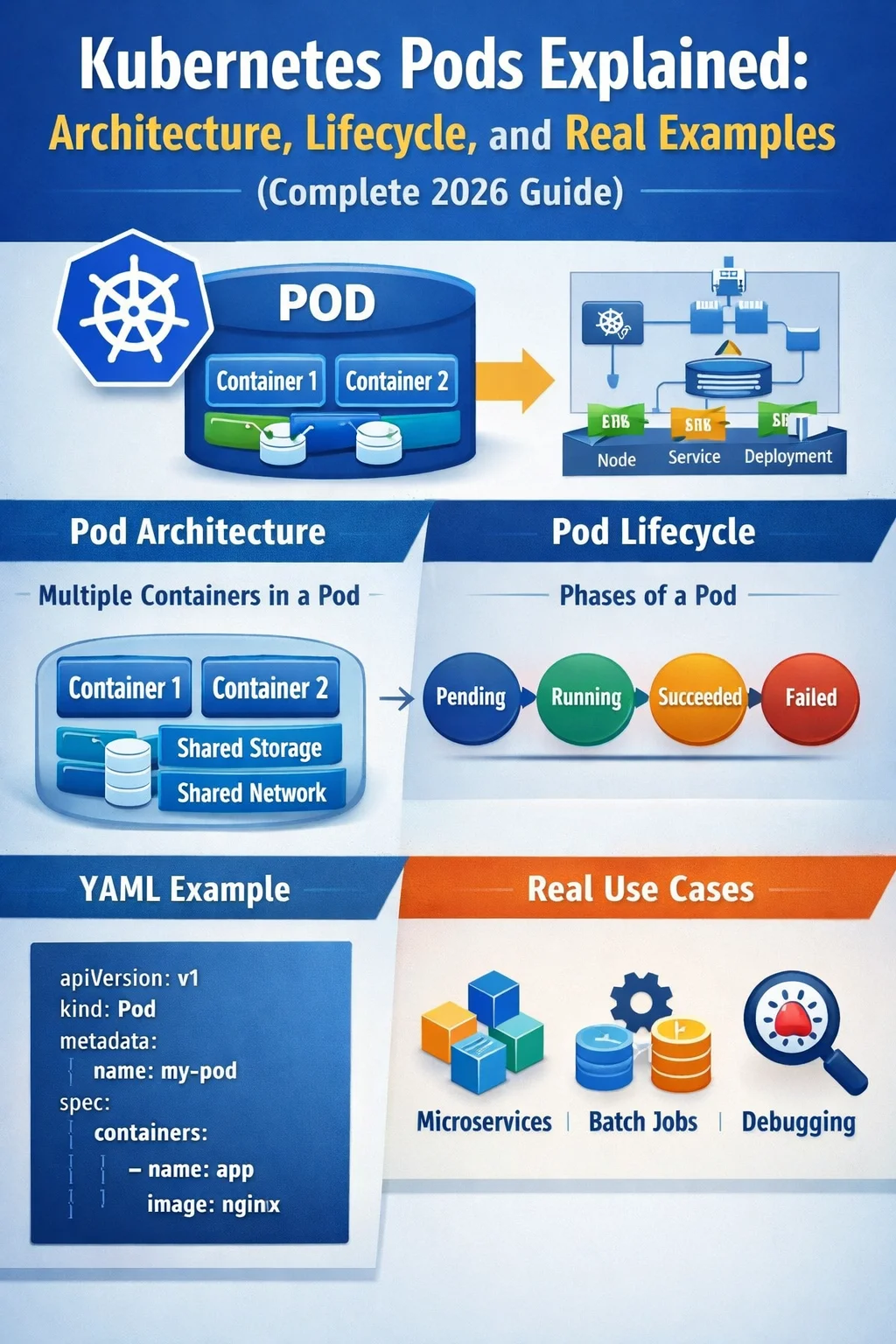
Last Updated: March 2026
If you work with Kubernetes, everything starts and ends with Pods. They are the smallest deployable unit in Kubernetes — the atomic building block from which every workload is constructed. Yet even experienced engineers often get confuse of what a Pod truly is, how it transitions through its lifecycle, and how to design multi-container patterns correctly.
In this complete Kubernetes Pods Explained guide, I break down Kubernetes Pods from first principles: what they are architecturally, how they behave across their lifecycle, and how you apply this knowledge with real YAML examples drawn from production AKS and RKE2 clusters. Lets start.
Before going forward in this blog here is a quick reference link to my previous blogs on Kubernetes.
Kubernetes <- ou can refer this section for all Kubernetes related blogs and troubleshooting guides.
Table of Contents
Kubernetes Pods Explained
What Is a Kubernetes Pod?

A Pod is a group of one or more containers that share the same network namespace, IP address, and storage volumes. They are co-located on the same node and co-scheduled as a single unit. Think of a Pod as a logical host — just like a bare-metal server hosts processes that share localhost, a Pod hosts containers that share localhost.
“Pods are ephemeral by design. They are not self-healing. Controllers like Deployments, StatefulSets, and DaemonSets are responsible for ensuring that the desired number of Pods exist at any time.”
A critical distinction that trips up beginners: you rarely create Pods directly in production. Instead, you use higher-level abstractions. However, understanding Pods deeply is what makes you effective when something breaks at 2 AM.
Key Pod Characteristics
- Shared networking: All containers in a Pod share one IP and port space. They communicate via
localhost. - Shared storage: Volumes are defined at the Pod level and mounted into individual containers.
- Atomic scheduling: All containers in a Pod land on the same node — always.
- Ephemeral identity: When a Pod is deleted and recreated, it gets a new IP and a new name.
Pod Architecture Deep Dive
Under the hood, every Pod contains at least one invisible container you never define yourself: the pause container (also called the infra container). This container is responsible for holding the network namespace that all other containers in the Pod join. It starts first and stays running for the entire life of the Pod.
The Pause Container
The pause container (image: registry.k8s.io/pause:3.9 as of Kubernetes 1.29+) does almost nothing at runtime — it just sleeps. Its role is purely structural: it creates and holds the Linux namespaces (network, IPC, UTS) that app containers attach to. If your main container crashes and restarts, the pause container keeps those namespaces alive, preserving the Pod’s IP address.
Container Runtime Interface (CRI)
In 2026, containerd is the dominant CRI. When the kubelet on a node needs to start a Pod, it talks to containerd via the CRI gRPC API. containerd then pulls images, sets up overlay filesystems, configures cgroups, and starts processes. On RKE2 clusters, this is all managed transparently — but when you’re debugging a node-level issue, knowing that crictl is your tool (not docker) makes a difference.
# Inspect running pods directly via CRI on a node
sudo crictl pods
sudo crictl ps
sudo crictl inspect <container-id>
Pod Lifecycle: Phases and Conditions
A Pod moves through a series of phases from birth to termination. Understanding these phases is critical for building reliable health checks, CI/CD pipelines, and graceful shutdown procedures.
| Phase | Description | What You’ll See |
|---|---|---|
| Pending | Pod accepted by API server; scheduler hasn’t placed it yet, or images are still being pulled | kubectl get pod shows Pending |
| Running | Pod bound to a node; at least one container is running or starting | Status shows Running |
| Succeeded | All containers exited with code 0 and won’t be restarted | Seen in Jobs/CronJobs |
| Failed | At least one container exited with non-zero code or was killed by the system | Status shows Error or OOMKilled |
| Unknown | Pod state cannot be determined — usually a node communication failure | Node may be NotReady |
Pod Conditions
In addition to phases, Pods expose conditions — boolean flags that give more granular status. The most important ones are PodScheduled, ContainersReady, Initialized, and Ready. A Pod must satisfy all four to be considered fully healthy and eligible to receive traffic through a Service.
# View pod conditions in detail
kubectl describe pod <pod-name> | grep -A 10 "Conditions:"

# Sample output:
# Conditions:
#   Type              Status
#   Initialized       True
#   Ready             True
#   ContainersReady   True
#   PodScheduled      True
Termination Flow
When you delete a Pod, Kubernetes does not kill it immediately. Here is the graceful shutdown sequence every engineer must know:
- Pod is set to Terminating state; it is removed from Service endpoints immediately.
- The
preStophook fires (if defined). - A SIGTERM signal is sent to all containers.
- Kubernetes waits for
terminationGracePeriodSeconds(default: 30s). - If containers haven’t exited, a SIGKILL is issued.
⚠️ Production Tip: If your application takes longer than 30 seconds to drain connections, increase terminationGracePeriodSeconds. I’ve seen Kafka consumer groups cause data loss because of a premature SIGKILL during rolling updates.
Writing a Pod Manifest: Real YAML Examples
Here is a production-grade Pod manifest that reflects real-world patterns from AKS and RKE2 environments — not the toy examples you find in most tutorials.
apiVersion: v1
kind: Pod
metadata:
  name: api-server-pod
  namespace: production
  labels:
    app: api-server
    version: "2.4.1"
    environment: production
  annotations:
    prometheus.io/scrape: "true"
    prometheus.io/port: "8080"
spec:
  serviceAccountName: api-server-sa
  terminationGracePeriodSeconds: 60
  securityContext:
    runAsNonRoot: true
    runAsUser: 1000
    fsGroup: 2000
  containers:
    - name: api-server
      image: myregistry.azurecr.io/api-server:2.4.1
      ports:
        - containerPort: 8080
          name: http
      resources:
        requests:
          cpu: "250m"
          memory: "256Mi"
        limits:
          cpu: "500m"
          memory: "512Mi"
      env:
        - name: APP_ENV
          value: "production"
        - name: DB_PASSWORD
          valueFrom:
            secretKeyRef:
              name: db-secret
              key: password
      livenessProbe:
        httpGet:
          path: /healthz
          port: 8080
        initialDelaySeconds: 15
        periodSeconds: 20
      readinessProbe:
        httpGet:
          path: /ready
          port: 8080
        initialDelaySeconds: 5
        periodSeconds: 10
      volumeMounts:
        - name: config-volume
          mountPath: /etc/app/config
          readOnly: true
  volumes:
    - name: config-volume
      configMap:
        name: api-server-config
  affinity:
    podAntiAffinity:
      preferredDuringSchedulingIgnoredDuringExecution:
        - weight: 100
          podAffinityTerm:
            labelSelector:
              matchLabels:
                app: api-server
            topologyKey: kubernetes.io/hostname
Init Containers Explained
Init containers run to completion before any app containers start. They are ideal for bootstrapping tasks: checking database availability, fetching secrets, setting up file permissions, or seeding configuration files. Each init container must complete successfully — and they run sequentially, not in parallel.
initContainers:
  - name: wait-for-db
    image: busybox:1.36
    command:
      - sh
      - -c
      - |
        until nc -z postgres-service 5432; do
          echo "Waiting for PostgreSQL..."
          sleep 3
        done
        echo "PostgreSQL is ready!"
  - name: run-migrations
    image: myregistry.azurecr.io/db-migrator:1.0.0
    env:
      - name: DB_URL
        valueFrom:
          secretKeyRef:
            name: db-secret
            key: url
In this example, the app container will never start if postgres-service is unavailable. This prevents the classic race condition where your application crashes on startup because its dependency isn’t ready yet. I’ve used exactly this pattern during rolling upgrades of multi-service platforms on RKE2.
Multi-Container Pod Patterns
The real power of the shared network and storage model shows up in three established design patterns for multi-container Pods.
1. Sidecar Pattern
A sidecar container extends or enhances the main container without modifying it. The canonical example is a log-shipping agent (Filebeat, Fluentbit) that reads log files written by the main app via a shared volume and ships them to Elasticsearch.
containers:
  - name: app
    image: myapp:latest
    volumeMounts:
      - name: log-volume
        mountPath: /var/log/app
  - name: log-shipper
    image: elastic/filebeat:8.12.0
    volumeMounts:
      - name: log-volume
        mountPath: /var/log/app
        readOnly: true
volumes:
  - name: log-volume
    emptyDir: {}
2. Ambassador Pattern
An ambassador container acts as a proxy, representing the main container to the outside world. A common use case is a database proxy (like cloud-sql-proxy for GCP or a connection pooler like PgBouncer) that handles connection management so the app just talks to localhost:5432.
3. Adapter Pattern
An adapter container normalizes the output of the main container. For example, if your legacy app exports metrics in a proprietary format, an adapter sidecar can transform them into Prometheus-compatible /metrics output — without touching the main application.
Resource Requests and Limits
Getting resource configuration right is one of the most impactful things you can do for cluster stability. I’ve personally debugged pod scheduling failures caused by requests set 10x higher than actual usage, starving other workloads.
| Setting | Meaning | Effect on Scheduling |
|---|---|---|
requests.cpu |
Minimum CPU guaranteed | Scheduler uses this to find a node with enough capacity |
limits.cpu |
Maximum CPU allowed | Container is throttled if it exceeds this — but not killed |
requests.memory |
Minimum memory guaranteed | Used for scheduling; determines QoS class |
limits.memory |
Maximum memory allowed | Container is OOMKilled if it exceeds this |
💡 Pro Tip: Use the Vertical Pod Autoscaler (VPA) in recommendation mode to get right-sized requests based on actual usage history. Run it for a week before acting on its suggestions.
How Kubernetes Schedules Pods

The scheduler is a control loop that watches for unbound Pods and assigns them to nodes using a two-phase algorithm: filtering (which nodes can run this Pod?) and scoring (which node is best?). Understanding this helps you diagnose Pending pods.
Common scheduling constructs you should know in 2026:
- nodeSelector: Simple label-based node targeting.
- nodeAffinity: Rich expression-based rules with required and preferred modes.
- podAffinity / podAntiAffinity: Place Pods near or away from other Pods.
- taints and tolerations: Reserve nodes for specific workloads (e.g., GPU nodes, spot instances).
- topologySpreadConstraints: Spread Pods evenly across zones or nodes for HA.
# Spread replicas evenly across AZs
topologySpreadConstraints:
  - maxSkew: 1
    topologyKey: topology.kubernetes.io/zone
    whenUnsatisfiable: DoNotSchedule
    labelSelector:
      matchLabels:
        app: api-server
Liveness, Readiness, and Startup Probes
Probes are the mechanism through which Kubernetes monitors the health of your containers at runtime. Using them correctly is non-negotiable for production workloads.
- Liveness Probe: “Is this container still alive?” — If it fails, Kubernetes restarts the container. Use for detecting deadlocks.
- Readiness Probe: “Is this container ready to serve traffic?” — If it fails, the Pod is removed from Service endpoints but not restarted.
- Startup Probe: “Has the application finished starting?” — Disables liveness/readiness until this passes. Critical for slow-starting apps (JVM services, legacy apps).
startupProbe:
  httpGet:
    path: /healthz
    port: 8080
  failureThreshold: 30
  periodSeconds: 10
  # Gives app up to 300 seconds to start before liveness kicks in

livenessProbe:
  httpGet:
    path: /healthz
    port: 8080
  initialDelaySeconds: 0
  periodSeconds: 20
  failureThreshold: 3

readinessProbe:
  httpGet:
    path: /ready
    port: 8080
  initialDelaySeconds: 5
  periodSeconds: 10
Troubleshooting Common Pod Issues
| Symptom | Likely Cause | Fix |
|---|---|---|
Pending indefinitely |
Insufficient resources, no matching nodes, PVC not bound | Check kubectl describe pod Events section |
CrashLoopBackOff |
App crash on start, misconfigured env, missing secret | kubectl logs --previous <pod> |
OOMKilled |
Memory limit exceeded | Increase limits.memory or fix memory leak |
ImagePullBackOff |
Wrong image tag, registry auth failure | Check imagePullSecrets and registry access |
Evicted |
Node disk or memory pressure | Check node conditions; review resource requests |
Terminating stuck |
Finalizers blocking deletion or node unreachable | Force delete: kubectl delete pod --force --grace-period=0 |
Frequently Asked Questions
What is the difference between a Pod and a container?
A container is a single isolated process with its own filesystem and process space. A Pod is a Kubernetes abstraction that wraps one or more containers, giving them a shared network identity (one IP) and shared volumes. All containers in a Pod co-exist on the same node and can communicate via localhost. You can think of a Pod as the logical equivalent of a “machine” and containers as the “processes” running on it.
Can two containers in the same Pod use the same port?
No. Because all containers in a Pod share the same network namespace, they share the same IP address. If two containers tried to bind to the same port (e.g., 8080), the second one would fail with a port conflict, just as two processes on the same host would. Always use different ports for each container within a Pod.
What happens to a Pod when its node goes down?
The node will transition to NotReady state. After the node.kubernetes.io/not-ready toleration timeout (default: 300 seconds), the Pod will be evicted and rescheduled on a healthy node — but only if it is managed by a controller like a Deployment or StatefulSet. Standalone Pods are not rescheduled, which is why you should never run production workloads as bare Pods.
How many containers should I put in a single Pod?
The general rule is: one main application container per Pod. Add additional containers only when they have a tightly coupled relationship with the main container — logging sidecars, proxy sidecars, and init containers are the standard exceptions. Packing unrelated services into a single Pod defeats the purpose of Kubernetes scheduling, scaling, and fault isolation.
What is an ephemeral container, and when would I use it?
Ephemeral containers are temporary containers injected into a running Pod for debugging purposes. They are not defined in the Pod spec and cannot be restarted. You use them when your production container lacks debugging tools (which it should, for security). Use kubectl debug -it <pod-name> --image=busybox --target=<container-name> to attach an ephemeral container and inspect the running process namespace.
What is QoS class in Kubernetes Pods?
Kubernetes assigns one of three Quality of Service classes to each Pod based on resource configuration. Guaranteed (requests == limits for all containers) is the highest priority and last to be evicted. Burstable (requests set, but limits differ) is the middle tier. BestEffort (no requests or limits set) is evicted first under node pressure. Set requests and limits appropriately to get the QoS class that matches your workload’s criticality.
Additional Resources
- 🔗 Kubernetes Official Docs — Pods
- 🔗 Pod Lifecycle — Kubernetes Docs
- 🔗 Debugging Pods — Kubernetes Docs
Conclusion
Kubernetes Pods are simple in concept but rich in operational detail. You’ve now covered the full picture: the architectural role of the pause container, how lifecycle phases and conditions govern Pod behaviour, how to write production-grade YAML manifests with security contexts and probes, and how to apply multi-container patterns like sidecars, ambassadors, and adapters.
The patterns here aren’t theoretical — they come from operating real production clusters on Azure AKS and VMware vSphere RKE2. When a Pod is stuck in CrashLoopBackOff at 2 AM, these mental models are what you reach for first.
Master Pods, and you’ve mastered the foundation of everything Kubernetes does.
About the Author
Kedar Salunkhe
DevOps Engineer
Kubernetes • OpenShift • AWS • Coffee
I’ve spent almost 7 years keeping production systems running, often when everyone else is asleep. These days I’m working with Kubernetes and OpenShift deployments, automating everything that can be automated, and occasionally remembering to document the things I fix. When I’m not troubleshooting clusters, I’m probably trying out new DevOps tools or explaining to someone why we can’t just “restart everything” as a debugging strategy. You can usually find me where the coffee is strong and the error logs are confusing.