
Last Updated: May 11 2026
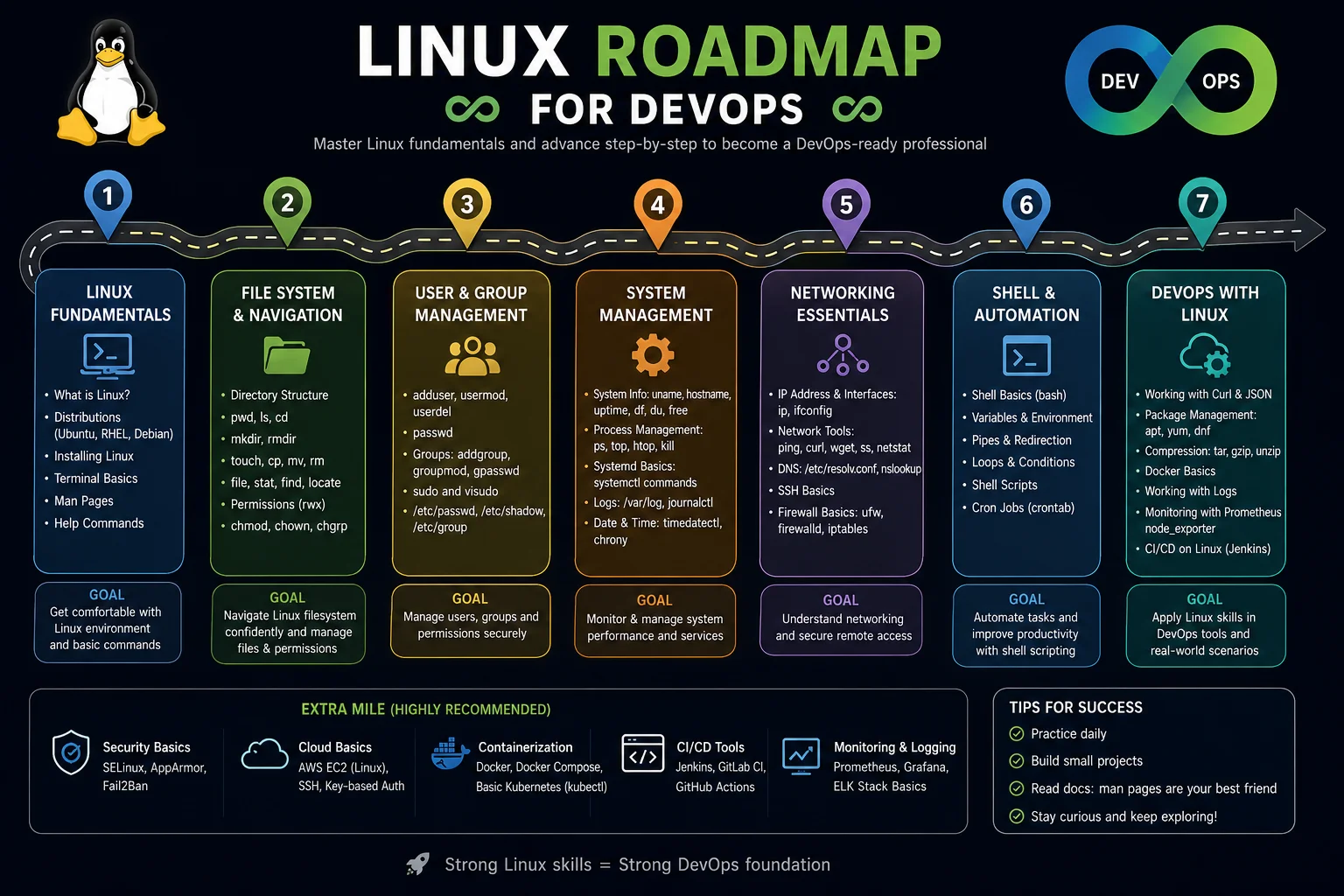
Quick Summary: If you are serious about building a DevOps career, Linux is not optional — it is the foundation everything else is built on. This complete Linux roadmap for DevOps walks you through every skill you need, in the right order, with zero fluff. Whether you are a complete beginner or someone looking to fill the gaps, this guide is for you.
Table of Contents
Why Linux Is the Backbone of DevOps

Let me be direct with you. When I started learning DevOps, I made the mistake of jumping straight into Docker and Kubernetes without really understanding Linux. I could follow tutorials, but I could not troubleshoot anything on my own. The moment something broke in production, I was completely lost.
That experience taught me one thing: Linux is not just another tool in your DevOps toolkit. It is the ground you build everything else on.
Here is the reality in 2025:
- Over 96.3% of the world’s top one million web servers run on Linux.
- Every major cloud platform — AWS, GCP, Azure — defaults to Linux-based compute instances.
- Kubernetes nodes run Linux. Docker containers run Linux. CI/CD pipelines run on Linux runners.
- Even Windows-heavy shops use Linux for their infrastructure and automation layers.
If you cannot navigate a Linux terminal confidently, you will always be dependent on GUI tools and documentation. And in DevOps, documentation does not always keep up with reality.
This Linux roadmap for DevOps is structured so you build skills layer by layer — each stage prepares you for the next. There is no guesswork. You will know exactly what to learn and in what order.
How to Use This Linux Roadmap for DevOps

Before we dive in, a few ground rules that will actually make this roadmap work for you:
Practice on a real system, not just tutorials. Set up a Ubuntu or CentOS virtual machine using VirtualBox or VMware. Better yet, spin up a cheap VPS on DigitalOcean or Linode and SSH into it. Real muscle memory comes from real commands, not reading about them.
Do not rush the stages. Each stage below has a suggested timeframe. These are estimates for people learning part-time (about 1–2 hours per day). If you have more time, compress it. If you have less, extend it. The point is consistency, not speed.
Break things on purpose. Seriously. Delete a config file, misconfigure a firewall rule, corrupt a cron job. Then figure out how to fix it. This is how you build real troubleshooting skills.
Keep a personal notes file. Every time you learn a new command or concept, write it down in your own words with an example. You will thank yourself later.
Now let us get into it.
Stage 1: Linux Fundamentals
Estimated Time: 2–3 weeks
Goal: Get comfortable living in the Linux terminal
This is where everything starts. Stage 1 is about building the instincts — the kind that let you navigate a new Linux server without panic.
1.1 Understanding Linux Distributions
Not all Linux is the same. As a DevOps engineer, you will encounter multiple distributions throughout your career. Here is what you need to know:
Debian-based distributions (Ubuntu, Debian, Linux Mint) use apt as their package manager. Ubuntu is the most common in DevOps environments, particularly for development workloads and containerized applications. If you are just starting out, install Ubuntu 22.04 LTS and stick with it.
RHEL-based distributions (Red Hat Enterprise Linux, CentOS Stream, Rocky Linux, AlmaLinux) use dnf or yum. These are dominant in enterprise production environments. Many large organizations run RHEL or its community equivalents in their data centers.
Alpine Linux is a minimal, security-focused distribution that is widely used as a base image for Docker containers. You will encounter it constantly in container-based workloads.
You do not need to master all of them at once. Learn Ubuntu first. Once you understand the concepts, switching between distributions is mostly a matter of knowing which package manager to use.
1.2 Navigating the File System
Your first real skill is navigating directories without a graphical file browser. These are the commands you will use every single day:
pwd           # Print working directory — where am I right now?
ls            # List files in current directory
ls -la        # List all files including hidden ones, with details
cd /var/log   # Change to /var/log directory
cd ..         # Move up one directory
cd ~          # Go to home directory
cd -          # Go back to previous directory
Spend time getting comfortable with absolute paths (starting with /) versus relative paths (starting from where you currently are). This distinction trips up a lot of beginners and causes real problems in scripts later.
1.3 Working with Files and Directories
touch filename.txt          # Create an empty file
mkdir my-folder             # Create a directory
mkdir -p path/to/folder     # Create nested directories
cp source.txt dest.txt      # Copy a file
mv old-name.txt new-name.txt # Rename or move a file
rm filename.txt             # Delete a file
rm -rf folder/              # Delete a folder and everything in it (use with caution)
A word of caution: rm -rf is one of the most dangerous commands in Linux. There is no recycle bin. Deleted files do not come back. Always double-check what you are deleting, especially when using wildcards or running as root.
1.4 Viewing and Editing Files
cat file.txt          # Print entire file contents
less file.txt         # View file page by page (press q to quit)
head -n 20 file.txt   # View first 20 lines
tail -n 20 file.txt   # View last 20 lines
tail -f /var/log/syslog  # Watch a log file in real time (extremely useful)
For editing, you need to pick up Vim or Nano. Nano is beginner-friendly. Vim is what you will use in production environments when no other editor is available. Learn at least basic Vim:
vim filename.txt   # Open file in Vim
# Press 'i' to enter insert mode
# Press 'Esc' to exit insert mode
# Type ':wq' to save and quit
# Type ':q!' to quit without saving
1.5 Getting Help
man ls              # Read the manual for any command
ls --help           # Quick help for a command
info bash           # Detailed info pages
type command-name   # Find out what type of command it is
which python3       # Find where a command lives on disk
The man command is one of the most underused tools in Linux. Every senior engineer uses it constantly. Before Googling a command flag, try reading the man page. You will often find options you did not know existed.
Stage 2: File System and Permissions
Estimated Time: 1–2 weeks
Goal: Understand how Linux organizes files and controls access
2.1 The Linux File System Hierarchy
Linux follows the Filesystem Hierarchy Standard (FHS). Everything is a file, and all files live somewhere in a single tree that starts at /. Here is the map you need to know:
| Directory | Purpose |
|---|---|
/ | Root of the entire file system |
/etc | System configuration files |
/var | Variable data: logs, databases, mail |
/home | User home directories |
/root | Home directory for the root user |
/tmp | Temporary files (cleared on reboot) |
/bin | Essential user binaries |
/sbin | Essential system administration binaries |
/usr | User programs and data |
/opt | Optional third-party software |
/proc | Virtual file system for process info |
/sys | Virtual file system for hardware/kernel info |
/dev | Device files |
/mnt and /media | Mount points for external storage |
As a DevOps engineer, you will spend most of your time in /etc, /var/log, /opt, and /home. Knowing this layout by heart means you can navigate any Linux server, even one you have never touched before.
2.2 File Permissions — The Foundation of Linux Security
Linux permissions are something a lot of beginners learn just enough to get by, and that comes back to bite them. Let us really understand this.
Every file has three sets of permissions: for the owner, the group, and others (everyone else).
Each set can have three types of permissions: read (r), write (w), and execute (x).
When you run ls -la, you see something like this:
-rwxr-xr-- 1 devops devops 4096 Jan 15 10:30 deploy.sh
Breaking this down:
-= regular file (would bedfor directory)rwx= owner can read, write, and executer-x= group members can read and execute, but not writer--= others can only read
In numeric notation:
r= 4w= 2x= 1
So rwxr-xr-- becomes 754 in numeric form.
chmod 755 script.sh        # Set permissions numerically
chmod +x script.sh         # Add execute permission for all
chmod u+x,g-w script.sh    # Symbolic mode: add execute for user, remove write for group
chown user:group file.txt  # Change file owner and group
chgrp developers file.txt  # Change only the group
2.3 Special Permission Bits
Beyond the standard rwx permissions, there are three special bits that every DevOps engineer needs to understand:
SUID (Set User ID): When set on an executable, the file runs with the permissions of the file owner, not the user running it. The passwd command uses this so regular users can change their own passwords.
SGID (Set Group ID): When set on a directory, new files created inside inherit the directory’s group rather than the user’s primary group. Very useful for shared project directories.
Sticky Bit: When set on a directory (like /tmp), only the file owner can delete their own files, even if others have write permission to the directory.
chmod u+s executable    # Set SUID
chmod g+s shared-dir/   # Set SGID
chmod +t /tmp           # Set sticky bit
2.4 Understanding Users and Groups
whoami                  # Current user
id                      # Current user's UID, GID, and group memberships
sudo command            # Run command as root
su - username           # Switch to another user
useradd -m newuser      # Create a new user with home directory
passwd newuser          # Set user password
usermod -aG docker john # Add john to the docker group
userdel -r olduser      # Delete user and their home directory
groupadd devteam        # Create a new group
cat /etc/passwd         # List all users
cat /etc/group          # List all groups
Stage 3: Shell Scripting and Automation
Estimated Time: 3–4 weeks
Goal: Write shell scripts that automate real DevOps tasks
This is where the real DevOps power comes from. A DevOps engineer who cannot write shell scripts is like a chef who cannot use a knife. You can get by, but you will always be limited.
3.1 Understanding the Shell
The shell is the command interpreter. When you type a command, the shell parses it and tells the operating system what to do.
Bash (Bourne Again Shell) is the most common shell in Linux and the one you should master first. Others you will encounter include:
- Zsh (Z Shell) — popular for developer workstations with enhanced features
- Sh (POSIX shell) — the most portable, used in scripts meant to run anywhere
- Fish — user-friendly, but less common in server environments
Check your default shell:
echo $SHELL
cat /etc/shells   # List available shells
3.2 Variables, Input, and Output
#!/bin/bash

# Variables
NAME="DevOps"
VERSION=3
CURRENT_DATE=$(date +%Y-%m-%d)   # Command substitution

echo "Hello, $NAME!"
echo "Date: $CURRENT_DATE"

# User input
read -p "Enter your username: " USERNAME
echo "Got it: $USERNAME"

# Special variables
echo "Script name: $0"
echo "First argument: $1"
echo "All arguments: $@"
echo "Number of arguments: $#"
echo "Last exit code: $?"
3.3 Conditionals and Loops
#!/bin/bash

# If-else
if [ -f "/etc/nginx/nginx.conf" ]; then
    echo "Nginx config exists"
elif [ -d "/etc/nginx" ]; then
    echo "Nginx directory exists but config is missing"
else
    echo "Nginx is not installed"
fi

# For loop
for SERVICE in nginx mysql redis; do
    systemctl status $SERVICE
done

# While loop
COUNT=0
while [ $COUNT -lt 5 ]; do
    echo "Count: $COUNT"
    ((COUNT++))
done

# Loop through files
for FILE in /var/log/*.log; do
    echo "Processing: $FILE"
done
3.4 Functions and Error Handling
#!/bin/bash

# Always set these at the top of serious scripts
set -euo pipefail
# -e: exit on error
# -u: exit on undefined variable
# -o pipefail: catch errors in pipes

# Function definition
check_service() {
    local SERVICE_NAME=$1
    if systemctl is-active --quiet "$SERVICE_NAME"; then
        echo "✓ $SERVICE_NAME is running"
        return 0
    else
        echo "✗ $SERVICE_NAME is NOT running"
        return 1
    fi
}

# Using the function
check_service nginx
check_service mysql

# Error handling with trap
cleanup() {
    echo "Script failed on line $1. Cleaning up..."
    # Add cleanup commands here
}

trap 'cleanup $LINENO' ERR
3.5 Text Processing — The DevOps Superpower
These tools are what separate beginners from experienced engineers when it comes to log analysis, config parsing, and data extraction:
# grep — search for patterns
grep "ERROR" /var/log/app.log
grep -i "warning" /var/log/app.log     # Case-insensitive
grep -r "database" /etc/               # Recursive search
grep -v "DEBUG" app.log                # Invert match (exclude)
grep -n "CRITICAL" app.log             # Show line numbers
grep -c "404" access.log               # Count matching lines

# awk — column-based text processing
awk '{print $1, $4}' access.log       # Print columns 1 and 4
awk -F: '{print $1}' /etc/passwd      # Use colon as delimiter
awk '/ERROR/ {print $0}' app.log      # Print lines matching pattern
awk '{sum += $5} END {print sum}' data.txt  # Sum column 5

# sed — stream editor for substitutions
sed 's/old/new/g' config.txt          # Replace all occurrences
sed -i 's/DEBUG/INFO/g' app.conf      # Edit file in-place
sed '/^#/d' config.txt               # Delete comment lines
sed -n '10,20p' file.txt             # Print lines 10 to 20

# cut — extract columns
cut -d: -f1 /etc/passwd              # Extract first field from /etc/passwd
cut -d, -f2,4 data.csv              # Extract columns 2 and 4 from CSV

# sort, uniq, wc — combining power
cat access.log | awk '{print $1}' | sort | uniq -c | sort -rn | head -10
# This extracts IP addresses, counts unique occurrences, and shows the top 10
3.6 Cron Jobs — Scheduling Automation
crontab -e     # Edit your cron jobs
crontab -l     # List current cron jobs
crontab -r     # Remove all cron jobs (careful!)

# Cron syntax: minute hour day-of-month month day-of-week command
# *   *   *   *   *   command
# |   |   |   |   |
# |   |   |   |   └── Day of week (0-7, Sunday=0 or 7)
# |   |   |   └────── Month (1-12)
# |   |   └────────── Day of month (1-31)
# |   └────────────── Hour (0-23)
# └────────────────── Minute (0-59)

# Examples:
0 2 * * * /opt/scripts/backup.sh          # Run at 2 AM daily
*/5 * * * * /opt/scripts/health-check.sh  # Run every 5 minutes
0 0 * * 0 /opt/scripts/weekly-cleanup.sh  # Run at midnight every Sunday
30 8 1 * * /opt/scripts/monthly-report.sh # Run at 8:30 AM on the 1st of each month
Stage 4: Networking Essentials
Estimated Time: 2–3 weeks
Goal: Understand networking from a Linux perspective and troubleshoot connectivity issues
4.1 Network Configuration
ip addr show              # Show all network interfaces and their IP addresses
ip addr show eth0         # Show specific interface
ip link show              # Show link-layer info
ip route show             # Show routing table
ip route get 8.8.8.8      # Show which route is used to reach a destination

# The older ifconfig is deprecated but still seen in the wild
ifconfig -a               # Show all interfaces (old style)
4.2 DNS and Name Resolution
cat /etc/resolv.conf      # DNS server configuration
cat /etc/hosts            # Static host name mappings

nslookup google.com       # Basic DNS lookup
dig google.com            # Detailed DNS lookup
dig google.com MX         # Look up mail records
dig +short google.com     # Clean output
host google.com           # Another DNS lookup tool
4.3 Essential Network Troubleshooting Tools
# Testing connectivity
ping -c 4 8.8.8.8         # Send 4 ping packets
traceroute google.com     # Trace packet route (install if needed)
mtr google.com            # Combines ping and traceroute (interactive)

# Port scanning and connections
ss -tuln                  # Show listening TCP/UDP sockets
ss -tp                    # Show TCP connections with process info
netstat -tuln             # Older alternative (deprecated but still used)
nmap -sS localhost        # Scan ports on localhost (install nmap)

# Downloading and testing HTTP
curl -I https://google.com          # Check HTTP headers
curl -o /dev/null -w "%{http_code}" https://api.example.com  # Get HTTP status code
wget https://example.com/file.zip   # Download a file
curl -v https://api.example.com     # Verbose output for debugging

# Checking bandwidth and network stats
iftop                    # Real-time bandwidth by connection (install first)
nethogs                  # Real-time bandwidth by process
sar -n DEV 1 5           # Network statistics every 1 second, 5 times
4.4 SSH — Your Primary Tool for Remote Access
# Basic SSH connection
ssh user@hostname
ssh -p 2222 user@hostname       # Non-standard port
ssh -i ~/.ssh/mykey.pem user@ip  # Use specific private key

# Key-based authentication (more secure than passwords)
ssh-keygen -t ed25519 -C "your@email.com"   # Generate key pair
ssh-copy-id user@remote-server              # Copy public key to server
cat ~/.ssh/id_ed25519.pub                   # View your public key

# SSH config file for convenience (~/.ssh/config)
Host myserver
    HostName 192.168.1.100
    User devops
    Port 22
    IdentityFile ~/.ssh/mykey.pem
    ServerAliveInterval 60

# After this config, just type:
ssh myserver

# SCP — secure file transfer
scp localfile.txt user@server:/remote/path/
scp user@server:/remote/file.txt /local/path/
scp -r local-folder/ user@server:/remote/path/

# Rsync — smarter file transfer (only transfers changes)
rsync -avz --progress ./local-dir/ user@server:/remote-dir/
4.5 Firewalls with UFW and iptables
# UFW (Uncomplicated Firewall) — Ubuntu/Debian
ufw status verbose
ufw enable
ufw allow 22              # Allow SSH
ufw allow 80/tcp          # Allow HTTP
ufw allow 443/tcp         # Allow HTTPS
ufw deny 3306             # Block MySQL from outside
ufw allow from 10.0.0.0/24 to any port 22  # Allow SSH only from subnet
ufw delete allow 80       # Remove a rule

# Firewalld — RHEL/CentOS
firewall-cmd --state
firewall-cmd --list-all
firewall-cmd --permanent --add-service=http
firewall-cmd --permanent --add-port=8080/tcp
firewall-cmd --reload
Stage 5: Package Management and System Administration
Estimated Time: 1–2 weeks
Goal: Install, update, and manage software and system configuration
5.1 Package Management
Debian/Ubuntu (APT):
apt update                        # Update package index
apt upgrade                       # Upgrade installed packages
apt install nginx                 # Install a package
apt remove nginx                  # Remove package (keep config)
apt purge nginx                   # Remove package and config
apt autoremove                    # Remove unused dependencies
apt search "web server"           # Search for packages
apt show nginx                    # Show package details
dpkg -l                           # List installed packages
dpkg -i package.deb               # Install .deb file directly
RHEL/CentOS (DNF/YUM):
dnf update                        # Update all packages
dnf install nginx                 # Install a package
dnf remove nginx                  # Remove a package
dnf search "web server"           # Search
dnf info nginx                    # Show package details
rpm -qa                           # List installed RPM packages
rpm -ivh package.rpm              # Install .rpm file
5.2 Environment Variables
# View environment variables
env                           # All environment variables
echo $PATH                    # View a specific variable
printenv HOME                 # Another way

# Setting variables
export MY_VAR="hello"        # Set for current session and child processes
MY_VAR="hello"               # Set only for current shell

# Persisting variables
# Add to ~/.bashrc for user-specific settings
echo 'export MY_APP_PORT=8080' >> ~/.bashrc
source ~/.bashrc              # Reload without restarting

# System-wide in /etc/environment or /etc/profile.d/
echo 'export JAVA_HOME=/usr/lib/jvm/java-17-openjdk-amd64' | sudo tee /etc/profile.d/java.sh
Stage 6: Process and Service Management
Estimated Time: 1–2 weeks
Goal: Monitor, control, and manage running processes and system services
6.1 Process Management
# Viewing processes
ps aux                          # All running processes
ps aux | grep nginx             # Filter for specific process
pgrep nginx                     # Get PID of nginx
top                             # Interactive process viewer
htop                            # Better interactive viewer (install first)

# Process details
ls -la /proc/$(pgrep nginx)/    # Examine process internals
cat /proc/$(pgrep nginx)/status # Process status info

# Controlling processes
kill 1234                       # Send SIGTERM to PID 1234 (graceful)
kill -9 1234                    # Send SIGKILL (force kill, last resort)
pkill nginx                     # Kill by name
killall python3                 # Kill all processes with this name

# Background/foreground jobs
command &                       # Run in background
jobs                            # List background jobs
fg %1                           # Bring job 1 to foreground
bg %1                           # Send to background
nohup command &                 # Run that persists after logout
6.2 Systemd Service Management
In modern Linux distributions, systemd is the init system and service manager. Understanding it is non-negotiable for DevOps work.
# Service control
systemctl start nginx           # Start a service
systemctl stop nginx            # Stop a service
systemctl restart nginx         # Restart a service
systemctl reload nginx          # Reload config without full restart
systemctl status nginx          # Check service status
systemctl enable nginx          # Enable at boot
systemctl disable nginx         # Disable at boot
systemctl is-active nginx       # Check if service is running (returns exit code)
systemctl is-enabled nginx      # Check if service is enabled at boot

# System control
systemctl reboot                # Reboot the system
systemctl poweroff              # Shut down
systemctl list-units --type=service   # List all services
systemctl list-units --failed         # List failed services

# Journald — reading service logs
journalctl -u nginx             # View nginx logs
journalctl -u nginx -f          # Follow nginx logs in real time
journalctl -u nginx --since "1 hour ago"   # Recent logs
journalctl -p err               # Only error-level messages
journalctl --disk-usage         # Check log disk usage
6.3 Writing a Custom Systemd Service
This is a skill that comes up constantly. Whether you are running a Node.js app, a Go binary, or a Python API, you will often need to wrap it in a systemd service:
# /etc/systemd/system/myapp.service
[Unit]
Description=My Application
Documentation=https://github.com/myorg/myapp
After=network.target

[Service]
Type=simple
User=appuser
Group=appuser
WorkingDirectory=/opt/myapp
Environment="NODE_ENV=production"
Environment="PORT=3000"
ExecStart=/usr/bin/node /opt/myapp/server.js
ExecReload=/bin/kill -HUP $MAINPID
KillMode=mixed
KillSignal=SIGTERM
TimeoutStopSec=5
Restart=on-failure
RestartSec=5
StandardOutput=journal
StandardError=journal
SyslogIdentifier=myapp

[Install]
WantedBy=multi-user.target
# After creating the file:
systemctl daemon-reload         # Tell systemd about the new service
systemctl start myapp           # Start it
systemctl enable myapp          # Enable at boot
systemctl status myapp          # Verify it is running
Stage 7: Storage, Volumes, and Disk Management
Estimated Time: 1–2 weeks
Goal: Manage disks, partitions, and file systems
7.1 Disk and Storage Commands
df -h                          # Disk space usage (human readable)
du -sh /var/log/               # Size of a directory
du -sh * | sort -rh | head     # Find largest directories
lsblk                          # List block devices (disks)
fdisk -l                       # List partition tables
blkid                          # Show block device UUIDs
7.2 Mount Points and /etc/fstab
mount                          # Show currently mounted file systems
mount /dev/sdb1 /mnt/data      # Mount a partition
umount /mnt/data               # Unmount

# /etc/fstab — persistent mounts
# Devices listed here are mounted automatically at boot
cat /etc/fstab

# Format: <device> <mountpoint> <fstype> <options> <dump> <pass>
# UUID=xxxx-xxxx  /mnt/data  ext4  defaults  0  2
7.3 Logical Volume Management (LVM)
LVM is what allows you to resize storage without downtime. In cloud environments and enterprise setups, you will encounter it often:
# Physical volumes
pvcreate /dev/sdb               # Initialize disk as physical volume
pvdisplay                       # Show physical volumes

# Volume groups
vgcreate data-vg /dev/sdb       # Create volume group
vgdisplay                       # Show volume groups
vgextend data-vg /dev/sdc       # Add another disk to volume group

# Logical volumes
lvcreate -L 50G -n app-lv data-vg     # Create 50GB logical volume
lvcreate -l 100%FREE -n app-lv data-vg # Use all available space
lvdisplay                              # Show logical volumes

# Format and mount the logical volume
mkfs.ext4 /dev/data-vg/app-lv
mount /dev/data-vg/app-lv /opt/app

# Extend a logical volume and its file system live
lvextend -L +20G /dev/data-vg/app-lv
resize2fs /dev/data-vg/app-lv
Stage 8: Linux Security Fundamentals
Estimated Time: 2–3 weeks
Goal: Harden Linux systems and understand security best practices
Security is not a separate career path. Every DevOps engineer needs to know how to secure the systems they build and operate. This is even more true in the era of DevSecOps.
8.1 User and Access Security
# Lock and unlock user accounts
passwd -l username              # Lock account
passwd -u username              # Unlock account
chage -l username               # View password aging info
chage -M 90 username            # Force password change every 90 days

# Limit root access
cat /etc/sudoers                # View sudo configuration
visudo                          # Edit sudoers (ALWAYS use this, never edit directly)

# Example sudoers entry:
# devops  ALL=(ALL) NOPASSWD: /bin/systemctl restart nginx
# Gives devops permission to restart nginx without password, nothing else
8.2 SSH Hardening
# Edit /etc/ssh/sshd_config
# Key settings to change:

PermitRootLogin no              # Never allow root SSH login
PasswordAuthentication no       # Force key-based auth only
PubkeyAuthentication yes        # Enable key-based auth
Port 2222                       # Change from default port 22
AllowUsers devops deploy        # Only allow specific users
MaxAuthTries 3                  # Limit login attempts
ClientAliveInterval 300         # Disconnect inactive sessions after 5 minutes
ClientAliveCountMax 2

# After changing sshd_config:
systemctl restart sshd
8.3 SELinux and AppArmor
SELinux (Security-Enhanced Linux) is mandatory access control used on RHEL-based systems. AppArmor is its equivalent on Ubuntu/Debian.
# SELinux
getenforce                      # Check SELinux mode (Enforcing/Permissive/Disabled)
setenforce 0                    # Set to permissive (temporary)
setenforce 1                    # Set back to enforcing
cat /etc/selinux/config         # View persistent setting
ausearch -m avc -ts recent      # View SELinux denials
sealert -a /var/log/audit/audit.log  # Human-readable SELinux analysis

# AppArmor
aa-status                       # Check AppArmor status
apparmor_parser -r /etc/apparmor.d/profile   # Reload a profile
aa-logprof                      # Interactively build AppArmor profiles
8.4 Log Management and Auditing
# System logs
/var/log/syslog                 # General system messages (Debian)
/var/log/messages               # General system messages (RHEL)
/var/log/auth.log               # Authentication log (Debian)
/var/log/secure                 # Authentication log (RHEL)
/var/log/kern.log               # Kernel messages
/var/log/nginx/access.log       # Nginx access log
/var/log/nginx/error.log        # Nginx error log

# Useful log analysis
grep "Failed password" /var/log/auth.log | awk '{print $11}' | sort | uniq -c | sort -rn
# This finds the IP addresses that failed the most SSH logins (brute force detection)

# Logrotate — managing log file growth
cat /etc/logrotate.conf
ls /etc/logrotate.d/
8.5 Security Auditing Tools
# Check for SUID/SGID files (potential security risks)
find / -perm -4000 -type f 2>/dev/null   # SUID files
find / -perm -2000 -type f 2>/dev/null   # SGID files

# Find world-writable directories
find / -type d -perm -o+w 2>/dev/null

# Check listening ports
ss -tuln

# Fail2ban — automatically ban IPs after failed logins
apt install fail2ban
systemctl enable fail2ban
# Configuration in /etc/fail2ban/jail.local

# Lynis — security audit tool
apt install lynis
lynis audit system              # Full system security audit
Stage 9: Linux for Containers and Cloud
Estimated Time: 2–3 weeks
Goal: Understand how Linux underpins containers and cloud infrastructure
This is where your Linux knowledge connects directly to modern DevOps tools.
9.1 Linux Namespaces and cgroups — The Foundation of Containers
Before you ever run docker run, you should understand what Docker actually is: a set of Linux kernel features packaged with a user-friendly interface.
Namespaces isolate resources so that processes in one container cannot see or access processes, networks, or filesystems in another container. The kernel namespaces include:
- pid — isolates process IDs
- net — isolates network interfaces
- mnt — isolates filesystem mount points
- uts — isolates hostname and domain name
- ipc — isolates inter-process communication
- user — isolates user and group IDs
Control groups (cgroups) limit and account for resource usage: how much CPU, memory, disk I/O, and network bandwidth a group of processes can consume.
This is why understanding Linux makes you a better Docker and Kubernetes engineer. When a container is “out of memory,” understanding cgroups tells you exactly what is happening and how to fix it.
# View cgroups
ls /sys/fs/cgroup/
cat /sys/fs/cgroup/memory/docker/<container-id>/memory.usage_in_bytes

# View namespaces for a running container
docker inspect <container-id> | grep -i pid
ls -la /proc/<container-pid>/ns/
9.2 Docker from a Linux Perspective
# Docker daemon and socket
systemctl status docker
ls -la /var/run/docker.sock     # Docker communicates through this socket

# Docker storage on disk
ls /var/lib/docker/             # All Docker data lives here
du -sh /var/lib/docker/         # How much space Docker is using

# Useful Docker Linux commands
docker stats                    # Live resource usage (like top for containers)
docker exec -it container_name bash   # Shell into a running container
docker logs container_name -f   # Follow container logs (uses journald)

# Inspect container networking
docker network ls
docker inspect bridge           # Inspect the default bridge network
ip link show docker0            # Docker creates a bridge interface
9.3 Cloud Instance Basics (AWS/GCP/Azure)
When you launch a Linux instance in any cloud provider, the same knowledge applies. A few additional tools become important:
# AWS EC2 instance metadata (available from within the instance)
curl http://169.254.169.254/latest/meta-data/instance-id
curl http://169.254.169.254/latest/meta-data/public-ipv4
curl http://169.254.169.254/latest/meta-data/instance-type

# Cloud-init — handles first-boot configuration
cat /var/log/cloud-init.log
cat /var/log/cloud-init-output.log

# AWS Systems Manager Session Manager (alternative to SSH)
# Requires SSM agent to be installed and running
systemctl status amazon-ssm-agent
Stage 10: Advanced Topics for Senior DevOps Engineers
Estimated Time: Ongoing
Goal: Go deep on performance, kernel tuning, and advanced tooling
10.1 Performance Analysis and Tuning
# Memory analysis
free -h                         # Memory usage summary
vmstat 1 5                      # Memory, CPU, and I/O stats every second
cat /proc/meminfo               # Detailed memory info

# CPU analysis
lscpu                           # CPU architecture info
mpstat -P ALL 1 5               # Per-CPU statistics
perf top                        # Real-time performance analysis

# I/O analysis
iostat -x 1 5                   # Extended I/O stats per device
iotop                           # Real-time I/O by process
dstat                           # Combined system resource statistics

# System call tracing
strace -p <pid>                 # Trace system calls of a process
ltrace command                  # Trace library calls

# The USE Method (Utilization, Saturation, Errors) — a mental framework
# For every resource: CPU, Memory, Disk, Network
# Ask: What is the utilization? Is it saturated? Are there errors?
10.2 Kernel Parameter Tuning (sysctl)
# View all kernel parameters
sysctl -a

# Networking performance tuning
sysctl net.core.somaxconn           # Max connection backlog
sysctl net.ipv4.tcp_max_syn_backlog # SYN backlog

# Apply a change temporarily
sysctl -w net.core.somaxconn=65535

# Persist changes in /etc/sysctl.conf or /etc/sysctl.d/
echo 'net.core.somaxconn=65535' >> /etc/sysctl.d/99-devops.conf
sysctl -p /etc/sysctl.d/99-devops.conf  # Apply without reboot

# Common tunings for high-traffic Linux servers:
# net.ipv4.tcp_tw_reuse=1       — Reuse TIME_WAIT sockets
# vm.swappiness=10              — Reduce swap usage
# fs.file-max=2097152           — Maximum open files system-wide
10.3 Advanced Shell and Scripting
# Process substitution
diff <(ssh server1 'cat /etc/hosts') <(ssh server2 'cat /etc/hosts')

# Here documents
cat <<EOF > /tmp/config.yaml
server:
  host: localhost
  port: 8080
EOF

# Parallel execution with xargs
cat server-list.txt | xargs -P 10 -I {} ssh {} 'uptime'
# Runs uptime on 10 servers simultaneously

# Advanced awk for log analysis
awk '
BEGIN { print "=== Request Analysis ===" }
/GET/ { gets++ }
/POST/ { posts++ }
/ERROR/ { errors++ }
END { print "GETs:", gets, "\nPOSTs:", posts, "\nErrors:", errors }
' access.log

# Bash arrays
SERVERS=("web01" "web02" "web03" "db01")
for SERVER in "${SERVERS[@]}"; do
    echo "Checking $SERVER..."
done
10.4 Linux Observability with Modern Tools
# eBPF-based tools (modern kernel observability)
apt install bpfcc-tools

execsnoop          # Trace new process executions in real time
opensnoop          # Trace file open() calls
tcptop             # Trace TCP connections
biolatency         # Summarize block device I/O latency
funccount          # Count function calls in the kernel

# These tools give you unparalleled insight into what is actually
# happening inside a production system without modifying it
Recommended Resources
Online Learning Platforms
Linux Foundation Training — The official source. Their courses are detailed and industry-recognized.
KodeKloud — Purpose-built for DevOps learning. Their Linux labs are particularly good for beginners building toward Docker, Kubernetes, and Ansible.
Internal Resource
Build a Home Lab
Theory without practice is just memorization. Set up these environments:
- Local VMs: Use VirtualBox (free) to run Ubuntu Server and Rocky Linux simultaneously. Practice everything in this guide on both.
- Free cloud tier: AWS Free Tier gives you 750 hours of EC2 t2.micro per month. Use it for real SSH practice.
- Raspberry Pi: A cheap physical Linux machine. Great for learning about low-level system administration.
- Kill your system on purpose: Spin up a throwaway VM and intentionally break things. Delete /etc/passwd, corrupt the bootloader, fill up the disk. Then figure out how to recover. This is how you build real confidence.
Frequently Asked Questions
How long does it take to learn Linux for DevOps?
Realistically, it takes 3 to 6 months of consistent daily practice to reach a confident, job-ready level. The foundational stages (1 through 5) are achievable in 8 to 10 weeks if you put in 1–2 hours a day. Stages 6 through 10 take longer because they require real-world context — the kind you get from actually running services and troubleshooting production-like problems.
The key variable is not time, it is repetition. You need to use these commands daily until they become second nature.
Do I need to memorize all these commands?
No. Nobody memorizes everything. What you are building is command vocabulary — knowing what exists and roughly how to use it, so you know what to look up when you need it. Over time, the commands you use most frequently become automatic. The rest you look up. That is completely normal and professional.
Which Linux distribution should I start with?
Ubuntu Server 22.04 LTS. It is the most widely used in DevOps environments, has the largest community, excellent documentation, and runs on everything from laptops to production cloud servers. Once you are comfortable with Ubuntu, picking up Rocky Linux or Amazon Linux takes a few days, not months.
Is Linux difficult to learn for Windows users?
The learning curve is real but absolutely manageable. The biggest challenge is usually the mental model shift: in Linux, everything is text-based, everything is a file, and the terminal is your primary interface. Once that mental model clicks — usually in the first two to three weeks — the rest follows naturally. Many DevOps engineers who started on Windows say they actually prefer Linux for server work within a few months.
What is the difference between learning Linux for DevOps versus system administration?
There is significant overlap, but the focus differs. Traditional system administration focuses on managing on-premises infrastructure, user accounts, and server maintenance. Linux for DevOps emphasizes automation, scripting, infrastructure as code, container environments, and cloud integration. This roadmap leans toward the DevOps angle, which is why stages on shell scripting, containers, and cloud come earlier than they would in a pure sysadmin curriculum.
Do I need Linux knowledge to work with Kubernetes?
Yes, deeply. Every Kubernetes node runs Linux. When a pod fails, you are often SSH-ing into a node and running Linux diagnostic commands. When network policies are not working, you are using Linux networking tools to debug them. When etcd is consuming too much disk space, you are managing Linux file systems. Kubernetes knowledge sits on top of Linux knowledge, not beside it.
Final Thoughts
There is no shortcut through this roadmap. The engineers who try to skip Linux fundamentals and jump straight to Kubernetes almost always hit a wall — usually in their first production incident, when they need to troubleshoot something that no tutorial has covered.
The ones who take the time to genuinely master Linux become the most valuable people on their teams. They are the ones who can debug anything, automate anything, and build infrastructure that actually holds up under real-world conditions.
Work through this Linux roadmap for DevOps methodically. Build things. Break things. Fix things. And do not underestimate how powerful it is to just spend time in a terminal every single day.
The Linux command line rewards patience and repetition more than raw talent. Stay consistent, and it will come.
Did this Linux roadmap for DevOps help you? Share it with someone who is just starting their DevOps journey. And if you have questions about any of the stages, drop them in the comments — we read every one.
Tags: linux roadmap for devops, linux for devops engineers, learn linux devops, linux devops guide, linux command line devops, linux shell scripting devops, linux basics devops, linux networking devops, linux security devops, devops linux tutorial 2025
Category: DevOps, Linux, Learning Roadmaps
Author Bio: Written by a DevOps engineer with 8+ years of experience building and operating production infrastructure on Linux across cloud and on-premises environments.