
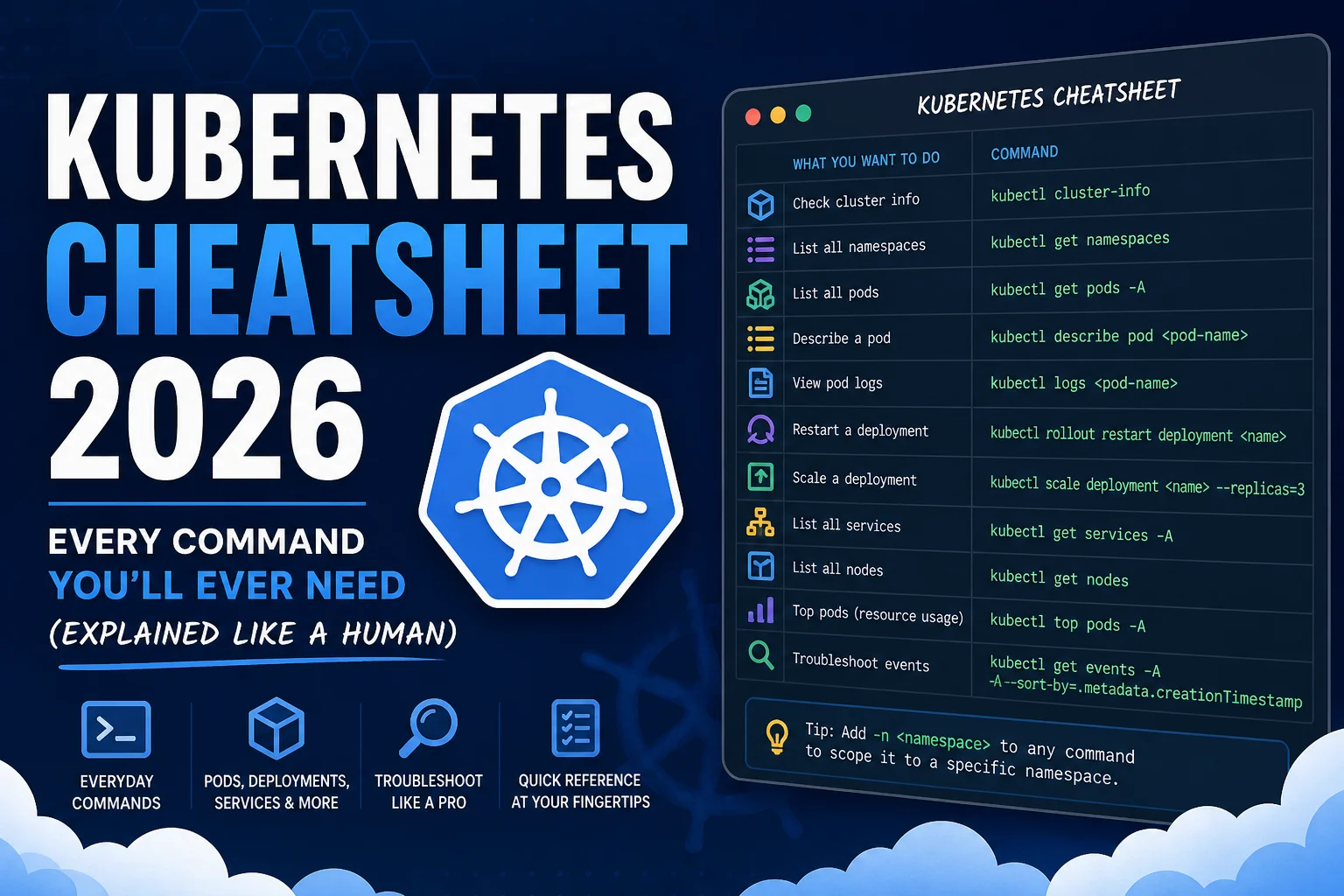
I still remember the first time I stared at a Kubernetes error message at 2 a.m., coffee going cold, wondering why a perfectly reasonable kubectl apply had turned into a wall of red text. Sound familiar?
Kubernetes is powerful — undeniably so. But it has a steep learning curve, and the official docs, while thorough, can feel like reading a legal contract when you just need to know how to restart a pod. This guide is different. It’s the kubernetes cheatsheet I wish I’d had on day one: human-first, example-driven, and organized the way your brain actually works when you’re in the middle of debugging production.
Whether you’re a developer who just got handed a Kubernetes cluster, a DevOps engineer refreshing your memory, or a student preparing for the CKA exam — this guide Kubernetes Cheatsheet has you covered. Let’s dig in.
Table of Contents
1. What Is Kubernetes (And Why Should You Care)?

At its core, Kubernetes (often shortened to K8s) is a container orchestration platform. You give it a bunch of containers — think Docker images — tell it what you want running, and Kubernetes figures out where and how to run them across a cluster of machines.
Here’s a simple mental model: imagine Kubernetes as an extremely capable operations manager. You don’t tell it “put this app on server 3.” Instead, you tell it “I need 5 copies of this app always running, and if one dies, replace it.” Kubernetes handles the rest — scheduling, health checks, restarts, load balancing, and more.
Why does this matter? Because modern applications are complex. They’re made up of microservices. Traffic spikes. Servers go down. Kubernetes makes your infrastructure resilient, scalable, and self-healing — without you babysitting individual servers at 2 a.m.
2. Core Concepts You Must Understand First

Before we dive into commands, let’s align on vocabulary. Kubernetes has its own language, and understanding these terms will make every command make more sense.
The Cluster
A cluster is the entire Kubernetes environment. It consists of a control plane (the brain — manages scheduling and state) and worker nodes (the muscle — where your containers actually run).
Node
A node is a single machine (physical or virtual) in the cluster. Worker nodes run your application workloads. The control plane node manages the cluster state.
Pod
A pod is the smallest deployable unit in Kubernetes. It wraps one or more containers that share network and storage. Think of a pod as a thin wrapper around your container(s).
Deployment
A deployment manages a set of identical pods. It ensures the desired number of replicas are always running, handles rolling updates, and enables rollbacks. You’ll use deployments for almost every stateless app.
Service
A service gives your pods a stable network identity. Since pods are ephemeral (they die and get replaced), services provide a consistent DNS name and IP for other components to talk to.
Namespace
A namespace is a virtual cluster within your cluster. Use namespaces to isolate teams, environments (dev/staging/prod), or applications from each other.
3. kubectl Basics: The Foundation
kubectl is the command-line tool you’ll use to talk to your Kubernetes cluster. Learn this well — it’s your Swiss Army knife.
Cluster & Context Management
# View cluster info
kubectl cluster-info

# List all available contexts (clusters you can switch between)
kubectl config get-contexts

# Switch to a different cluster/context
kubectl config use-context my-cluster-name

# View current context
kubectl config current-context

# Set default namespace for current context
kubectl config set-context --current --namespace=my-namespace

# View your kubeconfig file
kubectl config view
Getting Resources (The Most Used Commands)
# List all resources of a type
kubectl get pods
kubectl get deployments
kubectl get services
kubectl get nodes

# Get resources in all namespaces
kubectl get pods --all-namespaces
kubectl get pods -A  # shorthand

# Get with extra details (IPs, node assignment, etc.)
kubectl get pods -o wide

# Output as YAML (great for inspecting or copying)
kubectl get deployment my-app -o yaml

# Output as JSON
kubectl get pod my-pod -o json

# Watch resources update in real time
kubectl get pods --watch

# Get all resources in a namespace at once
kubectl get all -n my-namespace
Describing Resources (Your Debugging Best Friend)
# Describes everything about a resource — events, conditions, config
kubectl describe pod my-pod
kubectl describe deployment my-deployment
kubectl describe node my-node
kubectl describe service my-service
Pro tip: When something isn’t working, kubectl describe is almost always the first place to look. The Events section at the bottom tells you exactly what Kubernetes tried to do and why it failed.
4. Working with Pods
Pods are the heartbeat of Kubernetes. Here’s everything you need to manage them day-to-day.
Creating & Running Pods
# Run a quick one-off pod (great for testing)
kubectl run my-pod --image=nginx:latest

# Run a pod and immediately get a shell inside it
kubectl run -it --rm debug-pod --image=busybox -- sh

# Create a pod from a YAML file
kubectl apply -f pod.yaml

# Create a pod imperatively with labels
kubectl run my-pod --image=nginx --labels="env=prod,team=backend"
Logs & Exec
# View pod logs
kubectl logs my-pod

# Stream logs in real time (like tail -f)
kubectl logs -f my-pod

# Logs from the previous (crashed) container instance
kubectl logs my-pod --previous

# Logs from a specific container in a multi-container pod
kubectl logs my-pod -c my-container

# Get last 100 lines of logs
kubectl logs my-pod --tail=100

# Exec into a running pod (interactive shell)
kubectl exec -it my-pod -- bash
kubectl exec -it my-pod -- sh  # if bash isn't available

# Run a single command without interactive shell
kubectl exec my-pod -- ls /app
Deleting Pods
# Delete a pod (it'll restart if managed by a Deployment)
kubectl delete pod my-pod

# Force delete a stuck/terminating pod
kubectl delete pod my-pod --force --grace-period=0

# Delete using a YAML file
kubectl delete -f pod.yaml
5. Deployments & ReplicaSets
In real applications, you rarely manage pods directly. Deployments are the standard way to run stateless workloads in Kubernetes.
Creating & Managing Deployments
# Create a deployment imperatively
kubectl create deployment my-app --image=myrepo/my-app:1.0 --replicas=3

# Apply a deployment from YAML
kubectl apply -f deployment.yaml

# View deployment status
kubectl get deployments
kubectl describe deployment my-app

# Check rollout status
kubectl rollout status deployment/my-app

# View rollout history
kubectl rollout history deployment/my-app
A Minimal Deployment YAML
apiVersion: apps/v1
kind: Deployment
metadata:
  name: my-app
  namespace: production
spec:
  replicas: 3
  selector:
    matchLabels:
      app: my-app
  template:
    metadata:
      labels:
        app: my-app
    spec:
      containers:
      - name: my-app
        image: myrepo/my-app:1.0
        ports:
        - containerPort: 8080
        resources:
          requests:
            memory: "128Mi"
            cpu: "250m"
          limits:
            memory: "256Mi"
            cpu: "500m"
Notice the resources block — always set resource requests and limits. Without them, a single misbehaving pod can starve your entire node.
6. Services & Networking
Services are how you expose your pods to other workloads or to the outside world. There are four types you need to know.
| Type | Scope | Use Case |
|---|---|---|
ClusterIP | Internal only | Service-to-service communication inside the cluster |
NodePort | Node IP + Port | Expose on each node’s IP — good for dev/testing |
LoadBalancer | External IP (cloud) | Production external traffic; provisions cloud LB |
ExternalName | DNS alias | Map a service to an external DNS name |
# Expose a deployment as a ClusterIP service
kubectl expose deployment my-app --port=80 --target-port=8080

# Expose as a LoadBalancer (cloud environments)
kubectl expose deployment my-app --type=LoadBalancer --port=80

# List services
kubectl get services
kubectl get svc  # shorthand

# Port-forward a service to your local machine (great for debugging)
kubectl port-forward service/my-app 8080:80

# Port-forward a specific pod
kubectl port-forward pod/my-pod 9090:8080
7. Namespaces
# List all namespaces
kubectl get namespaces
kubectl get ns  # shorthand

# Create a namespace
kubectl create namespace staging

# Run a command in a specific namespace
kubectl get pods -n staging
kubectl apply -f app.yaml -n staging

# Delete a namespace (also deletes everything in it — be careful!)
kubectl delete namespace staging

# Set your default namespace so you don't have to type -n every time
kubectl config set-context --current --namespace=staging
Default Kubernetes namespaces you’ll encounter: default (where resources land if you don’t specify), kube-system (core cluster components — don’t mess with these), and kube-public (readable by everyone, used for cluster info).
8. ConfigMaps & Secrets
Never hardcode configuration or credentials in your container images. ConfigMaps and Secrets are the Kubernetes-native way to manage this.
ConfigMaps
# Create a ConfigMap from literal values
kubectl create configmap app-config \
  --from-literal=APP_ENV=production \
  --from-literal=LOG_LEVEL=info

# Create from a file
kubectl create configmap app-config --from-file=config.properties

# View ConfigMap contents
kubectl get configmap app-config -o yaml

# Use in a pod (as environment variables)
envFrom:
  - configMapRef:
      name: app-config
Secrets
# Create a secret from literals (values are base64-encoded automatically)
kubectl create secret generic db-creds \
  --from-literal=username=admin \
  --from-literal=password=supersecret

# Create a TLS secret
kubectl create secret tls my-tls \
  --cert=tls.crt \
  --key=tls.key

# View secret (values shown as base64)
kubectl get secret db-creds -o yaml

# Decode a secret value
kubectl get secret db-creds -o jsonpath='{.data.password}' | base64 --decode

# Use in a pod
envFrom:
  - secretRef:
      name: db-creds
Important: Kubernetes Secrets are only base64-encoded by default, not encrypted. For production, enable encryption at rest or use a secrets manager like HashiCorp Vault or AWS Secrets Manager.
9. Storage: PV, PVC & StorageClass
Stateless apps are easy. Stateful apps (databases, queues) need persistent storage that survives pod restarts. Here’s the storage model.
Key Storage Objects
- PersistentVolume (PV): A piece of storage in the cluster (provisioned by an admin or dynamically)
- PersistentVolumeClaim (PVC): A request for storage by a pod — “I need 10Gi of fast storage”
- StorageClass: Defines the type of storage (SSD, HDD, network) and enables dynamic provisioning
# List PersistentVolumes
kubectl get pv

# List PersistentVolumeClaims
kubectl get pvc
kubectl get pvc -n my-namespace

# Describe a PVC (useful for seeing if it's bound)
kubectl describe pvc my-pvc

# List StorageClasses
kubectl get storageclass
kubectl get sc  # shorthand
A Simple PVC YAML
apiVersion: v1
kind: PersistentVolumeClaim
metadata:
  name: my-data
spec:
  accessModes:
    - ReadWriteOnce
  resources:
    requests:
      storage: 10Gi
  storageClassName: standard
10. Scaling & Rolling Updates
Manual Scaling
# Scale a deployment to 5 replicas
kubectl scale deployment my-app --replicas=5

# Scale down to 1
kubectl scale deployment my-app --replicas=1
Horizontal Pod Autoscaler (HPA)
# Autoscale based on CPU usage
kubectl autoscale deployment my-app --min=2 --max=10 --cpu-percent=70

# View HPAs
kubectl get hpa

# Describe HPA (shows current metrics and target)
kubectl describe hpa my-app
Rolling Updates & Rollbacks
# Update an image (triggers rolling update)
kubectl set image deployment/my-app my-container=myrepo/my-app:2.0

# Watch the rollout progress
kubectl rollout status deployment/my-app

# Pause a rollout (useful to canary test at a specific point)
kubectl rollout pause deployment/my-app

# Resume
kubectl rollout resume deployment/my-app

# Rollback to the previous version
kubectl rollout undo deployment/my-app

# Rollback to a specific revision
kubectl rollout undo deployment/my-app --to-revision=3
11. Debugging & Troubleshooting
This section alone is worth bookmarking. These are the commands you’ll reach for when things go sideways.
Pod Isn’t Starting?
# Step 1: Check pod status and recent events
kubectl describe pod my-pod

# Step 2: Check logs (even if pod is in CrashLoopBackOff)
kubectl logs my-pod --previous

# Step 3: Get events cluster-wide sorted by time
kubectl get events --sort-by='.lastTimestamp'

# Step 4: Check node resources
kubectl describe node my-node | grep -A5 "Allocated resources"
Network Debugging
# Test connectivity from inside the cluster
kubectl run debug --image=busybox --rm -it --restart=Never -- \
  wget -qO- http://my-service:80

# Use a more capable debug image
kubectl run debug --image=nicolaka/netshoot --rm -it -- bash

# Check DNS resolution from inside a pod
kubectl exec my-pod -- nslookup my-service

# Check endpoints (are pods actually backing the service?)
kubectl get endpoints my-service
Resource Usage
# CPU and memory usage per node
kubectl top nodes

# CPU and memory per pod
kubectl top pods
kubectl top pods -n my-namespace --sort-by=memory
Common Pod Status Problems
| Status | What It Means | What to Check |
|---|---|---|
CrashLoopBackOff | Container keeps crashing | logs --previous, check entrypoint/command |
ImagePullBackOff | Can’t pull the image | Image name/tag, registry credentials |
Pending | Can’t be scheduled | Node resources, taints/tolerations, PVC binding |
OOMKilled | Out of memory | Increase memory limit or fix memory leak |
Terminating (stuck) | Pod won’t die | delete --force --grace-period=0 |
12. RBAC & Security Basics
Role-Based Access Control (RBAC) lets you control who can do what in your cluster. It’s critical for multi-team environments.
# List roles in a namespace
kubectl get roles -n my-namespace

# List cluster-wide roles
kubectl get clusterroles

# List role bindings
kubectl get rolebindings -n my-namespace
kubectl get clusterrolebindings

# Check what a user/serviceaccount can do
kubectl auth can-i create pods --as=jane -n production
kubectl auth can-i '*' '*'  # Check if you're a cluster-admin

# View permissions for a service account
kubectl auth can-i list pods --as=system:serviceaccount:default:my-sa
Minimal Role YAML Example
apiVersion: rbac.authorization.k8s.io/v1
kind: Role
metadata:
  name: pod-reader
  namespace: production
rules:
- apiGroups: [""]
  resources: ["pods"]
  verbs: ["get", "list", "watch"]
---
apiVersion: rbac.authorization.k8s.io/v1
kind: RoleBinding
metadata:
  name: read-pods-binding
  namespace: production
subjects:
- kind: User
  name: jane
  apiGroup: rbac.authorization.k8s.io
roleRef:
  kind: Role
  name: pod-reader
  apiGroup: rbac.authorization.k8s.io
13. Helm Quick Reference
Helm is the package manager for Kubernetes. Instead of managing dozens of YAML files for a complex application, Helm packages them into reusable charts.
# Add a chart repository
helm repo add bitnami https://charts.bitnami.com/bitnami
helm repo update

# Search for charts
helm search repo nginx

# Install a chart
helm install my-nginx bitnami/nginx

# Install with custom values
helm install my-app bitnami/my-app -f values.yaml

# List installed releases
helm list
helm list -n my-namespace

# Upgrade a release
helm upgrade my-nginx bitnami/nginx --set replicaCount=3

# Rollback a release
helm rollback my-nginx 1

# Uninstall a release
helm uninstall my-nginx

# See rendered templates (dry run — very useful before applying)
helm template my-app bitnami/my-app -f values.yaml
14. Pro Tips & Power-User Tricks
Aliases That Will Save You Hours
# Add these to your ~/.bashrc or ~/.zshrc
alias k='kubectl'
alias kgp='kubectl get pods'
alias kgs='kubectl get services'
alias kgd='kubectl get deployments'
alias kaf='kubectl apply -f'
alias kdp='kubectl describe pod'
alias kl='kubectl logs'
alias klf='kubectl logs -f'

# Enable kubectl autocomplete
source <(kubectl completion bash)  # bash
source <(kubectl completion zsh)   # zsh
JSONPath for Precise Output
# Get just pod names
kubectl get pods -o jsonpath='{.items[*].metadata.name}'

# Get image versions for all containers in all pods
kubectl get pods -o jsonpath='{range .items[*]}{.metadata.name}{"\t"}{.spec.containers[*].image}{"\n"}{end}'

# Get node external IPs
kubectl get nodes -o jsonpath='{.items[*].status.addresses[?(@.type=="ExternalIP")].address}'
Labels & Selectors
# Filter resources by label
kubectl get pods -l app=my-app
kubectl get pods -l env=production,team=backend

# Add a label to a resource
kubectl label pod my-pod env=debug

# Remove a label
kubectl label pod my-pod env-

# Delete all pods matching a label
kubectl delete pods -l app=old-version
Dry Run Before You Apply
# Validate a YAML without applying it
kubectl apply -f deployment.yaml --dry-run=client

# Generate a YAML from an imperative command (instead of writing from scratch)
kubectl create deployment my-app --image=nginx --dry-run=client -o yaml > deployment.yaml
❓ Frequently Asked Questions (FAQ)
What is the difference between a Pod and a Deployment?
A Pod is a single instance of one or more containers. It’s ephemeral — if it dies, it’s gone. A Deployment manages a set of pods declaratively: it ensures the desired number of replicas are always running, handles rolling updates, and enables rollbacks. In practice, you should almost always create Deployments rather than raw Pods, unless you’re doing quick testing.
How do I restart a Deployment in Kubernetes?
The cleanest way is: kubectl rollout restart deployment/my-app. This triggers a rolling restart without changing any configuration or causing downtime. Alternatively, you can delete individual pods and the Deployment controller will recreate them automatically.
What’s the difference between kubectl apply and kubectl create?
kubectl create creates a resource and fails if it already exists. kubectl apply creates the resource if it doesn’t exist, and updates it if it does — using a three-way merge. For most workflows, kubectl apply is the better choice because it’s idempotent and works with GitOps patterns.
How do I check if a Kubernetes node has enough resources?
Use kubectl top nodes to see current CPU/memory usage, and kubectl describe node <node-name> to see allocated vs. total resources, as well as any pods currently scheduled on that node. The “Allocated resources” section tells you how much has been reserved by resource requests, which is what the scheduler cares about.
Is it safe to force-delete a pod that’s stuck in Terminating?
Generally yes, with caution. Use kubectl delete pod <pod-name> --force --grace-period=0. This bypasses the graceful shutdown process and immediately removes the pod object from etcd. The risk is that if the container is still actually running on the node (rare), it may continue running as an orphan until the node kubelet catches up. For stateful workloads, be extra careful to ensure the pod is truly stopped before forcing deletion.
What is a Kubernetes namespace and should I use one?
A namespace is a virtual partition within your cluster. You absolutely should use them beyond the simplest single-person projects. Best practice is to separate by environment (dev, staging, production) or by team. This gives you resource quotas, RBAC isolation, and the ability to clean up an entire environment by deleting its namespace.
Conclusion
Kubernetes has a reputation for complexity, and honestly — it deserves it. There’s a lot to learn. But here’s the thing: you don’t need to know all of it at once. The commands in this kubernetes cheatsheet cover probably 90% of what you’ll do day-to-day in a real production environment.
Start with the basics — kubectl get, describe, logs, and exec. Learn deployments and services before you touch RBAC. Add Helm when you’re tired of managing raw YAML. That’s a realistic learning path that doesn’t burn you out.
The most important habit you can build: when something breaks, resist the urge to Google immediately. Instead, reach for kubectl describe and kubectl logs first. Kubernetes is remarkably good at telling you what’s wrong — if you know where to look.
Bookmark this page, save the commands that matter most to your workflow, and come back whenever you need a refresher. And if you’ve been struggling with a specific Kubernetes problem that isn’t covered here — drop it in the comments. The community grows by sharing what we’ve learned the hard way.
About the Author
DevOps Engineer & Technical Writer
With over 7 years working in cloud-native infrastructure, I have managed Kubernetes clusters at scale across AWS, GCP, and on-premises environments. I write about DevOps, platform engineering, and making complex systems approachable for humans. When not debugging YAML, I am hiking in western ghats of Mahrashtra, India
📚 Additional Resources
Ready to go deeper? These are the resources I personally recommend and return to.
Official Documentation
- Kubernetes Official Docs — comprehensive, authoritative, and now much better organized than it used to be
- Official kubectl Cheat Sheet — the canonical quick reference from the Kubernetes project itself
- Helm Documentation — everything you need to get productive with Helm charts
Learning Platforms & Courses
- killer.sh — the best CKA/CKAD exam simulator; even if you’re not taking the exam, it’s excellent hands-on practice
- Katacoda / O’Reilly Scenarios — browser-based Kubernetes labs with no local setup required
- Mumshad Mannambeth’s CKA Course — widely considered the best structured Kubernetes course for beginners and intermediate learners
Tools Worth Installing
- k9s — a terminal UI for Kubernetes that makes monitoring and debugging much more visual
- kubectx + kubens — lightning-fast context and namespace switching
- Stern — tail logs from multiple pods simultaneously with colour-coded output
- Popeye — scans your cluster for misconfigurations and best-practice violations
Internal Resource
- Kubernetes – My website section including all k8s resources
- 25 Kubernetes Troubleshooting Interview Questions (Real Production Scenarios) – 2026 Guide
- ChatGPT for Kubernetes Troubleshooting: Real Production Issues & DevOps Fixes