
By Kedar Salunkhe · Updated March 2026
Here’s something most Git tutorials never tell you.
You can spend years using Git daily — committing, branching, merging, rebasing — and have almost no idea what Git is actually doing when you type those commands. And most of the time, that’s fine. Git works. You move on.
But then something breaks. A rebase goes sideways. A branch disappears. A merge produces output you don’t understand. And because you don’t know how Git thinks, you’re guessing at solutions instead of diagnosing the actual problem.
That gap — between using Git and understanding Git — is what this article closes.
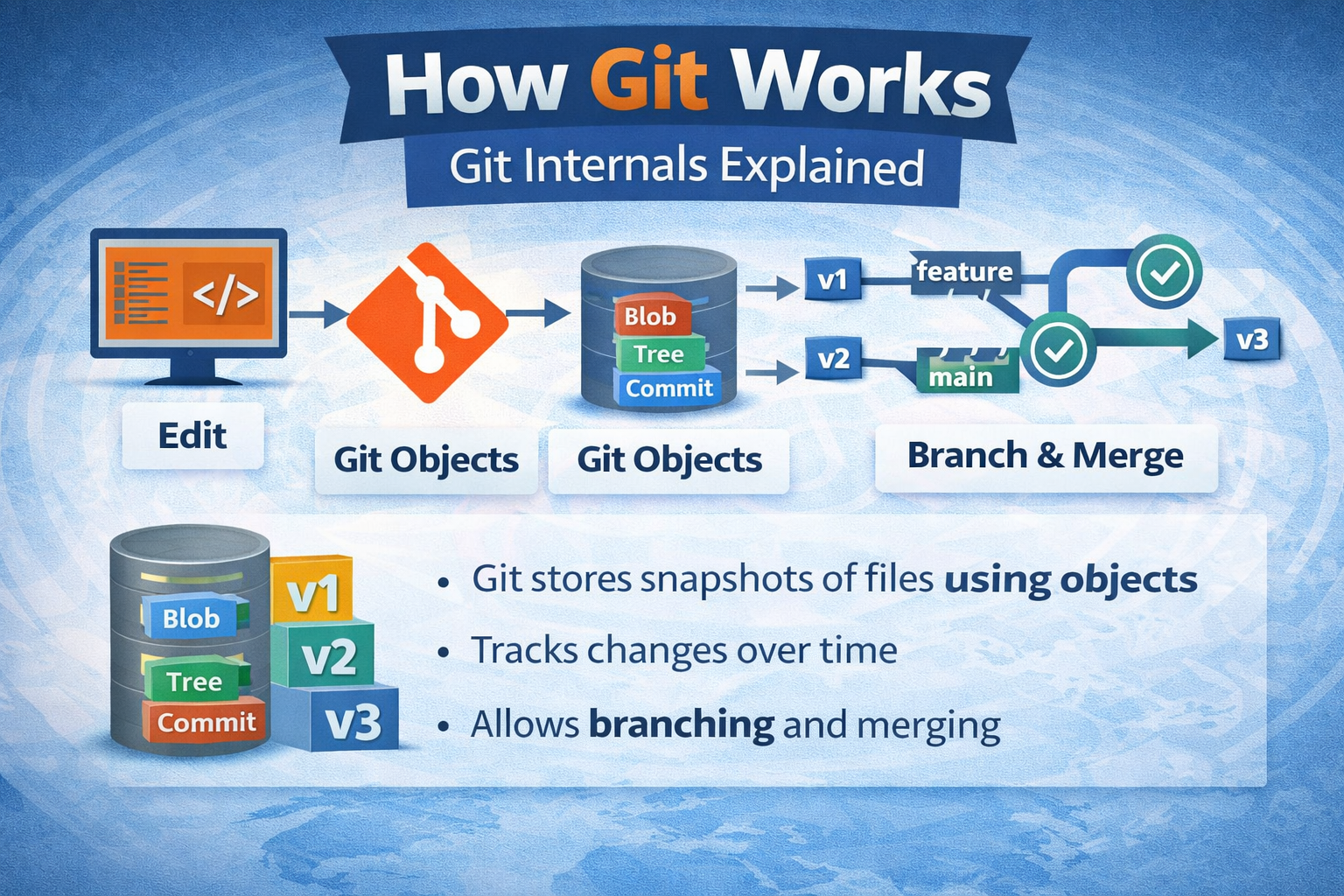
We’re going to look at what actually happens when you run git commit. What’s stored in that .git folder. How branches are just text files. How Git guarantees your data is never corrupted. Why merges sometimes fail and sometimes don’t. The whole picture, from the ground up, in plain English.
No PhD required. Let’s learn about git internals explained.
Table of Contents
- Git Is Just a Content-Addressable Database
- What Lives Inside the .git Folder
- The Four Git Object Types
- What Really Happens When You Run git commit
- Branches Are Just Text Files
- What HEAD Actually Is
- The Index: Git’s Staging Area Under the Hood
- How Git Merge Works Internally
- How Git Rebase Works Internally
- Packfiles: How Git Stays Efficient Over Time
- Garbage Collection and Dangling Objects
- Frequently Asked Questions
- Related Resources
- Final Thoughts
Git internals Explained
1. Git Is Just a Content-Addressable Database
Strip away all the branching, merging, and remotes, and at its core Git is a key-value store. A database. You put content in, Git gives you back a key. You give Git that key later, it gives you the content back. That’s the foundation everything else is built on.
The key Git uses is a SHA-1 hash — a 40-character hexadecimal string generated by running the content through a hashing algorithm. The SHA-1 hash of any piece of content is always the same. If the content changes by even one character, the hash changes completely. This property is what makes Git’s data integrity guarantees possible.
You can actually see this directly. Git ships with low-level “plumbing” commands that let you interact with its internals. Here’s how to store content in Git’s object database manually:
$ echo "hello git" | git hash-object --stdin -w
8c7e5a667f1b771847fe88c01c3de34413a1b220
That 40-character string is the address of your content. It’s now permanently stored in Git’s object database. Give Git that key and it’ll return your content instantly:
$ git cat-file -p 8c7e5a667f1b771847fe88c01c3de34413a1b220
hello git
This is Git at its most raw. Everything else — commits, branches, merges, history — is built on top of this simple mechanism. Understanding that Git is fundamentally a content-addressed database changes how you think about everything it does.
One important implication: the same content always gets the same hash. If two different files have identical content, Git only stores one copy. If you rename a file without changing its content, Git doesn’t store a new version — it just references the same object with a different name. This is how Git stays lean even on large projects.
2. What Lives Inside the .git Folder

Every Git repository has a hidden .git folder at its root. This folder is the repository. The files you see and edit in your project folder are just a working copy checked out from it. If you deleted everything except .git, you could reconstruct the entire project.
Let’s look at what’s actually in there:
$ ls -la .git/
HEAD
config
description
hooks/
index
info/
objects/
refs/
Here’s what each of these is:
HEAD
A file containing a single line that tells Git where you currently are. Usually looks like ref: refs/heads/main. More on this shortly.
config
The repository-level configuration file. Settings here override your global ~/.gitconfig for this specific repo. Things like the remote URL, branch tracking, and per-project user settings live here.
objects/
The object database. This is where Git stores every version of every file, every commit, every directory structure — everything. It’s organized into subdirectories named after the first two characters of the SHA-1 hash, with the remaining 38 characters as the filename.
$ ls .git/objects/
8c/
info/
pack/

$ ls .git/objects/8c/
7e5a667f1b771847fe88c01c3de34413a1b220
refs/
Short for references. This folder contains files that point to specific commits. Your branch names live here as files inside refs/heads/. Remote tracking branches live in refs/remotes/. Tags live in refs/tags/.
index
The staging area, in binary file form. When you run git add, this file gets updated to record what’s staged. It’s Git’s picture of what the next commit will look like.
hooks/
Scripts that Git runs automatically at certain points — before a commit, after a push, before a merge. They’re powerful for automation: running tests before a commit, enforcing commit message formats, sending notifications after a push. They’re just shell scripts in this folder with specific names like pre-commit or post-push.
3. The Four Git Object Types

Everything Git stores in its object database is one of four types. Four. That’s the entire data model.
Blob
A blob stores the raw content of a file. Not the filename, not the permissions — just the content. Two different files with identical content share one blob. Git compresses blob content using zlib before writing it to disk.
You can inspect any object’s type and content with git’s plumbing commands:
# Check what type an object is
$ git cat-file -t 8c7e5a667f1b771847fe88c01c3de34413a1b220
blob

# Read the content
$ git cat-file -p 8c7e5a667f1b771847fe88c01c3de34413a1b220
hello git
Tree
A tree represents a directory. It stores a list of entries — each entry being a filename, file permissions, and a pointer to either a blob (for a file) or another tree (for a subdirectory). Trees are how Git reconstructs your entire project structure from just a top-level pointer.
$ git cat-file -p main^{tree}
100644 blob a3f9c12b...    README.md
100644 blob b4e8d23c...    app.js
040000 tree c5f7e34d...    src/
Each line is: permissions, object type, hash, name. The 040000 mode on src/ indicates it’s a directory, pointing to another tree object. This recursive structure means Git can represent any file system layout using just blobs and trees.
Commit
A commit object is the glue that ties everything together. It contains a pointer to a tree (the root of the project snapshot), pointers to parent commits, author information, committer information, a timestamp, and the commit message.
$ git cat-file -p HEAD
tree 4b825dc642cb6eb9a060e54bf8d69288fbee4904
parent a3f9c12b8e1d4f7c2a9b6e3d8f1c5a2b9e4d7f3
author Rohan Mehta <rohan@example.com> 1706000000 +0530
committer Rohan Mehta <rohan@example.com> 1706000000 +0530

Add user authentication module
Notice that a commit doesn’t store a diff. It stores a complete snapshot via the tree pointer. When Git shows you “what changed in this commit,” it’s comparing the tree from this commit to the tree from the parent commit and computing the difference on the fly. The storage is snapshots; the display is computed diffs.
A merge commit has two parent pointers instead of one — one pointing to each branch that was merged. That’s the only structural difference between a regular commit and a merge commit.
Tag
An annotated tag object stores a pointer to another object (usually a commit), a tag name, the tagger’s identity, a timestamp, and a message. Lightweight tags are just refs (pointers), not full objects. Annotated tags are proper objects stored in the database, which is why they can have their own messages and GPG signatures.
That’s the complete data model. Four object types. Blobs hold file content. Trees hold directory structure. Commits hold snapshots with metadata and history links. Tags hold named references to important commits. Everything Git does is built on top of these four types.
4. What Really Happens When You Run git commit

Let’s trace the exact sequence of events when you run git commit -m "Add login page". Most tutorials gloss over this entirely. It’s actually fascinating once you see it.
Step 1: Git Reads the Index
The first thing Git does is read the staging area (the index file). This tells it exactly what files are staged and what their current content hashes are. Any file you’ve added with git add is represented here as a blob hash.
Step 2: Git Writes Blob Objects
For any staged file whose content hasn’t been stored yet, Git compresses the content and writes a blob object to .git/objects/. If the same content already exists as a blob (same hash), Git skips writing it — the object already exists.
Step 3: Git Writes Tree Objects
Git then constructs tree objects from the index. For each directory in your project, it creates a tree object listing the files and subdirectories it contains. The root-level tree is written last, pointing to all the nested trees and blobs that represent your entire project structure.
Step 4: Git Writes the Commit Object
Git creates a new commit object containing the hash of the root tree, the hash of the current HEAD commit (the parent), your author information from the config, the current timestamp, and your commit message. It hashes all of this together to generate the new commit’s SHA-1.
Step 5: Git Updates the Branch Reference
Finally, Git looks at HEAD, finds which branch you’re on (say, main), and updates .git/refs/heads/main to contain the new commit’s hash. That single file update is what “advancing the branch” actually means. The branch pointer moves forward to point at the new commit.
The whole operation takes milliseconds because it’s just writing a handful of compressed files and updating one text file. No network, no locking, no coordination with anyone else. Pure local disk operations.
5. Branches Are Just Text Files
This one surprises people every time. After all the complexity that branches represent conceptually — parallel lines of development, isolated workstreams, careful merges — the actual implementation is almost comically simple.
A branch is a text file containing a single 40-character commit hash. That’s it.
$ cat .git/refs/heads/main
f4d8a1b3c2e9f7a6b8c1d4e7f2a5b9c3d6e1f4a8

$ cat .git/refs/heads/feature/user-login
a3f9c12b8e1d4f7c2a9b6e3d8f1c5a2b9e4d7f3
Each branch is just a pointer to one commit — the tip of that branch. The history you see when you run git log on a branch is reconstructed by following the chain of parent pointers backwards from that tip commit all the way to the first commit.
This is why creating a branch in Git is nearly instant. It’s not copying files or branching a database — it’s creating a new text file with a hash in it. The entire branch operation is:
# What git branch feature/new-thing actually does:
# Creates .git/refs/heads/feature/new-thing
# Writes the current HEAD commit hash into it
# That's it
When you make a commit on a branch, Git writes the new commit object (with the previous tip as its parent) and then updates the branch file to contain the new commit’s hash. The branch pointer advances. Older commits don’t move or change — they’re immutable objects in the database.
This architecture is also why switching branches is fast. Git reads the branch file to find the tip commit, reads the tree object from that commit to know what the project should look like, and updates your working directory to match. On large repositories this can take a second or two, but it scales remarkably well considering what’s happening.
Remote tracking branches work the same way, just stored in a different location:
$ cat .git/refs/remotes/origin/main
c9d2e4f1a3b7c8d2e5f9a1b4c7d3e6f2a8b1c5d9
This file gets updated when you run git fetch — it records where origin/main pointed the last time you synced with the remote. Your local main and origin/main are separate pointers that may or may not point to the same commit, depending on whether you’re ahead, behind, or diverged.
6. What HEAD Actually Is
HEAD is a special reference — a pointer to a pointer. In normal usage, HEAD doesn’t point directly to a commit. It points to a branch, which in turn points to a commit.
$ cat .git/HEAD
ref: refs/heads/main
This is called a symbolic reference. HEAD says “I’m pointing at main” and main says “I’m pointing at commit X.” When you make a new commit, Git reads HEAD to find the branch, updates the branch to point at the new commit, and HEAD stays pointing at the same branch — it just effectively moves forward because its target moved.
Detached HEAD State
When you checkout a specific commit hash directly — or a tag, or a remote branch — HEAD stops being a symbolic reference and becomes a direct reference:
$ git checkout a3f9c12
$ cat .git/HEAD
a3f9c12b8e1d4f7c2a9b6e3d8f1c5a2b9e4d7f3
This is “detached HEAD.” HEAD is pointing directly at a commit, not at a branch. You can look around, even make commits — but if you switch away without creating a branch, those commits become unreachable. No branch points to them. Git will eventually garbage-collect them.
This is why Git warns you about detached HEAD. It’s not an error state — it’s a legitimate mode of operation. But if you want to keep any commits you make in this state, create a branch first:
$ git checkout -b my-experimentNow HEAD is a symbolic reference again, pointing at my-experiment, which points at the commit. You’re safe.
7. The Index: Git’s Staging Area Under the Hood
The index — .git/index — is a binary file that Git uses as its staging area. It represents the proposed next commit: the exact state of every tracked file that will go into the commit when you run git commit.
Conceptually, the index sits between your working directory and your commit history. At any point, there are three versions of each tracked file that Git is aware of:
- The HEAD version — the file as it exists in the last commit
- The index version — the file as it exists in the staging area
- The working tree version — the file as it currently exists on disk
This is why Git can show you two different diffs. git diff compares your working tree to the index — it shows you unstaged changes. git diff --staged compares the index to HEAD — it shows you what’s staged and will go into the next commit.
When you run git add app.js, Git computes the SHA-1 hash of the file’s current content, writes a blob object to the object store if it doesn’t already exist, and then updates the index to record that app.js should now point to that blob hash. The index doesn’t copy the file — it just updates a pointer.
You can inspect the raw index contents with a plumbing command:
$ git ls-files --stage
100644 a3f9c12b8e1d4f7c2a9b6e3d8f1c5a2b9e4d7f3 0    README.md
100644 b4e8d23c9f2a7b6e1c3d5f8a2b4c7d9e1f3a5b7 0    app.js
100644 c5f7e34d0a3b8c7d2e4f6a9b1c3d5e7f9a2b4c6 0    index.html
Each line shows permissions, the blob hash, a merge stage number (0 means not in conflict), and the filename. During a merge conflict, the same file appears three times with stage numbers 1, 2, and 3 representing the base version, the current branch version, and the incoming branch version. Git uses this to present the conflict markers and track resolution.
8. How Git Merge Works Internally

Understanding merge internally explains both why it works so seamlessly most of the time and why it fails the way it does when it doesn’t.
Finding the Merge Base
The first thing Git does when you run git merge feature-branch is find the merge base — the most recent common ancestor commit of the two branches. This is the last commit that both branches share in their history.
# Find the common ancestor of two branches
$ git merge-base main feature/user-login
a3f9c12b8e1d4f7c2a9b6e3d8f1c5a2b9e4d7f3
Once it has the merge base, Git has three snapshots to work with: the merge base (ancestor), the tip of the current branch (ours), and the tip of the branch being merged (theirs).
Three-Way Merge
Git uses a three-way merge algorithm. For each file, it compares all three versions and applies logic:
- If a file changed in one branch but not the other since the ancestor, take the changed version. No conflict.
- If a file changed in both branches but the changes are in different parts of the file, Git can usually combine them automatically. No conflict.
- If a file changed in both branches and the changes overlap — the same lines were modified differently — Git cannot decide. Conflict.
- If a file was deleted in one branch and modified in the other, that’s also a conflict.
The three-way approach is much smarter than just comparing two files. It knows the starting point, so it can tell the difference between “both branches made the same change” (which needs no conflict, just one copy of the change) and “both branches made different changes to the same place” (which genuinely needs human judgment).
Fast-Forward vs True Merge
When the current branch is a direct ancestor of the branch being merged — meaning no new commits have been made on the current branch since the feature branch was created — Git can do a fast-forward merge. It simply moves the branch pointer forward to the tip of the feature branch. No merge commit is created. The history stays linear.
When both branches have diverged — both have commits that the other doesn’t — Git performs a true three-way merge and creates a merge commit. The merge commit has two parents: one pointing to each branch’s tip before the merge.
You can force a merge commit even when a fast-forward is possible with git merge --no-ff. Some teams prefer this to preserve a clear record of when features were integrated, even when the history would be linear without it.
9. How Git Rebase Works Internally

Rebase has a reputation for being dangerous and mysterious. Once you understand what it’s actually doing, it’s neither.
When you run git rebase main while on a feature branch, here’s the exact sequence:
Step 1: Find the Divergence Point
Git finds the merge base — the common ancestor of your feature branch and main. This is where the two branches diverged.
Step 2: Save the Patches
Git saves the diff (the patch) for each commit on your feature branch that came after the divergence point. These patches represent what each commit actually changed, independent of the base they were applied to.
Step 3: Move to the New Base
Git moves your branch pointer to point at the tip of main. Your feature branch now temporarily has no unique commits — it looks like it’s at the same place as main.
Step 4: Replay the Patches
Git applies each saved patch one by one, creating brand new commit objects as it goes. These new commits have the same changes as your original commits but different parent pointers (pointing to the new base) and therefore different SHA-1 hashes. They are new objects.
This is the critical point that explains rebase’s danger: the old commits still exist in the object database, but no branch points to them anymore. Your branch now points to the new replay commits. If you’ve pushed the old commits to a shared remote, anyone who pulled them now has commits in their history that no longer match what’s on the remote. That’s what causes the “rewriting history” problem.
For commits that only exist locally — commits on a feature branch you haven’t pushed yet — rebase is perfectly safe. You’re just reorganizing your own local history before sharing it.
Interactive Rebase
Interactive rebase (git rebase -i) works the same way but pauses between each patch replay and lets you edit what happens. You can squash multiple commits into one, reorder commits, edit commit messages, or drop commits entirely. It’s how developers clean up “WIP” and “fix typo” commits into a coherent history before opening a pull request.
# Interactively rebase the last 3 commits
$ git rebase -i HEAD~3

# Git opens your editor with something like:
pick a3f9c12 Add login form
pick b4e8d23 fix typo
pick c5f7e34 WIP: session handling

# Change 'pick' to 'squash' to combine commits:
pick a3f9c12 Add login form
squash b4e8d23 fix typo
squash c5f7e34 WIP: session handling
10. Packfiles: How Git Stays Efficient Over Time
Here’s a problem with Git’s object model: if every commit stores a complete snapshot rather than a diff, wouldn’t a repository get enormous over time? If you commit a 10MB file every day for a year, is Git storing 3.65GB?
No — and packfiles are why.
Initially, Git stores objects as individual “loose” files in the .git/objects/ directory. Each commit, tree, and blob is a separate compressed file. This is fast to write but inefficient for storage when you have thousands of similar versions of the same file.
Periodically — either automatically in the background or when you run git gc — Git packs loose objects into a packfile. A packfile stores objects as deltas against similar objects. Instead of storing the full content of every version of a file, Git finds similar objects, stores the full content of one, and stores only the differences for the others.
# Manually trigger garbage collection and repacking
$ git gc
Counting objects: 2847, done.
Delta compression using up to 8 threads.
Compressing objects: 100% (1203/1203), done.
Writing objects: 100% (2847/2847), done.
Total 2847 (delta 891), reused 0 (delta 0)
The result is a .pack file and an accompanying .idx index file in .git/objects/pack/. The index file allows Git to quickly find any specific object in the pack without reading the entire thing.
This delta compression is smart in a non-obvious way: Git doesn’t necessarily delta-compress adjacent versions of the same file. It finds the best compression matches across the entire repository, sometimes compressing one file’s content against a totally different file if they happen to be similar. The algorithm optimizes for total size, not chronological order.
This is why Git repositories stay remarkably small even with long histories. The Linux kernel repository — one of the largest Git repositories in existence, with decades of history and thousands of contributors — is around 5GB. That represents millions of commits and every version of every file in the kernel’s history.
11. Garbage Collection and Dangling Objects
Git accumulates objects over time. Some of those objects become unreachable — no branch, tag, or other reference points to them, either directly or through the chain of parent pointers. These are called dangling objects.
Dangling objects are created in several ways. When you amend a commit, the original commit becomes dangling. When you do a hard reset, the commits you reset past become dangling. When you delete a branch without merging it, the commits unique to that branch become dangling. When rebase creates new commits from old ones, the originals become dangling.
Dangling objects are not immediately deleted. Git’s garbage collector leaves them around for a while — 30 days by default — before removing them. This is actually a safety net. If you accidentally delete a branch or do a hard reset you regret, those objects are still there and recoverable via the reflog within that window.
# See all unreachable objects
$ git fsck --unreachable
unreachable commit a3f9c12b...
unreachable blob b4e8d23c...

# Recover a lost commit by creating a branch pointing to it
$ git checkout -b recovered-work a3f9c12b
The reflog is your first line of defense for accidental data loss. It records every position HEAD has been in for the last 90 days by default. Even if you can’t find the commit hash through normal log commands, git reflog will usually have it.
$ git reflog
f4d8a1b HEAD@{0}: merge feature/login: Merge made by recursive
a3f9c12 HEAD@{1}: checkout: moving from feature/login to main
b4e8d23 HEAD@{2}: commit: Add session handling
c5f7e34 HEAD@{3}: commit: Add login form
a3f9c12 HEAD@{4}: checkout: moving from main to feature/login
After git gc runs, loose objects are packed and dangling objects older than the grace period are deleted. The repository becomes leaner. But objects that are reachable from any reference — any branch, any tag, anything in the reflog — are never deleted during garbage collection.
Frequently Asked Questions
Why does Git use SHA-1 if SHA-1 is considered broken cryptographically?
Git uses SHA-1 for content addressing, not for cryptographic security. The goal is to detect accidental corruption, not to prevent intentional attacks. The probability of an accidental SHA-1 collision in a Git repository is astronomically small — practically zero. For deliberate attacks, constructing a malicious collision that passes Git’s additional checks is extremely difficult. The Git team has been gradually migrating to SHA-256 for new repositories, and Git 2.29+ supports SHA-256 repositories. But SHA-1 corruption by accident simply does not happen in practice.
If commits store full snapshots, why is Git so space-efficient?
Two reasons. First, identical content always maps to the same blob hash, so Git never stores the same content twice. If 80% of your files don’t change between commits, those files are referenced in every commit but only stored once. Second, packfiles use delta compression — storing differences between similar objects rather than full copies. The combination means that a repository with years of history is often only a few times larger than the current working directory, not thousands of times larger as naive snapshot storage would suggest.
What exactly is the reflog and how long does it keep history?
The reflog is a local log of every position HEAD and branch tips have been in. It’s stored in .git/logs/. By default, reflog entries expire after 90 days for reachable commits and 30 days for unreachable ones. You can adjust these with git config gc.reflogExpire and gc.reflogExpireUnreachable. The reflog is local — it doesn’t get pushed to remotes, and cloning a repository does not include the original’s reflog. It’s purely a local safety net.
Why do commit hashes change after a rebase even if the content is the same?
Because the SHA-1 hash of a commit is computed from all of its contents: the tree hash, the parent hash, the author, the committer, the timestamp, and the message. After rebase, each commit has a different parent hash — it now points to a different commit as its parent. Changing any input to the hash changes the output hash completely. Same diff, same message, same files — but a different parent means a completely different commit object with a different hash.
Can I really recover commits after a hard reset?
Yes, almost always, as long as you act within the reflog window (90 days by default). After a hard reset, the commits you reset past are no longer on any branch, but they still exist as dangling objects in the database. The reflog records where HEAD was before the reset. Find the commit hash there, create a new branch pointing to it, and you’ve recovered the work. The one case where recovery is impossible is if git gc has already run and the grace period has expired, which requires both time passing and garbage collection running.
What is a Git hook and how does it actually work?
A Git hook is an executable script in .git/hooks/ that Git runs automatically at specific points in its workflow. The script’s filename determines when it runs: pre-commit runs before a commit is created, commit-msg runs after you write the commit message, pre-push runs before a push, post-merge runs after a merge completes, and so on. If a hook script exits with a non-zero status, Git aborts the operation. This makes hooks powerful for enforcing rules: running tests before committing, validating commit message format, preventing pushes to protected branches. Hooks are not committed to the repository by default — they live in .git/hooks/ which isn’t tracked. Teams that want to share hooks typically use a tool like Husky to manage them.
What’s the difference between a lightweight tag and an annotated tag internally?
A lightweight tag is just a ref — a file in .git/refs/tags/ containing a commit hash. It’s identical in structure to a branch, except it never moves. An annotated tag is a full Git object in the object database with its own SHA-1 hash. It stores a pointer to a commit, the tagger’s identity, a timestamp, and a tag message. Annotated tags can also be GPG-signed. Because they’re real objects, annotated tags can be pushed to remotes with git push –tags and they carry their own metadata. Lightweight tags are fine for local bookmarking. Annotated tags are the right choice for release versions that you’ll share.
Related Resources
For going deeper into Git internals:
- Pro Git — Git Internals Chapter — Chapter 10 of the free Pro Git book goes deeper into everything covered here. The most authoritative free resource on Git’s internals.
- Git Reference Documentation — Official docs for every plumbing command mentioned in this article.
- Git explained for beginners
Final Thoughts
Most people use Git for years without understanding any of what we just covered. And honestly, you can get a lot done without it. But there’s a ceiling to how good you can get at Git without understanding the model underneath it.
When you know that a branch is just a text file with a hash in it, “deleting a branch” stops feeling scary — you’re just removing a pointer, not the commits. When you know that rebase creates new commit objects and abandons the old ones, you understand exactly why it causes problems when used on shared branches and exactly when it’s safe. When you know that Git is a content-addressed database, you understand why identical content never gets stored twice and why switching branches is fast.
The model is actually elegant. Four object types. SHA-1 hashes as addresses. Branches as pointers. History as a chain of parent references. Everything else — the porcelain commands you use daily — is built on top of these simple primitives.
The best way to make this stick is to go poke around in a real repository. Run git cat-file -p HEAD. Look in .git/refs/heads/. Read the raw commit objects. Once you’ve seen these things with your own eyes in a real project, the model becomes concrete instead of abstract. And once it’s concrete, Git stops being a magic wand you wave and becomes a tool you actually understand.
About the Author
Kedar Salunkhe
DevOps Engineer | Seven years of fixing things that break at 2am
Kubernetes • OpenShift • AWS • Coffe
I’ve spent almost 7 years keeping production systems running, often when everyone else is asleep. These days I’m working with Kubernetes and OpenShift deployments, automating everything that can be automated, and occasionally remembering to document the things I fix. When I’m not troubleshooting clusters, I’m probably trying out new DevOps tools or explaining to someone why we can’t just “restart everything” as a debugging strategy. You can usually find me where the coffee is strong and the error logs are confusing.