
By Kedar Salunkhe · Updated March 2026
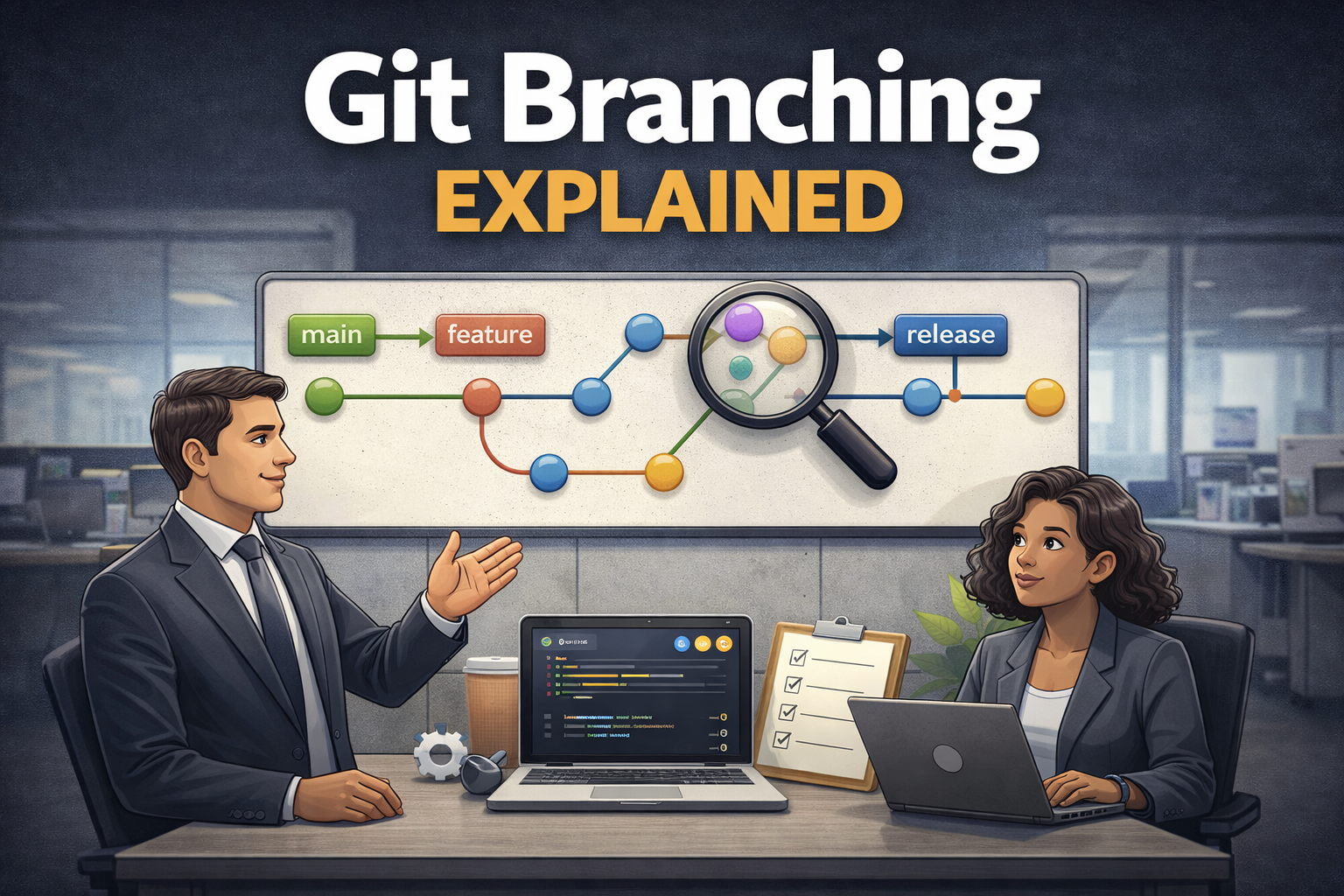
Git branching explained is one of the most important concepts every developer must understand…
When you’re starting out, a branch feels like a vague concept — something you create because tutorials tell you to, without quite knowing why. Then, a few months into working on a real project or a real team, it clicks. Not because you read the right article, but because you got burned. You pushed something half-finished to main. You needed to fix a bug urgently but your working directory was a mess. Two of you edited the same file at the same time and now nothing makes sense.
Those situations teach you what branches are actually for.
This guide “Git Branching Explained” goes further than that. We’ll cover how branches work inside Git — not just conceptually but literally, at the file level. We’ll go through every major branching strategy that teams use in production, with the honest trade-offs of each. We’ll walk through real scenarios: the kind of messy, multi-person situations where branching discipline either saves you or fails you. And we’ll cover the commands and habits that separate developers who are comfortable with branches from those who are always slightly anxious about them.
By the end, branching will feel less like a ritual and more like a tool you actually understand.
Table of Contents
Git Branching Explained —
1. What a Branch Actually Is (Not the Metaphor — the Reality)

Every Git tutorial at some point draws a tree diagram. Branches coming off a trunk. It’s a useful picture, but it’s not what Git actually does and it leads to some wrong intuitions.
In Git, a branch is not a copy of your code. It’s not a parallel timeline in some heavyweight sense. It’s a pointer — a single file containing a 40-character commit hash. That’s the complete implementation. A branch in Git is a text file with one line in it.
$ cat .git/refs/heads/main
f4d8a1b3c2e9f7a6b8c1d4e7f2a5b9c3d6e1f4a8
That file is the main branch. One line. One hash. It points to the most recent commit on that branch. The “history” of the branch is not stored in the branch — it’s reconstructed by following the chain of parent pointers in the commit objects themselves, backwards from wherever the branch currently points.
This matters because it explains things that would otherwise seem strange. Why is creating a branch nearly instant? Because it’s creating a file with one line of text. Why does switching branches feel fast even on large projects? Because Git just reads a different text file, finds the commit hash, reads the tree from that commit, and updates your working directory. Why can you have hundreds of branches without your repository getting bloated? Because each branch is one small file — the actual code is shared across branches through the object store.
The tree diagram isn’t wrong. It accurately shows the relationship between commits. But the underlying implementation is far simpler than the metaphor suggests, and understanding that simplicity unlocks a lot of Git’s behavior.
2. Branch Internals: What Git Does When You Create a Branch

Let’s trace exactly what happens when you run git branch feature/login.
Git reads the current HEAD to find out which commit you’re on. Let’s say it’s a3f9c12. Git then creates a new file at .git/refs/heads/feature/login and writes a3f9c12 into it. That’s the entire operation. You now have a new branch pointing at the same commit as whatever branch you were on before.
$ git branch feature/login
$ cat .git/refs/heads/feature/login
a3f9c12b8e1d4f7c2a9b6e3d8f1c5a2b9e4d7f3
At this point, both main and feature/login point to the exact same commit. No files have been copied. No directories have been duplicated. The repository size has increased by exactly the size of one small text file.
Now you switch to that branch and make a commit. Here’s what happens to the pointers:
- Git creates the new commit object with
a3f9c12as its parent - The new commit gets its own hash — say
b4e8d23 - Git updates
.git/refs/heads/feature/loginto containb4e8d23 mainstays pointing ata3f9c12, untouched
The branches have now diverged. feature/login is one commit ahead of main. Make three more commits on feature/login and it’s four commits ahead. Switch back to main at any point and your working directory instantly reflects the state at a3f9c12 — the new commits exist in the object store but nothing in your working directory reflects them while you’re on main.
Meanwhile, if someone else makes commits on main, those advance the main pointer independently. Now both branches have commits the other doesn’t. They’ve diverged in both directions. When it’s time to merge, Git will find their common ancestor (a3f9c12) and do a three-way merge.
3. How HEAD and Branches Work Together
HEAD is the way Git tracks where you are right now. It’s a file at .git/HEAD and in normal usage it contains something like this:
$ cat .git/HEAD
ref: refs/heads/feature/login
This is a symbolic reference — HEAD isn’t pointing directly at a commit, it’s pointing at a branch, which in turn points at a commit. This indirection is important. When you make a new commit, Git reads HEAD, finds the branch it points to, creates the commit with the current tip as its parent, and then updates that branch file to point at the new commit. HEAD itself doesn’t change — it still points to the same branch. The branch pointer is what moves.
Switch branches and HEAD updates to point at the new branch:
$ git checkout main
$ cat .git/HEAD
ref: refs/heads/main
This two-level indirection — HEAD → branch → commit — is the mechanism behind almost everything Git does. It’s what lets branching be cheap (just update a text file), what lets you always know which branch you’re on (read HEAD), and what makes detached HEAD state meaningful (HEAD points directly to a commit instead of through a branch).
When HEAD Detaches
Check out a specific commit hash, a tag, or use certain Git operations and HEAD detaches — it points directly to a commit rather than to a branch:
$ git checkout a3f9c12
Note: switching to 'a3f9c12'.

You are in 'detached HEAD' state...

$ cat .git/HEAD
a3f9c12b8e1d4f7c2a9b6e3d8f1c5a2b9e4d7f3
You can look around, run the code, even make commits. But if you make commits in detached HEAD state and then switch back to a branch without first creating a new branch pointing to those commits, they become orphaned. No branch pointer reaches them. Git’s garbage collector will eventually delete them.
The fix is simple — if you want to keep work done in detached HEAD state, create a branch immediately:
$ git checkout -b my-experiment4. Creating, Switching, and Deleting Branches

Let’s go through the actual commands you’ll use, with the context that makes them make sense.
Creating a Branch
# Create a branch but stay where you are
$ git branch feature/search

# Create a branch AND switch to it (most common)
$ git checkout -b feature/search

# Newer syntax for the same thing
$ git switch -c feature/search

# Create a branch from a specific commit, not current HEAD
$ git checkout -b hotfix/payment a3f9c12
The last one is useful when you need to branch off an older commit — for example, branching off the last stable release tag to write a hotfix, rather than branching off whatever messy state main is in right now.
Switching Branches
# Classic syntax
$ git checkout main

# Newer syntax (more explicit)
$ git switch main

# Go back to the previous branch (the - is shorthand)
$ git switch -
The git switch - shorthand is underused and genuinely handy. It works like cd - in a Unix shell — takes you back to wherever you just were. When you’re bouncing between two branches repeatedly, this saves a lot of typing.
Git will refuse to switch branches if you have uncommitted changes that would be overwritten by the switch. You have two options: commit the changes first, or stash them temporarily with git stash.
Listing Branches
# List local branches
$ git branch

# List local branches with last commit info
$ git branch -v

# List all branches including remote-tracking
$ git branch -a

# List only remote-tracking branches
$ git branch -r

# List branches merged into current branch (safe to delete)
$ git branch --merged

# List branches NOT yet merged (don't delete these carelessly)
$ git branch --no-merged
Deleting a Branch
# Delete a merged branch (safe — Git refuses if unmerged)
$ git branch -d feature/search

# Force-delete regardless of merge status (dangerous — use deliberately)
$ git branch -D feature/experiment

# Delete a remote branch
$ git push origin --delete feature/search
Deleting a branch doesn’t delete its commits. It just removes the pointer file. The commits remain as objects in the database and are accessible through the reflog for 90 days. If you delete a branch and immediately regret it, you can usually recover it:
$ git reflog
a3f9c12 HEAD@{1}: checkout: moving from feature/search to main

$ git checkout -b feature/search a3f9c12
5. Local vs Remote Branches: The Difference That Trips Everyone Up

This is the area where Git beginners get confused most often, and the confusion usually happens because of an implicit assumption: that “the branch” is one thing that exists in one place. It isn’t.
When you work with Git and a remote like GitHub, there are actually three distinct things that share a name:
- The local branch — lives in your
.git/refs/heads/folder. This is what moves forward when you make commits. You control it entirely. - The remote-tracking branch — lives in your
.git/refs/remotes/origin/folder. This is Git’s local record of where the remote branch was the last time you communicated with the remote. It updates when youfetchorpull. You can’t commit to it directly. - The remote branch — lives on the server (GitHub, GitLab, etc.). You can’t access it without a network connection. It updates when someone pushes to it.
These three can be at different commits simultaneously. Your local main might have three commits that origin/main doesn’t know about yet (you haven’t pushed). Meanwhile, origin/main on the server might have commits from teammates that your remote-tracking branch hasn’t fetched yet.
# Your local main
$ cat .git/refs/heads/main
f4d8a1b3...

# Your remote-tracking branch (last known state of origin/main)
$ cat .git/refs/remotes/origin/main
a3f9c12b...

# These are different commits — you're ahead of (or diverged from) origin
git fetch updates your remote-tracking branches to match what’s on the server. It does not touch your local branches. git pull does a fetch and then merges the remote-tracking branch into your local branch. Understanding this distinction explains why git fetch is safe and git pull can sometimes cause conflicts.
6. Tracking Branches and What git push Actually Does
A tracking branch is a local branch that has been configured to correspond to a remote branch. When a local branch tracks a remote branch, Git knows where to push to and where to pull from by default — you don’t have to specify it every time.
# Set up tracking when pushing for the first time
$ git push -u origin feature/login
Branch 'feature/login' set up to track remote branch 'feature/login' from 'origin'.

# After that, just:
$ git push
$ git pull
The tracking configuration is stored in .git/config:
[branch "feature/login"]
    remote = origin
    merge = refs/heads/feature/login
When you run git status on a tracking branch, Git compares your local branch with its remote-tracking counterpart and tells you how many commits ahead or behind you are. This information comes from the local remote-tracking branch — it’s not a live comparison against the server. Run git fetch first to get an accurate picture.
$ git fetch
$ git status
On branch feature/login
Your branch is ahead of 'origin/feature/login' by 2 commits.
  (use "git push" to publish your local commits)
When you push, Git sends the commits from your local branch to the remote and updates the remote-tracking branch to match. When you pull, it fetches the remote’s state, updates the remote-tracking branch, and merges into your local branch.
7. Branching Strategies: The Full Breakdown

A branching strategy is an agreed-upon set of rules that a team follows: what branches exist, when to create them, when to delete them, how code moves between them, and who’s allowed to merge where. Without a shared strategy, every developer does things differently and the result is chaos at scale.
The right strategy depends on your team size, your release cadence, and how your product is deployed. There’s no universal answer — but there are clear trade-offs you should understand before picking one.
The main strategies in use today are: Feature Branch Workflow, Git Flow, GitHub Flow, and Trunk-Based Development. We’ll cover each one seriously — not just what it is, but when it actually works and when it doesn’t.
8. The Feature Branch Workflow in Real Life
The feature branch workflow is the default approach for most development teams and it’s a good starting point for almost any project. The core rule is simple: every piece of work — features, bug fixes, experiments, refactors — gets its own branch. Nothing goes directly onto main.
How It Works Day to Day
A developer starts a new task. They pull the latest main, create a branch with a descriptive name, and work on that branch making as many commits as they need. When the work is done, they push the branch to the remote and open a Pull Request. Teammates review the code, leave comments, ask questions. The developer addresses feedback with new commits on the same branch. Once approved, the branch gets merged into main and then deleted.
# Start of every piece of work
$ git checkout main
$ git pull origin main
$ git checkout -b feature/password-reset

# Work, commit, work, commit...
$ git add .
$ git commit -m "Add password reset request form"
$ git commit -m "Add token generation and email sending"
$ git commit -m "Add password reset confirmation page"

# When done, push and open PR
$ git push -u origin feature/password-reset
The Honest Trade-offs
Feature branches work well when features are small and short-lived — a few days at most. The longer a branch lives, the more main diverges from it, and the harder the eventual merge becomes. A branch that lives for two weeks can produce a merge that takes an entire afternoon to resolve cleanly.
The fix isn’t to stop using feature branches — it’s to keep them small. If a feature is big, break it into smaller pieces. Each piece gets its own short-lived branch. Each piece ships and gets merged as soon as it’s done. Use feature flags in the application code to hide unfinished features from users while their components land in main incrementally.
Feature branches also encourage code review, which is one of the most effective quality controls available to a team. Every change gets seen by at least one other person before it reaches main. This catches bugs, spreads knowledge, and maintains standards. That alone makes the workflow worth it for most teams.
9. Git Flow: When It Helps and When It Doesn’t
Git Flow was introduced by Vincent Driessen in 2010 and became enormously influential. If you’ve worked in enterprise software, you’ve probably encountered it or something derived from it. At the time, it was a significant step forward from the chaos most teams were operating in.
The Structure
Git Flow uses two permanent branches and several types of temporary branches.
Permanent branches:
main(ormaster) — always reflects production. Only receives code from hotfix branches and release branches. Never developed on directly.develop— the integration branch. Feature branches merge into develop. This is where the “next release” is being assembled.
Temporary branches:
feature/*— branch off develop, merge back into develop when donerelease/*— branch off develop when a release is ready for final testing, merge into both main and develop when completehotfix/*— branch off main for urgent production fixes, merge into both main and develop when complete
# Starting a feature in Git Flow
$ git checkout develop
$ git checkout -b feature/invoice-export

# Finishing a feature
$ git checkout develop
$ git merge --no-ff feature/invoice-export
$ git branch -d feature/invoice-export

# Starting a release
$ git checkout develop
$ git checkout -b release/2.3.0

# Finishing a release
$ git checkout main
$ git merge --no-ff release/2.3.0
$ git tag -a v2.3.0 -m "Release 2.3.0"
$ git checkout develop
$ git merge --no-ff release/2.3.0
$ git branch -d release/2.3.0
When Git Flow Makes Sense
Git Flow is well-suited for products that have defined release cycles, maintain multiple versions simultaneously, or have long QA and staging processes. Desktop software, mobile apps, embedded systems, enterprise software with compliance requirements — these are natural fits. If you ship version 2.x and you still need to release security patches for version 1.x, Git Flow’s structure handles that cleanly.
When Git Flow Doesn’t Make Sense
For web applications that deploy to production multiple times per day, Git Flow adds ceremony without adding value. The release branch, the double merge into main and develop, the strict branch hierarchy — all of this slows down delivery without improving quality for teams that are shipping continuously. Vincent Driessen himself added a note to his original article acknowledging that his model wasn’t designed for software deployed continuously from main.
The most common failure mode of Git Flow in the wrong environment is the develop branch becoming a graveyard. Multiple feature branches merge into develop. Develop accumulates changes. Integration issues pile up. The release branch branches off a develop that’s become difficult to reason about. Instead of reducing chaos, the process adds layers of branches that don’t represent real value.
10. Trunk-Based Development: The Other Side of the Debate
Trunk-based development (TBD) is the model at the opposite end of the spectrum from Git Flow. It’s also the model used at Google, Facebook, and most high-velocity engineering teams.
The core idea: everyone works on one branch — the trunk, usually called main. Feature branches, if used at all, are very short-lived (hours to a day or two, not weeks). No long-running develop branch. No release branches in the traditional sense. Code flows directly from developers to main to production.
How It Actually Works Without Chaos
The question everyone has: if everyone is pushing to main all the time, doesn’t it constantly break?
The answer is that trunk-based development is only viable with a few supporting practices, all of which need to be genuinely in place:
- Feature flags — code ships to production but the feature is hidden behind a flag until it’s ready. This decouples deployment from release.
- Comprehensive automated testing — tests run on every commit, fast enough that developers get results before moving on. If tests fail, the commit doesn’t reach main.
- CI/CD pipeline — every push to main automatically runs tests and deploys if they pass. There’s no manual “release day.”
- Small, frequent commits — instead of working for three days and then integrating, developers integrate constantly. Each integration is small enough that problems are easy to identify and fix.
The Real Advantage
The main advantage of trunk-based development is eliminating merge debt. Merge debt is the accumulated difficulty of merging long-running branches. It grows non-linearly — a branch that’s been alive for two weeks isn’t twice as hard to merge as a one-week branch, it’s often five times harder because the codebase has moved in multiple directions simultaneously.
With trunk-based development, there’s no merge debt. Everyone integrates so frequently that their code is never far from the shared baseline. Conflicts are tiny because they represent at most a few hours of divergence rather than weeks.
The Real Disadvantage
It requires a level of engineering maturity that many teams simply don’t have yet. If your test suite is slow, unreliable, or incomplete, trunk-based development is dangerous. If your team doesn’t use feature flags, half-finished features will reach production. If your CI/CD infrastructure isn’t solid, the “everyone pushes to main” model produces broken builds that block the entire team.
Be honest about where your team is. Trunk-based development is the destination many teams should work toward, but it requires the supporting infrastructure to be in place before the branching model. Trying to do TBD without those foundations is just chaos with a name.
11. Real-World Branching Scenarios and How to Handle Them

Theory is one thing. Here are the actual messy situations you’ll encounter and the branching approaches that handle them well.
Scenario 1: You’re Mid-Feature and a Critical Bug Needs Fixing Now
You’ve been working on a new dashboard for four days. Your working directory has uncommitted changes all over the place. Production just went down because of an unrelated bug. You need to fix it in the next hour.
# Save your work-in-progress without committing
$ git stash push -m "Dashboard WIP — half-finished layout"

# Switch to main and branch off for the hotfix
$ git checkout main
$ git pull origin main
$ git checkout -b hotfix/login-crash

# Fix the bug
$ git add auth/session.js
$ git commit -m "Fix null dereference when session token expires"

# Merge to main, push, deploy
$ git checkout main
$ git merge hotfix/login-crash
$ git push origin main
$ git tag -a v1.4.1 -m "Hotfix: login crash on expired session"
$ git branch -d hotfix/login-crash

# Come back to your dashboard work
$ git checkout feature/dashboard
$ git stash pop
The stash is your “put everything on hold” mechanism. It saves your uncommitted changes to a stack so you can come back to them after handling the emergency. git stash pop restores them when you’re ready.
Scenario 2: Your Feature Branch Has Fallen Way Behind Main
You’ve been working on a branch for ten days. Main has received forty commits from six other developers. You’re dreading the merge.
The fix is to not wait until merge time. Update your branch regularly:
# Option 1: Merge main into your feature branch periodically
$ git checkout feature/your-big-feature
$ git fetch origin
$ git merge origin/main

# Option 2: Rebase your branch onto the current main
$ git checkout feature/your-big-feature
$ git fetch origin
$ git rebase origin/main
Both approaches integrate the latest main into your branch. Merging preserves the history as-is and creates a merge commit. Rebasing replays your commits on top of the latest main and produces a cleaner linear history but rewrites your commit hashes.
If you’ve already pushed your feature branch and other people are working on it, use merge — rebasing a shared branch creates the same hash-rewriting problems as rebasing main. If the branch is yours alone and hasn’t been pushed, rebase is fine and produces cleaner history.
Scenario 3: Two Developers Need to Build on Each Other’s Unfinished Work
Developer A is building an authentication system. Developer B needs to build a permissions module that depends on auth. Auth isn’t merged to main yet. B can’t wait.
# Developer B branches off Developer A's feature branch
$ git fetch origin
$ git checkout -b feature/permissions origin/feature/auth-system
B works on permissions on top of A’s branch. When A’s auth branch gets merged to main, B updates their base:
# After auth lands in main
$ git checkout feature/permissions
$ git rebase main
Now permissions branches off main directly and only contains B’s changes. The dependency is cleanly resolved.
Scenario 4: A Feature Needs to Be Reverted After Merging
A feature was merged to main and deployed. Something in production is broken because of it. You need to undo the feature without breaking everything else that was deployed after it.
# Find the merge commit hash
$ git log --oneline --merges
a1b2c3d  Merge pull request #42 from feature/new-pricing

# Revert the merge commit (the -m 1 specifies the mainline parent)
$ git revert -m 1 a1b2c3d
$ git push origin main
This creates a new commit that undoes everything the merge brought in, without touching any commits that came after. The revert itself is a commit in the history, making the decision traceable. Production gets the fix when you push.
12. Keeping Branches Clean: Stale Branch Management
Repositories accumulate branches. A branch gets merged, but nobody deletes it. An experiment gets abandoned, but the branch stays. A developer leaves the team, and their in-progress branches sit there indefinitely. After a year, you have 200 branches on the remote and nobody knows which ones matter.
Stale branches are a real problem. They make it harder to navigate the repository, they create confusion about what’s active work versus abandoned work, and they make CI/CD systems slower if they’re configured to run checks on all branches.
Finding Stale Branches
# List remote branches sorted by last commit date
$ git branch -r --sort=committerdate

# Find branches merged into main (safe to delete)
$ git branch -r --merged origin/main

# Find branches with no activity in the last 3 months
$ git for-each-ref --sort=committerdate refs/remotes \
  --format='%(committerdate:short) %(refname:short)' \
  | awk '$1 < "'$(date -d '90 days ago' '+%Y-%m-%d')'"'
Automating Cleanup
GitHub and GitLab both have settings to automatically delete branches after a PR is merged. Turn this on. It solves 90% of the stale branch problem at the source — branches disappear the moment their purpose is complete.
For branches that accumulated before you set up auto-deletion, do a quarterly cleanup pass. Use git branch --merged to identify what’s safe to remove, discuss anything unclear with the team, and delete what’s no longer active. Prune your local remote-tracking references afterward:
# Remove local references to remote branches that no longer exist
$ git fetch --prune

# Or configure git to do this automatically
$ git config --global fetch.prune true
13. Branch Protection Rules and Why They Matter

Branch protection rules are settings on your remote repository that control what can and can’t happen to specific branches. They’re how you enforce your team’s branching strategy automatically, without relying on everyone remembering to follow the rules manually.
On GitHub, you set these under Repository Settings → Branches → Branch protection rules. The rules you should have on main from day one of any team project:
Require Pull Request Reviews
No one can push directly to main. Every change must come through a PR. You can require one or more approvals before a PR can be merged. This enforces code review across the entire team — not just in principle, but mechanically. Even the repository owner can’t bypass it unless they explicitly override the rules.
Require Status Checks
Require that CI checks pass before a PR can be merged. Tests must be green. Linting must pass. Whatever checks you’ve configured in your CI pipeline — all of them must succeed. This means broken code literally cannot reach main if the tests catch it.
Require Branches to Be Up to Date
Require that a PR’s branch be up to date with main before merging. This prevents the scenario where two PRs both pass their tests independently, but the second one would fail if it included the first one’s changes. By requiring branches to be current, you ensure the tests reflect what will actually end up in main after the merge.
Prevent Force Pushes and Deletion
No one should be able to force-push to main or delete it. Force-pushing rewrites history and can destroy work that teammates have already pulled. Protect main from this categorically. If you ever genuinely need to rewrite main’s history — which is extremely rare — that decision should involve the whole team and be done deliberately, not accidentally.
Frequently Asked Questions
How many branches should a project have at once?
There’s no fixed limit — Git handles thousands of branches without performance problems. But from a human organization standpoint, more than two or three open branches per developer usually means branches are living too long. The goal is to keep branches short-lived and merge frequently. If you regularly have ten or fifteen active branches on a small team, branches are probably not getting merged fast enough, which leads to increasing integration pain over time. Regularly prune merged branches with git fetch –prune and git branch –merged to keep the list readable and meaningful.
What is the difference between origin/main and main?
main is your local branch — the one you commit to directly. origin/main is a remote-tracking branch — a read-only reference in your local repository that records where the main branch on the remote was the last time you fetched or pulled. They’re separate pointers that can diverge. If you’ve committed locally without pushing, your local main is ahead of origin/main. If colleagues have pushed commits you haven’t pulled, origin/main is ahead of your local main. git fetch updates origin/main without touching your local main. git pull updates origin/main and then merges it into your local main automatically.
Can I recover a deleted branch?
Almost always yes, as long as you act before Git’s garbage collector runs — which doesn’t happen immediately. Deleted branch commits persist as dangling objects for at least 30 days. Use git reflog to find the hash of the tip commit the branch was pointing to, then create a new branch pointing to it: git checkout -b recovered-branch a3f9c12. This works for locally deleted branches. For remotely deleted branches, if you have a local copy, push it back up. If neither you nor any teammate has a local copy and it’s been purged from the remote, recovery becomes much harder.
Should I delete branches after merging?
Yes, as a general practice. Once a branch is merged, its commits are reachable from the target branch, so the branch pointer itself is redundant. Keeping it around just adds noise to your branch list and makes it harder to see what’s actually in progress. GitHub gives you the option to automatically delete branches after a PR is merged — turn this on. For local cleanup, run git fetch –prune periodically to remove stale remote-tracking references, and git branch -d to clean up local branches you’re finished with.
Is it ever okay to commit directly to main?
On a solo project where you’re the only developer, committing directly to main is fine — the overhead of branching on trivial changes is real and the risk is all yours. On any shared codebase, committing directly to main bypasses code review, bypasses CI, and risks pushing broken code to production. Most serious teams enforce this via branch protection rules that prevent direct pushes entirely. Even in trunk-based development at large companies, commits to the trunk go through automated testing and often a lightweight review process before landing.
What is a detached HEAD and how do I get out of it?
Detached HEAD means HEAD is pointing directly to a commit rather than to a branch. This usually happens when you check out a specific commit hash, a tag, or a remote branch directly. You can look around freely and even make commits, but those commits aren’t on any branch — if you switch away without creating one first, they become unreachable. To get out safely: if you haven’t made any commits, just git switch main. If you have made commits you want to keep, create a branch first — git checkout -b my-new-branch — which attaches your work to a named branch and prevents it from being orphaned by garbage collection.
Which branching strategy is best for a small startup?
GitHub Flow or the Feature Branch Workflow is almost always the right choice for a small startup team. The overhead of Git Flow’s multiple long-lived branches and formal release process is not justified when you’re moving fast, shipping frequently, and the whole team can fit in one room. Keep main always deployable. Branch for every feature or fix. Review each other’s PRs. Merge and deploy frequently. Add process only when you’ve identified a specific problem that more structure would solve — not because a blog post said Git Flow is the proper way.
What is cherry-pick and when should I use it?
Cherry-pick applies the changes from a specific commit onto your current branch, creating a new commit with the same changes but a different hash. Use it when you need one specific fix from another branch without merging the whole branch — for example, pulling a bug fix from a feature branch that isn’t ready to merge, or applying a fix to multiple release branches simultaneously. Avoid overusing it. Cherry-pick creates duplicate commits across branches, which can make history confusing and cause conflicts when the original branch eventually merges. Treat it as a precision tool for specific situations, not an everyday workflow replacement.
Related Resources
For going deeper on branching and workflows:
- A Successful Git Branching Model — Vincent Driessen’s original Git Flow article. Read it with the 2020 note he added at the top, which adds important context about when the model is and isn’t appropriate.
- Trunk Based Development — The comprehensive reference site for TBD. Covers everything from basic principles to advanced patterns like branch by abstraction.
- What is Git? Beginner Guide (With Real Examples) [2026]
- Git Internals Explained: How Git Works Behind the Scenes (Step-by-Step Guide) [2026]
Final Thoughts
Branching is not just a Git feature. It’s a philosophy about how software development should be organized — how work gets isolated, reviewed, integrated, and deployed. The branching strategy a team uses shapes how they communicate, how quickly they can ship, how much pain they feel when things go wrong, and how easy it is to understand the project’s history six months from now.
The technical side — what a branch actually is, how HEAD works, what happens in the .git folder when you switch branches — is simpler than most people expect. A branch is a text file with a hash in it. Switching is updating a pointer. Creating is writing a file. Deleting is removing that file. The implementation is elegant in its simplicity.
The strategic side is where nuance lives. No branching strategy is right for every team. Git Flow is excellent for teams shipping versioned software on release cycles. The feature branch workflow is solid and flexible for most web application teams. Trunk-based development is powerful for high-velocity teams with mature CI/CD infrastructure, and genuinely problematic for teams that don’t have that foundation yet. Pick the one that matches where your team actually is, not where you aspire to be.
And whatever strategy you use, a few practices apply universally. Keep branches short-lived. Name them clearly. Review code before merging. Protect main. Delete branches when you’re done with them. Integrate frequently enough that your branches never diverge too far from the shared baseline.
These habits feel minor in isolation. Over a year of development on a team of ten people, they’re the difference between a codebase you can move fast in and one that feels like it’s actively fighting you.
About the Author
Kedar Salunkhe
DevOps Engineer | Seven years of fixing things that break at 2am
Kubernetes • OpenShift • AWS • Coffee
I’ve spent almost 7 years keeping production systems running, often when everyone else is asleep. These days I’m working with Kubernetes and OpenShift deployments, automating everything that can be automated, and occasionally remembering to document the things I fix. When I’m not troubleshooting clusters, I’m probably trying out new DevOps tools or explaining to someone why we can’t just “restart everything” as a debugging strategy. You can usually find me where the coffee is strong and the error logs are confusing.