
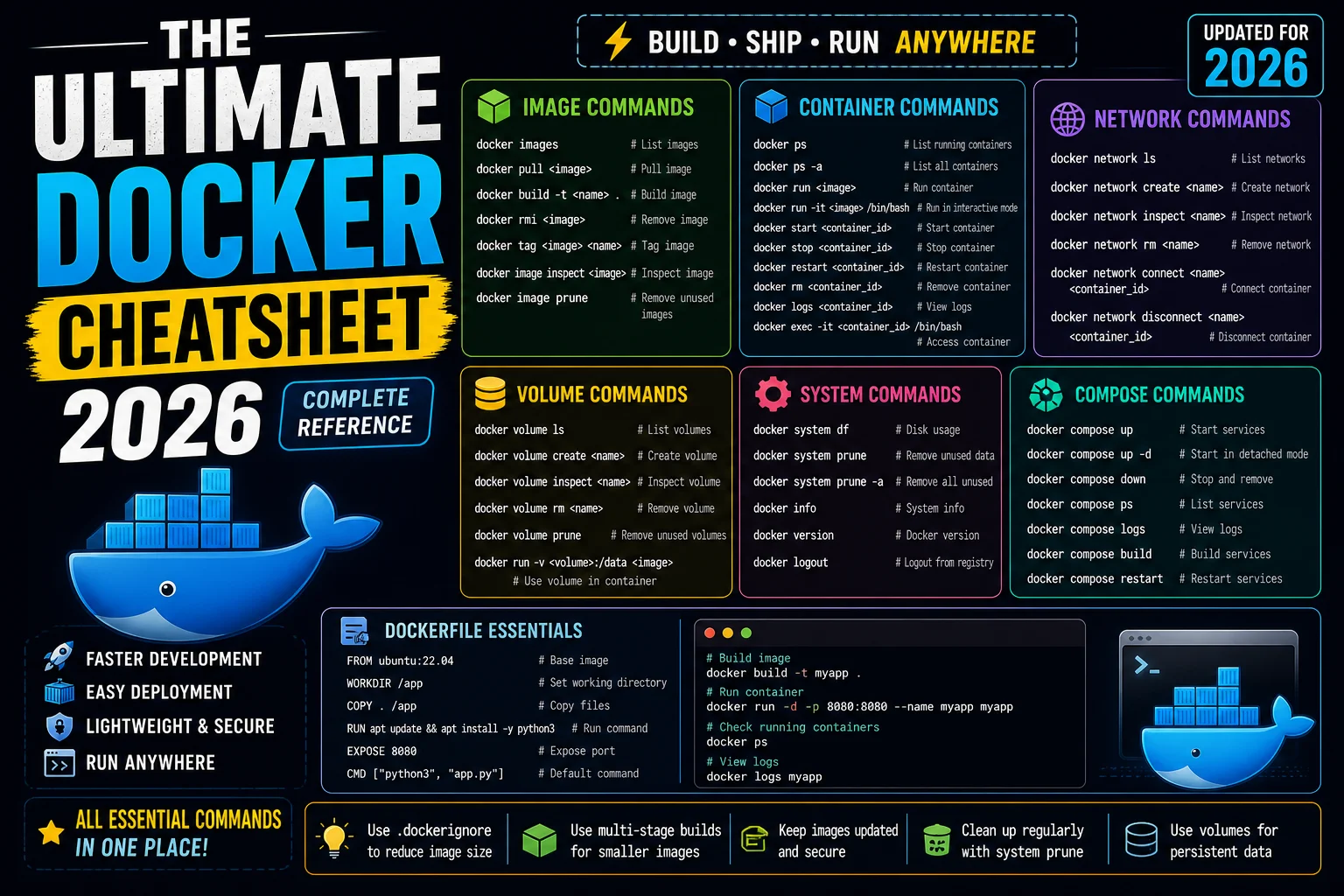
Last Updated: May 03 2026
Picture this: you’ve just cloned a repository, followed the README setup steps, and now you’re staring at a docker: command not found error — or worse, a container that silently exits the moment it starts. Sound familiar?
Docker changed how we build, ship, and run software. But its command-line interface has hundreds of flags, and the official docs, while thorough, aren’t exactly light reading when you just need to know how to get inside a running container. That’s exactly why this Ultimate Docker cheatsheet exists.
This isn’t a generic command dump. Every section is written the way a developer actually thinks when working — starting from the basics, building to real-world patterns, with honest explanations of what each command actually does and when you’d reach for it. Whether you’re brand new to Docker or you’ve been using it for years and keep Googling the same flag — this guide has you covered.
Table of Contents
1. What Is Docker (And Why It Actually Matters)?

Docker is a platform that lets you package your application — along with everything it needs to run (runtime, libraries, config files) — into a single, portable unit called a container. That container runs the same way on your laptop, your colleague’s machine, and your production server in the cloud.
Before Docker, the classic developer nightmare was: “it works on my machine.” Every environment was slightly different. Node versions clashed. Python dependencies conflicted. Config files were in different places. Docker eliminates all of that by packaging the environment itself.
Here’s the mental model that helped me most: think of a container like a shipping container. You pack everything into it — cargo, packing material, labels — and it travels the same way whether it’s on a ship, truck, or train. The transport infrastructure doesn’t need to know what’s inside. Docker is that shipping standard for software.
The difference between Docker and a virtual machine (VM)? A VM virtualizes an entire operating system. A container shares the host OS kernel but isolates the application’s user space — making containers dramatically faster to start (seconds vs. minutes) and far lighter on resources.
2. Core Concepts You Must Understand First
Before commands make sense, you need to be fluent in Docker’s vocabulary. These six terms are the foundation of everything else.
Image
A Docker image is a read-only blueprint for a container. It contains your application code, dependencies, environment variables, and instructions for how to start the app. Think of it as a snapshot or a class in object-oriented programming — you never run an image directly; you instantiate it into a container.
Container
A container is a running instance of an image. It’s the live, executable environment where your application actually runs. You can have multiple containers running from the same image simultaneously, each fully isolated from the others.
Dockerfile
A Dockerfile is a plain-text script containing a series of instructions that Docker follows to build an image. It starts from a base image, adds your code, installs dependencies, and defines how the app starts. Think of it as a recipe.
Docker Hub / Registry
A registry is a storage and distribution system for Docker images. Docker Hub is the default public registry — it hosts thousands of official and community images (nginx, postgres, node, python, etc.) that you can pull and use immediately.
Volume
A volume is persistent storage that exists outside the container’s lifecycle. When a container is deleted, its file system disappears — but data stored in a volume survives. Essential for databases and any stateful application.
Docker Compose
Docker Compose is a tool for defining and running multi-container applications using a single YAML file (docker-compose.yml). Instead of running five separate docker run commands with different flags, you define everything in one file and start it all with docker compose up.
3. Installation & Initial Setup
Quick Install
# macOS — install Docker Desktop (includes Docker Compose)
# Download from: https://www.docker.com/products/docker-desktop/

# Ubuntu/Debian (one-liner convenience script)
curl -fsSL https://get.docker.com | sh

# Add your user to the docker group (avoid needing sudo every time)
sudo usermod -aG docker $USER
# Log out and back in for this to take effect

# Verify installation
docker --version
docker compose version

# Run the classic hello-world container to confirm everything works
docker run hello-world
System Info & Status
# Full Docker system information (engine version, OS, resources)
docker info

# Disk usage — how much space images, containers, volumes are using
docker system df

# Verbose disk usage breakdown
docker system df -v
4. Working with Images
Images are the starting point for everything. Here’s how to find, pull, inspect, build, and manage them.
Finding & Pulling Images
# Search Docker Hub for an image
docker search nginx

# Pull the latest version of an image
docker pull nginx

# Pull a specific version/tag (always prefer explicit tags in production)
docker pull nginx:1.25-alpine
docker pull node:20-slim
docker pull python:3.12

# Pull from a private registry
docker pull myregistry.company.com/my-app:v2.1
Listing & Inspecting Images
# List all local images
docker images
docker image ls  # same thing

# Show all images including intermediate layers
docker images -a

# Show only image IDs (useful for scripting)
docker images -q

# Detailed JSON metadata about an image
docker inspect nginx

# Show the build history / layers of an image
docker history nginx

# Show image size, creation date, tags
docker image ls --format "table {{.Repository}}\t{{.Tag}}\t{{.Size}}\t{{.CreatedAt}}"
Building Images
# Build an image from a Dockerfile in the current directory
docker build -t my-app:1.0 .

# Build from a Dockerfile at a specific path
docker build -t my-app:1.0 -f ./docker/Dockerfile .

# Build with build arguments
docker build --build-arg NODE_ENV=production -t my-app:prod .

# Build without using cache (forces fresh download of all layers)
docker build --no-cache -t my-app:fresh .

# Multi-platform build (requires buildx)
docker buildx build --platform linux/amd64,linux/arm64 -t my-app:multi --push .

# Tag an existing image with a new name
docker tag my-app:1.0 myrepo/my-app:latest

# Remove an image
docker rmi nginx
docker image rm nginx:1.24
5. Running & Managing Containers
The docker run command is the one you’ll use most. It has a lot of flags — here’s what each one actually does.
docker run — The Essential Flags
# Run a container (foreground, blocking)
docker run nginx

# Run detached (background) — you get back your terminal
docker run -d nginx

# Run with a human-readable name (instead of random ID)
docker run -d --name my-web nginx

# Map host port 8080 to container port 80
docker run -d -p 8080:80 nginx

# Run interactively with a terminal (great for exploration)
docker run -it ubuntu bash

# Run and automatically remove the container when it exits
docker run --rm ubuntu echo "hello"

# Set an environment variable
docker run -e APP_ENV=production my-app

# Mount a volume (host path : container path)
docker run -v /host/data:/container/data my-app

# Mount a named volume
docker run -v my-data:/app/data my-app

# Set memory and CPU limits
docker run -d --memory="512m" --cpus="1.0" my-app

# Connect to a specific network
docker run -d --network my-network my-app

# Run as a specific user (security best practice)
docker run --user 1001:1001 my-app

# Set a restart policy
docker run -d --restart=always nginx   # always restart
docker run -d --restart=unless-stopped nginx  # restart unless manually stopped
docker run -d --restart=on-failure:3 nginx    # retry up to 3 times
Listing & Inspecting Containers
# List running containers
docker ps

# List all containers including stopped ones
docker ps -a

# Show only container IDs (useful for piping to other commands)
docker ps -q

# Inspect full container metadata (IP, mounts, env vars, etc.)
docker inspect my-container

# Get just the container's IP address
docker inspect -f '{{range.NetworkSettings.Networks}}{{.IPAddress}}{{end}}' my-container

# View container resource usage live (like top for containers)
docker stats
docker stats my-container

# View port mappings
docker port my-container
Container Lifecycle
# Stop a container gracefully (sends SIGTERM, waits 10s, then SIGKILL)
docker stop my-container

# Stop immediately (SIGKILL — no graceful shutdown)
docker kill my-container

# Start a stopped container
docker start my-container

# Restart a container
docker restart my-container

# Pause / unpause a container (freezes processes, keeps state)
docker pause my-container
docker unpause my-container

# Remove a stopped container
docker rm my-container

# Remove a running container forcefully
docker rm -f my-container

# Stop all running containers
docker stop $(docker ps -q)

# Remove all stopped containers
docker container prune
Exec, Logs & Copy
# Get an interactive shell inside a running container
docker exec -it my-container bash
docker exec -it my-container sh  # if bash isn't available

# Run a single command inside a container
docker exec my-container ls /app

# Run as root inside a container (useful for debugging)
docker exec -it --user root my-container bash

# View container logs
docker logs my-container

# Stream logs in real time
docker logs -f my-container

# Show last 50 lines
docker logs --tail 50 my-container

# Show logs with timestamps
docker logs -t my-container

# Copy a file FROM a container to your host
docker cp my-container:/app/config.json ./config.json

# Copy a file TO a container from your host
docker cp ./local-file.txt my-container:/app/local-file.txt
6. Writing a Dockerfile
A well-written Dockerfile is the difference between a 1.5 GB image that takes forever to build and a 120 MB image that builds in seconds. Here are the instructions you need to know, plus a production-ready example.
Dockerfile Instructions Reference
| Instruction | What It Does |
|---|---|
FROM | Sets the base image. Every Dockerfile starts with this. |
WORKDIR | Sets the working directory for subsequent instructions. |
COPY | Copies files from your build context into the image. |
ADD | Like COPY but also unpacks archives and fetches URLs. Use COPY unless you need these extras. |
RUN | Executes a command during the build, creating a new layer. |
ENV | Sets environment variables available at build time and runtime. |
ARG | Build-time variable only — not available at runtime. |
EXPOSE | Documents which port the container listens on (doesn’t publish it). |
CMD | Default command to run when the container starts. Can be overridden. |
ENTRYPOINT | Sets the main executable. CMD becomes arguments to ENTRYPOINT. |
VOLUME | Marks a directory as a mount point for persistent data. |
USER | Switches to a non-root user for subsequent instructions. |
Production-Ready Node.js Dockerfile (Multi-Stage)
# ── Stage 1: Install dependencies ──────────────────────────
FROM node:20-alpine AS deps
WORKDIR /app
COPY package*.json ./
RUN npm ci --only=production

# ── Stage 2: Build the application ─────────────────────────
FROM node:20-alpine AS builder
WORKDIR /app
COPY package*.json ./
RUN npm ci
COPY . .
RUN npm run build

# ── Stage 3: Production image (lean final image) ───────────
FROM node:20-alpine AS runner
WORKDIR /app

# Security: run as non-root user
RUN addgroup --system appgroup && adduser --system --ingroup appgroup appuser

# Copy only what's needed to run the app
COPY --from=deps /app/node_modules ./node_modules
COPY --from=builder /app/dist ./dist
COPY --from=builder /app/package.json .

USER appuser

EXPOSE 3000

# Use ENTRYPOINT for the binary, CMD for default arguments
ENTRYPOINT ["node"]
CMD ["dist/index.js"]
The multi-stage pattern here is the single biggest thing you can do for image size. By separating the build environment from the runtime environment, you avoid shipping compilers, dev dependencies, and build artifacts into production. This pattern routinely cuts image sizes by 60–80%.
The .dockerignore File
Always include a .dockerignore file in your project root. It works like .gitignore and prevents unnecessary files from being sent to the Docker build daemon.
# .dockerignore
node_modules
npm-debug.log
.git
.gitignore
.env
.env.*
*.md
dist
coverage
.DS_Store
Dockerfile*
docker-compose*
7. Volumes & Persistent Data
By default, any data written inside a container is lost when the container is removed. Volumes solve this. Docker has three types of mounts worth knowing.
| Type | Syntax | Best For |
|---|---|---|
| Named Volume | -v my-data:/app/data | Production databases, persistent app data |
| Bind Mount | -v /host/path:/container/path | Local dev (live code reload) |
| tmpfs Mount | --tmpfs /tmp | Sensitive data that shouldn’t touch disk |
# Create a named volume
docker volume create my-data

# List all volumes
docker volume ls

# Inspect a volume (see its mount point on the host)
docker volume inspect my-data

# Use a named volume when running a container
docker run -d -v my-data:/var/lib/postgresql/data postgres:16

# Use a bind mount for local development (live reload)
docker run -d -v $(pwd):/app -p 3000:3000 my-dev-image

# Read-only bind mount (container can't modify host files)
docker run -v $(pwd)/config:/app/config:ro my-app

# Remove a specific volume
docker volume rm my-data

# Remove all unused volumes (be careful — this is destructive)
docker volume prune
8. Docker Networking
Docker networking is one of those topics that feels confusing until it suddenly clicks. The key insight: containers on the same custom network can find each other by name. Containers on different networks (or the default bridge) cannot.
Default Network Types
| Driver | Behavior | Use Case |
|---|---|---|
bridge | Default. Containers get private IPs, can reach each other. | Single-host multi-container apps |
host | Container shares host’s network stack. No isolation. | Max network performance, Linux only |
none | No network access at all. | Security-sensitive isolated workloads |
overlay | Multi-host networking for Docker Swarm. | Distributed apps across multiple hosts |
# List all networks
docker network ls

# Create a custom bridge network
docker network create my-network

# Create with a specific subnet
docker network create --subnet=172.20.0.0/16 my-network

# Connect a running container to a network
docker network connect my-network my-container

# Disconnect a container from a network
docker network disconnect my-network my-container

# Inspect a network (see connected containers and config)
docker network inspect my-network

# Remove a network
docker network rm my-network

# Remove all unused networks
docker network prune

# Run two containers on the same network — they can ping each other by name
docker run -d --name db --network my-network postgres:16
docker run -d --name app --network my-network -e DB_HOST=db my-app
# Inside "app", you can now connect to "db" using the hostname "db"
9. Docker Compose
Docker Compose is where things really get practical for day-to-day development. Instead of remembering a dozen flags for every service, you define everything once and spin it all up with a single command.
Essential Compose Commands
# Start all services (attach to logs)
docker compose up

# Start detached (background)
docker compose up -d

# Start and rebuild images first
docker compose up -d --build

# Stop all services (keeps containers and volumes)
docker compose stop

# Stop and remove containers, networks (keeps volumes)
docker compose down

# Stop and remove EVERYTHING including volumes (destructive!)
docker compose down -v

# View logs for all services
docker compose logs

# Follow logs in real time
docker compose logs -f

# Logs for a specific service
docker compose logs -f app

# List running services
docker compose ps

# Scale a service to multiple instances
docker compose up -d --scale app=3

# Execute a command in a running service container
docker compose exec app bash
docker compose exec db psql -U postgres

# Restart a specific service
docker compose restart app

# Pull latest images for all services
docker compose pull

# Validate your compose file for syntax errors
docker compose config
A Production-Grade docker-compose.yml Example
version: '3.9'

services:
  app:
    build:
      context: .
      dockerfile: Dockerfile
      target: runner
    container_name: my-app
    ports:
      - "3000:3000"
    environment:
      - NODE_ENV=production
      - DATABASE_URL=postgresql://postgres:${DB_PASSWORD}@db:5432/mydb
    env_file:
      - .env
    depends_on:
      db:
        condition: service_healthy
    networks:
      - app-network
    restart: unless-stopped

  db:
    image: postgres:16-alpine
    container_name: my-db
    environment:
      POSTGRES_DB: mydb
      POSTGRES_USER: postgres
      POSTGRES_PASSWORD: ${DB_PASSWORD}
    volumes:
      - postgres-data:/var/lib/postgresql/data
    networks:
      - app-network
    healthcheck:
      test: ["CMD-SHELL", "pg_isready -U postgres"]
      interval: 10s
      timeout: 5s
      retries: 5
    restart: unless-stopped

  redis:
    image: redis:7-alpine
    container_name: my-redis
    volumes:
      - redis-data:/data
    networks:
      - app-network
    restart: unless-stopped

volumes:
  postgres-data:
  redis-data:

networks:
  app-network:
    driver: bridge
A few things worth noting in this example: the depends_on with condition: service_healthy means the app won’t start until the database is actually accepting connections (not just started). The healthcheck on the db service makes this possible. This pattern prevents the classic race condition where your app crashes on startup because the database isn’t ready yet.
10. Docker Registry & Image Sharing
# Log in to Docker Hub
docker login

# Log in to a private registry
docker login myregistry.company.com

# Push an image to Docker Hub
# Format: docker push username/image-name:tag
docker tag my-app:1.0 myusername/my-app:1.0
docker push myusername/my-app:1.0

# Push to a private registry
docker tag my-app:1.0 myregistry.company.com/my-app:1.0
docker push myregistry.company.com/my-app:1.0

# Pull from a private registry
docker pull myregistry.company.com/my-app:1.0

# Save an image to a tar file (for air-gapped environments)
docker save -o my-app.tar my-app:1.0

# Load an image from a tar file
docker load -i my-app.tar

# Log out
docker logout
11. Debugging & Troubleshooting
When things go wrong — and they will — here’s the playbook. Bookmark this section.
Container Won’t Start?
# Step 1: Check all containers including stopped ones
docker ps -a

# Step 2: Check exit code and last logs
docker logs my-container

# Step 3: Inspect the container for config issues
docker inspect my-container

# Step 4: Try running interactively to see startup errors
docker run -it --entrypoint sh my-app

# Step 5: Check if a port is already in use on the host
lsof -i :8080   # macOS/Linux
netstat -ano | findstr :8080  # Windows
Common Container Issues & Fixes
| Problem | Likely Cause | What to Do |
|---|---|---|
| Container exits immediately | Main process exited | Run with -it, check logs |
| Port already in use | Host port conflict | Use a different host port or stop conflicting service |
| Permission denied on volume | UID mismatch | Match container USER to file ownership |
| Can’t connect to database | Network isolation | Put both containers on the same network |
| Image pull fails | Wrong tag or auth | Check tag exists on registry, docker login |
| Out of disk space | Accumulated images/containers | docker system prune -a |
Network Debugging
# Test connectivity between containers using a debug container
docker run --rm --network my-network nicolaka/netshoot \
  curl -s http://my-app:3000/health

# DNS resolution inside a container
docker exec my-container nslookup db

# Ping between containers
docker exec my-app ping db

# Check what's listening inside a container
docker exec my-container netstat -tlnp
docker exec my-container ss -tlnp  # newer systems
12. Cleanup & Maintenance
Docker loves to accumulate disk space. Run these regularly — or set up a cron job for the nuke command on dev machines.
# Remove all stopped containers
docker container prune

# Remove dangling images (untagged layers not referenced by any container)
docker image prune

# Remove ALL unused images (not just dangling) — frees a lot of space
docker image prune -a

# Remove unused volumes
docker volume prune

# Remove unused networks
docker network prune

# ☢️ THE NUCLEAR OPTION — removes everything unused at once
# (stopped containers, unused networks, dangling images, build cache)
docker system prune

# Nuclear option + removes ALL unused images (not just dangling)
docker system prune -a

# Nuclear option + removes volumes too (DATA LOSS WARNING)
docker system prune -a --volumes

# Remove a specific image
docker rmi my-app:old-version

# Remove all images matching a pattern (be careful)
docker images | grep "my-app" | awk '{print $3}' | xargs docker rmi
13. Security Best Practices

Docker security isn’t just for enterprise teams. These habits matter even on a personal project — especially if you ever push to a shared environment.
The Non-Negotiable Rules
- Never run as root. Always add a non-root user in your Dockerfile with
USER. Running as root inside a container can translate to root on the host if there’s a breakout. - Never put secrets in your Dockerfile or image. They’ll be visible in layer history. Use environment variables, Docker secrets, or a secrets manager at runtime.
- Use specific image tags, not
:latest.latestchanges without warning and makes deployments non-reproducible. - Use minimal base images. Alpine-based images (
node:20-alpine,python:3.12-slim) have far fewer vulnerabilities than full OS images. - Scan images for vulnerabilities. Docker Desktop has a built-in scanner. Trivy is excellent for CI pipelines.
Security Commands
# Scan an image for vulnerabilities (Docker Desktop)
docker scout quickview my-app:1.0
docker scout cves my-app:1.0

# Scan with Trivy (install separately)
trivy image my-app:1.0

# Run a container with a read-only root filesystem
docker run --read-only -d my-app

# Drop all Linux capabilities (most apps don't need them)
docker run --cap-drop=ALL my-app

# Add only the specific capability you need
docker run --cap-drop=ALL --cap-add=NET_BIND_SERVICE my-app

# Run with a security opt profile
docker run --security-opt=no-new-privileges my-app

# Limit PID count (prevents fork bomb attacks)
docker run --pids-limit=100 my-app
14. Pro Tips & Power-User Tricks

Aliases That Save Time Every Day
# Add to ~/.bashrc or ~/.zshrc
alias d='docker'
alias dps='docker ps'
alias dpsa='docker ps -a'
alias di='docker images'
alias dlog='docker logs -f'
alias dexec='docker exec -it'
alias dstop='docker stop $(docker ps -q)'
alias dclean='docker system prune -f'

# Docker Compose shortcuts
alias dc='docker compose'
alias dcu='docker compose up -d'
alias dcd='docker compose down'
alias dcl='docker compose logs -f'
alias dcr='docker compose restart'
Formatting Output
# Custom table format for docker ps
docker ps --format "table {{.Names}}\t{{.Status}}\t{{.Ports}}"

# Just container names and status
docker ps --format "{{.Names}}: {{.Status}}"

# All image names and sizes
docker images --format "{{.Repository}}:{{.Tag}} — {{.Size}}"
Useful One-Liners
# Get the IP address of a container
docker inspect -f '{{range.NetworkSettings.Networks}}{{.IPAddress}}{{end}}' my-container

# Tail logs from all containers whose names contain "app"
docker ps --format "{{.Names}}" | grep app | xargs -I {} docker logs -f {}

# Remove all containers with a specific status
docker rm $(docker ps --filter status=exited -q)

# Watch docker stats refreshing every second
watch -n1 docker stats --no-stream

# Quick shell into a new throwaway container on the same network as another
docker run --rm -it --network container:my-container nicolaka/netshoot

# See what changed in a container's filesystem vs its image
docker diff my-container

# Commit a container's current state as a new image (useful for debugging snapshots)
docker commit my-container my-app:debug-snapshot
BuildKit — Enable Faster Builds
# Enable BuildKit for significantly faster builds with better caching
DOCKER_BUILDKIT=1 docker build -t my-app .

# Or set it permanently in your shell profile
export DOCKER_BUILDKIT=1

# BuildKit enables mount cache — massively speeds up dependency installs
# In Dockerfile:
RUN --mount=type=cache,target=/root/.npm \
    npm ci
❓ Frequently Asked Questions (FAQ)
What is the difference between a Docker image and a container?
A Docker image is a read-only blueprint — a snapshot of your application, its code, runtime, libraries, and config. A container is a running (or stopped) instance of that image. The relationship is like a class and an object in programming: the image is the class definition; the container is the live instance. You can run dozens of containers from the same image simultaneously, each isolated from the others.
What’s the difference between CMD and ENTRYPOINT in a Dockerfile?
CMD sets the default command that runs when a container starts — but it can be completely overridden by passing a command at the end of docker run. ENTRYPOINT sets the main executable that always runs; anything in CMD (or passed via docker run) becomes arguments to it. A common pattern: use ENTRYPOINT for the binary (node, python, nginx) and CMD for default arguments (server.js, app.py). This lets you override just the arguments without changing the command itself.
How do I persist data when a Docker container is deleted?
Use volumes. Docker volumes store data outside the container’s writable layer, so the data survives container deletion. For databases and persistent app state, use named volumes (-v my-data:/var/lib/data) — Docker manages their location. For local development where you want to edit code and see changes immediately, use bind mounts (-v $(pwd):/app) to map a host directory into the container.
How do I make two Docker containers talk to each other?
Put both containers on the same custom user-defined network. On a custom bridge network, containers can reach each other using their container name as a hostname. For example: if you have a container named db on network app-net, your app container (also on app-net) can connect to it at db:5432. The default bridge network does not support DNS-based container discovery — that’s why using a custom network is best practice.
Why is my Docker image so large? How do I reduce its size?
Large images usually come from three sources: heavy base images (use Alpine or slim variants), unnecessary files being copied (use .dockerignore), and dev dependencies shipped to production. The biggest win is multi-stage builds — use one stage to compile/build, then copy only the final artifacts into a clean minimal runtime image. This regularly reduces image sizes from 1+ GB to under 100 MB. Also, chain your RUN commands with && and clean up package caches in the same layer.
When should I use Docker Compose vs plain docker run?
Use docker run for quick one-off containers, testing, or debugging. Use Docker Compose for anything involving more than one container, or whenever you need to share the setup with other people (e.g., your team, or an open-source project). Compose makes multi-service setups reproducible and version-controlled. Even for single-container apps, Compose is worth it if the docker run command is getting long with many flags — the YAML format is much easier to read and maintain.
Conclusion
Docker is one of those tools that, once you internalize it, you wonder how you ever shipped software without it. The consistency it brings to development, testing, and production environments is genuinely transformative. But like any powerful tool, it has surface area — and it’s easy to feel overwhelmed by the sheer number of commands and flags.
The good news? You don’t need to memorize all of this. What matters is understanding the model — images are blueprints, containers are instances, volumes are persistent storage, and networks control connectivity. Once that mental model is solid, the commands become intuitive rather than cryptic.
If I had to pick the five things from this docker cheatsheet to internalize first, it would be: how to write a clean Dockerfile with multi-stage builds, how to use Docker Compose for local development, how to debug a misbehaving container with logs and exec, how volumes work, and the cleanup commands so your disk doesn’t fill up.
Start there, bookmark this page for everything else, and you’ll be productive with Docker faster than you think. If there’s a command or scenario this guide is missing — leave it in the comments. This guide grows with the community.
About the Author
Kedar Salunkhe
With nearly seven years of experience building and deploying containerized applications across AWS, GCP, and on-premise environments, I have run Docker in production at every scale — from solo side projects to distributed systems handling millions of requests per day. I write to make infrastructure approachable for developers at every level. When not refactoring Dockerfiles, they’re probably reading, running, or arguing about tabs vs. spaces.
📚 Additional Resources
Want to go deeper? These are the resources worth your time — hand-picked, not just padded out.
Official Documentation
- Docker Official Docs — the authoritative reference; particularly good for Dockerfile instructions and Compose spec
- Dockerfile Best Practices (Official) — essential reading before you write your next production Dockerfile
- Docker Compose File Reference — every Compose option explained with examples